
Superbills: Edit a Superbill
Editing a superbill allows you to make quick updates to individual sessions. If you recently updated practice settings or client details, you will need to delete and re-create the document instead so those changes show up on the PDF.
In this article
- Editing Line Items on a Superbill
- When to Delete and Re-Create a Superbill
- Deleting a Superbill
- Frequently Asked Questions
- Related Resources
Editing Line Items on a Superbill
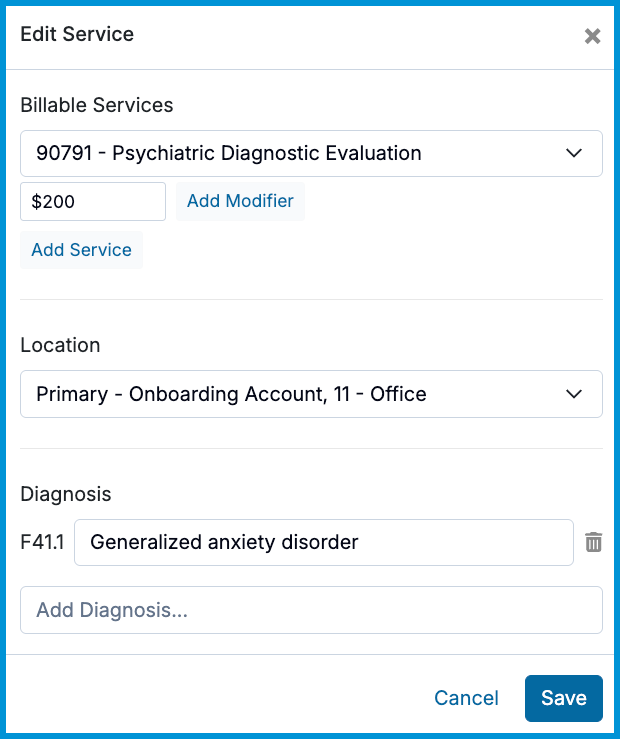
To make a quick change to a specific date of service (such as updating a diagnosis code, service fee, or modifier):
- Go to Clients > [Client Name] > Billing > Documents.
- Click on the superbill you want to edit.
- Scroll to the date of service line item you need to change.
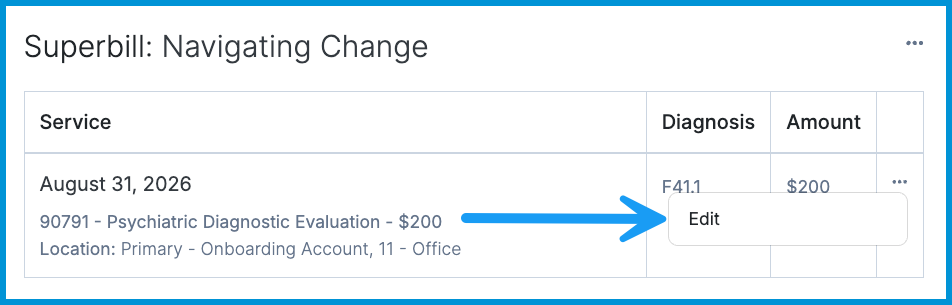
- On the far right of that line item, click the three-dot menu and select Edit.
- Make your changes in the modal and click Save.
When to Delete and Re-Create a Superbill
Because existing superbills do not automatically update when you change account settings, you will need to delete and re-create the superbill if you made updates to:
- Practice name, address, or Tax ID
- Provider details (NPI, license number, or saved signature)
- Client legal name or billing address
- Diagnosis codes updated on session notes after the superbill was created
How to Refresh a Superbill:
- Update and save your settings in your account or client chart.
- Delete the old superbill (see steps below).
- Create a new superbill (see Superbills: Create a Superbill) to generate an updated document with your new settings.
Deleting a Superbill
- Navigate to Clients > [Client Name] > Billing > Documents and click on the superbill to open it.
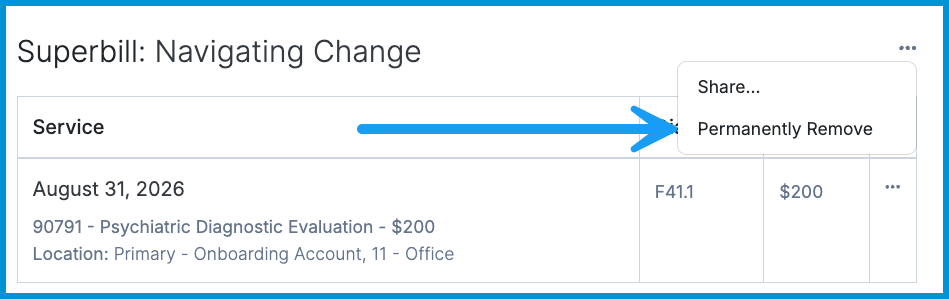
- In the top-right corner, click the three-dot menu.
- Select Permanently Remove.
- In the confirmation modal, click Remove.
ℹ️ Note: Deleting a superbill only removes that specific document. It will never delete or change client bills, payments, or clinical notes.
Frequently Asked Questions
Does deleting a superbill delete the client's bill or payment record?
No. Deleting a superbill only removes that single document. All underlying session charges, self-pay bills, and payment records remain safely in the client chart.
Can I add new session dates to an existing superbill?
No. You cannot add new dates of service to a superbill that has already been generated. Delete the current superbill and create a new one with all desired session dates selected.
Why aren't my new billing settings showing up on my superbill?
Existing superbills lock in whatever settings were active when the document was generated. Simply delete and re-create the superbill to issue an updated version with your new settings.
How do I change the "Billed To" name on a superbill?
The "Billed To" name comes directly from the Billing Contact assigned in the client chart, not from the credit card charged. To change this name, update the designated Billing Contact in the client chart, then delete and re-create the superbill so the new document pulls in the correct name.
Related Resources
For more help, see the resources below: