
Insights: Unpaid Insurance Appointments
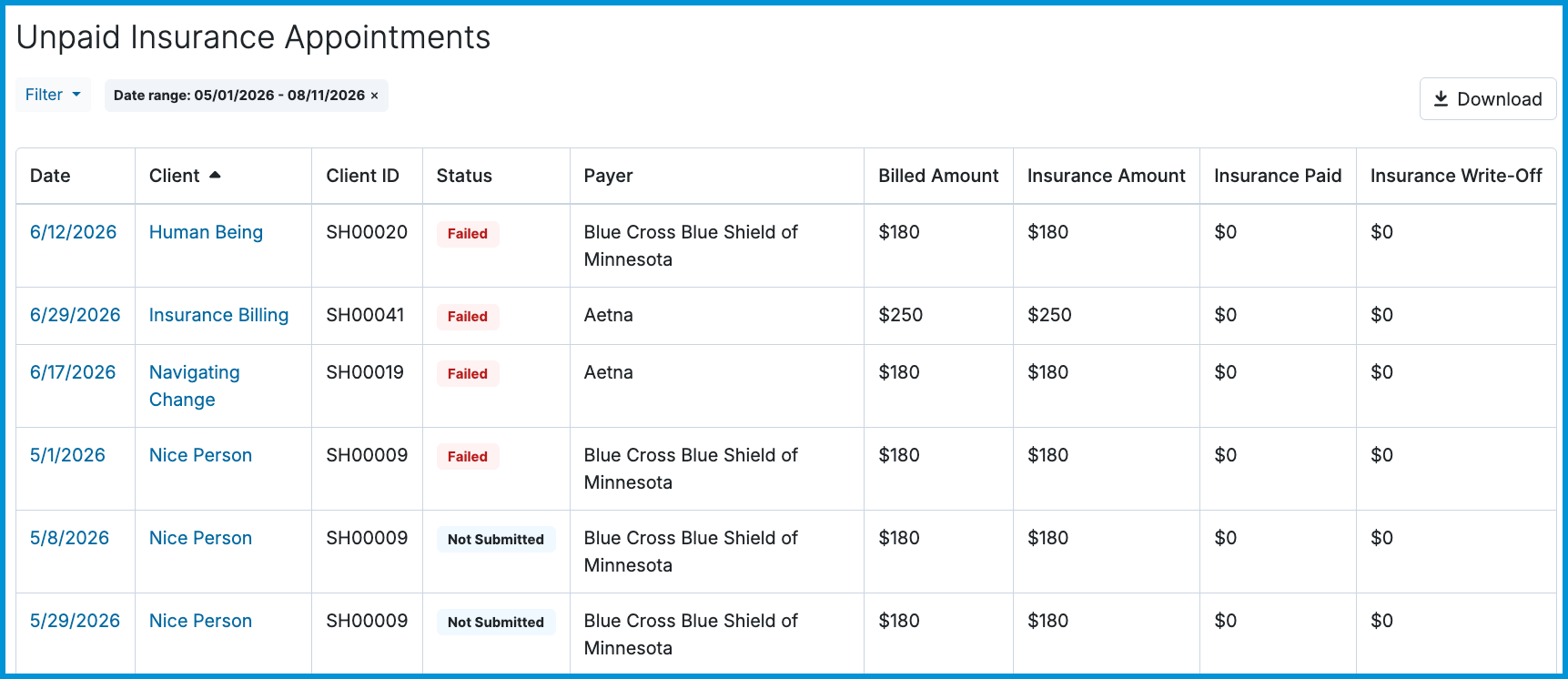
The Unpaid Insurance Appointments report offers a clear overview of clients with outstanding insurance claims or unpaid insurance sessions on their accounts. It includes essential details such as service dates, Client ID, client name, claim status, payer, billed amount, expected insurance amount, insurance paid, and write-offs to help you identify delayed payments and streamline claim follow-ups across your practice.
👀 If you don’t see the Unpaid Insurance Appointments report, your permission settings may need to be updated. Please check with your system administrator to review and adjust your access.
In this article:
- Unpaid Insurance Appointments Report Contents
- Using Report Filters
- Sorting by Column
- Downloading Unpaid Insurance Appointments Data
- Frequently Asked Questions
- Related Resources
Unpaid Insurance Appointments Report Contents
The following information is displayed on this report:
| Field | Definition |
|---|---|
| Date | The date of service for the appointment |
| Client | The client who received the service |
| Client ID | The client's assigned internal identification number. (Note: This column only displays when Manage Internal IDs for Clients is enabled under Account Settings > Clients.) |
| Status |
The current claim status: • Not Submitted: No claim has been submitted yet • Submitted: The claim has been submitted, but not yet accepted by the payer • Submitted Externally: The claim was marked as submitted outside of Sessions Health • Accepted: The claim has been accepted by the payer for processing • Approved: The claim was processed and approved by the payer • Rejected: The claim has been rejected or denied by the payer • Cancelled: The claim submission process was cancelled on the account (using Reopen for Edits or Void) • Failed: The claim was immediately rejected by the clearinghouse • Deleted: The claim was removed by a user on the account |
| Payer | The insurance company billed for the service |
| Billed Amount | The total charge billed for the session |
| Insurance Amount | The expected amount due from the insurance payer |
| Insurance Paid | The amount actually paid by the insurance company |
| Insurance Write-Off | The amount written off from the total charge due to contractual or policy terms |
Using Report Filters
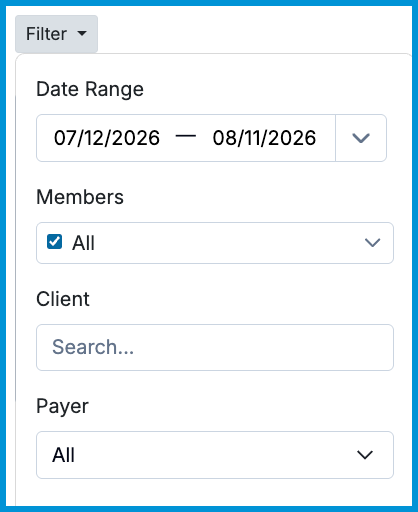
Use filters to narrow your view and focus on specific unpaid insurance data. To adjust the timeframe, filter on date fields using the drop-down menu of common periods, or select specific start and end dates. Additional filters let you refine results by practitioner (using the filter icon with three horizontal lines to the right of the date range) and client name or Client ID.
Sorting by Column
Select most column headers to sort data in ascending or descending order.
For example, sort by Date to organize appointments chronologically, by Client or Payer to group alphabetically, or by Billed Amount to identify the highest unpaid claim amounts.
Downloading Unpaid Insurance Appointments Data
To the right of the filter options, you can download the report as a .csv file by selecting the Download button. The exported CSV includes all displayed fields, including Client ID. You can exclude specific parts of the data as needed by filtering the report before selecting Download.

Frequently Asked Questions
Why don't I see the Client ID column or filter in my report?
Client ID columns and search capabilities are hidden if Manage Internal IDs for Clients is turned off. An account administrator can enable this feature under Account Settings > Clients.
Why is an appointment listed as Not Submitted?
Appointments display as Not Submitted when an insurance claim has not yet been generated or submitted for that date of service.
Can I filter unpaid insurance appointments by practitioner?
Yes. Select the filter icon (three horizontal lines) to the right of the date range to select specific practitioners or view data across multiple providers.
Related Resources
For more information about insurance billing and Insights reports, check out these resources: