
AI Treatment Summary
AI Treatment Summaries give you a quick, structured overview of a client’s treatment history. They are helpful when you need to prepare for a case consultation, transfer care to another provider, or create a clear summary at discharge. Instead of gathering information from multiple parts of the chart, you can generate a summary and edit it before signing.
In this article:
- Video Tutorial
- Creating a Treatment Summary
- Managing Treatment Summaries
- Frequently Asked Questions
- Related Resources
Video Tutorial
Watch this quick walkthrough to see how to generate, edit, and finalize an AI Treatment Summary.
Creating a Treatment Summary
Use these steps to generate a new summary and complete it for the client’s record.
- Open the client’s record and go to the Summary tab.
- Select Add, then choose Treatment Summary.
- Choose the date range and optionally add a purpose.
- Select Generate.
- Review and edit the text as needed. Use Update to have AI refine the draft.
- Select Sign & Approve, confirm your signature, then select Sign and Complete.
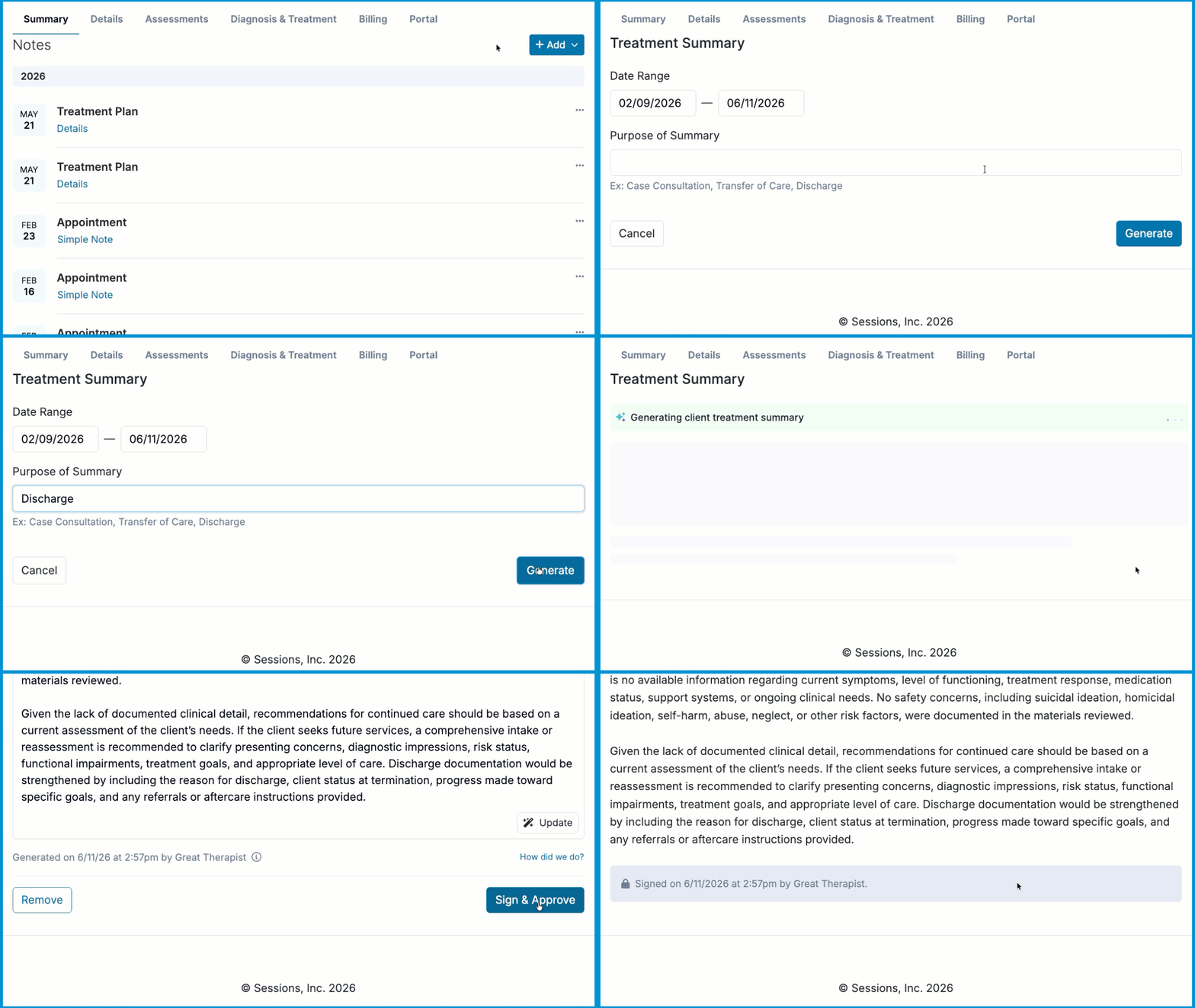
💡 Your work saves automatically as a draft until it is signed.
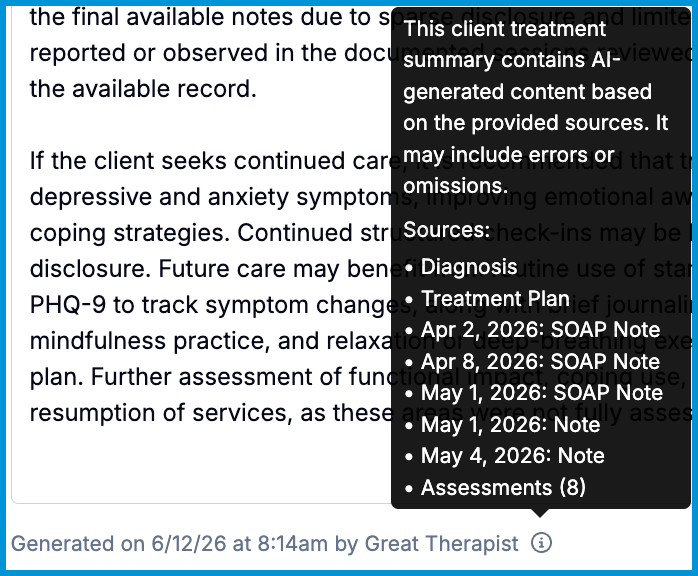
Viewing the Sources Used to Generate the Summary
The AI references assessments, diagnoses, treatment plans, and recent progress notes. You can see which chart information contributed to the draft by hovering over the info icon next to the generation details at the bottom of the editor.
Managing Treatment Summaries
Once a summary is signed, you can:
- Download it as a PDF.
- Share it with the client through the Client Portal.
- Delete it from the client record.
💡 While each client can have only one active draft at a time, you can have multiple completed treatment summaries on their chart.
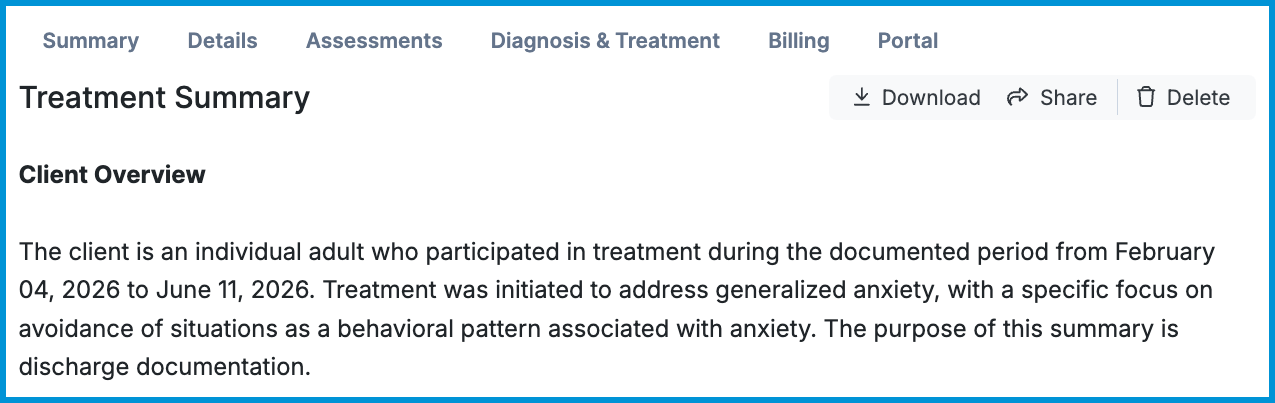
ℹ️ Once a treatment summary is signed, it cannot be edited. If changes are needed, you can delete the signed summary and generate a new one.
Frequently Asked Questions
Where can I find the sources used to generate the summary?
After generating a draft, you can review the list of the chart items that contributed to the summary. Administrative notes, cancellation notes, and clinical notes are not included in treatment summaries.
Are finalized treatment summaries included in a client’s data export?
Yes. Any finalized treatment summary is automatically included when you export a client’s data.
Why am I seeing an error when generating a treatment summary?
The date range does not include enough information. Expand the date range or complete missing chart documentation, then try again.
Related Resources
For more information about AI in Sessions Health, check out these articles: