
Superbills: Create a Superbill
Creating superbills in Sessions Health allows you to generate itemized financial and clinical statements for your clients to submit to insurance for reimbursement. You can generate superbills individually as sessions occur or create historical superbills covering extended past date ranges.
💡 Looking for automatic delivery? To learn how to schedule monthly superbill generation and auto-share them to the client portal, see our guides on Superbills: Automatic Creation and Superbills: Automatic Sharing.
ℹ️ Bill Requirement: A bill must be created for a session before it can be included on a superbill. Superbill creation does not automatically generate bills for unbilled sessions.
In this article:
- Creating a Superbill
- Creating Superbills for Imported Sessions
- Frequently Asked Questions
- Related Resources
Creating a Superbill
You can create a superbill manually using either of these methods.
Option 1: From Client Billing Documents
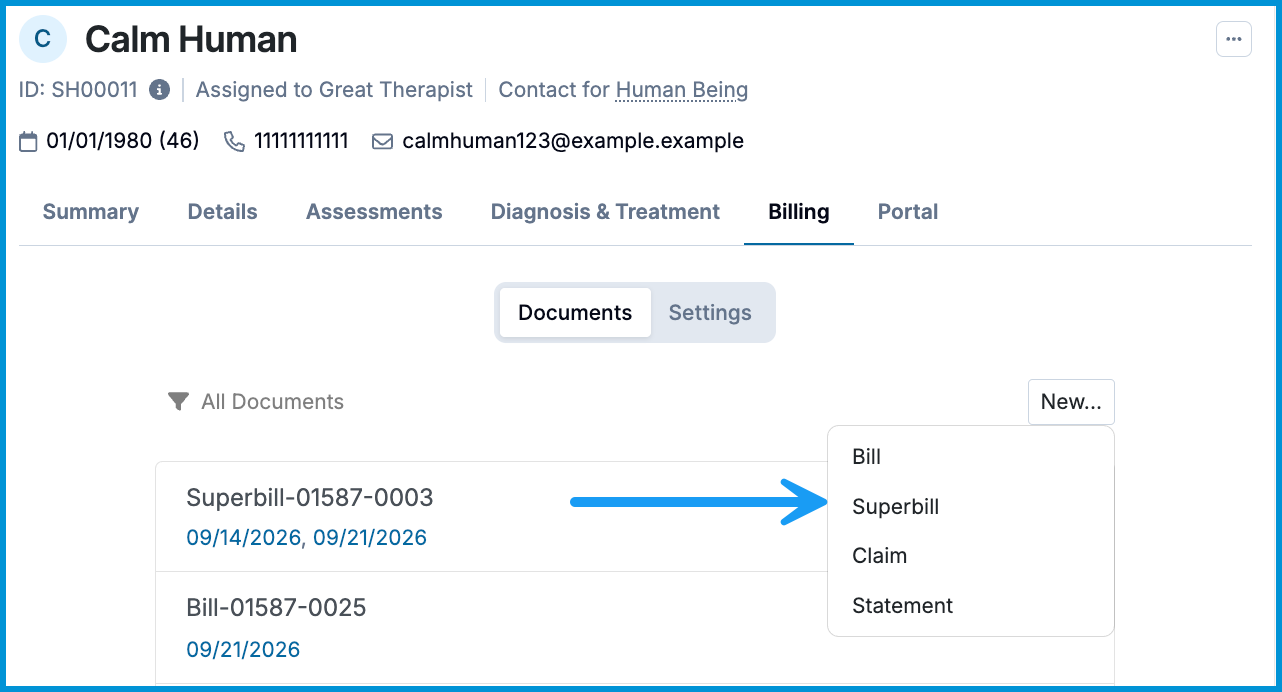
- Navigate to Clients > [Client Name] > Billing > Documents.
- Click New... and select Superbill.
- In the modal, check the boxes for the eligible services you want to include on the superbill.
- Click Create Superbill.
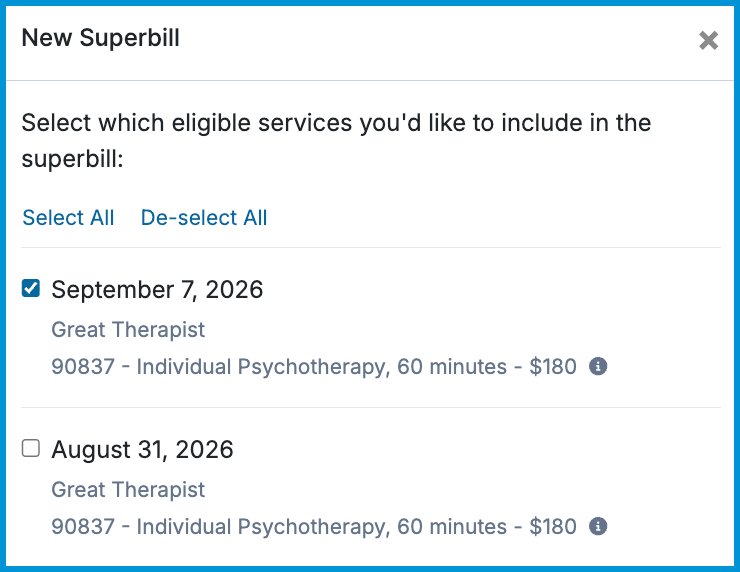
💡 Selecting Past or Specific Sessions: The modal lists all past eligible sessions chronologically. Use De-select All to clear the list, then select the specific dates of service you want included on the document. Use Select All to choose all eligible sessions at once.
Option 2: From Any Bill Details Screen
- Open any bill details screen (accessed via Clients > [Client Name] > Billing or the main Client Billing page).
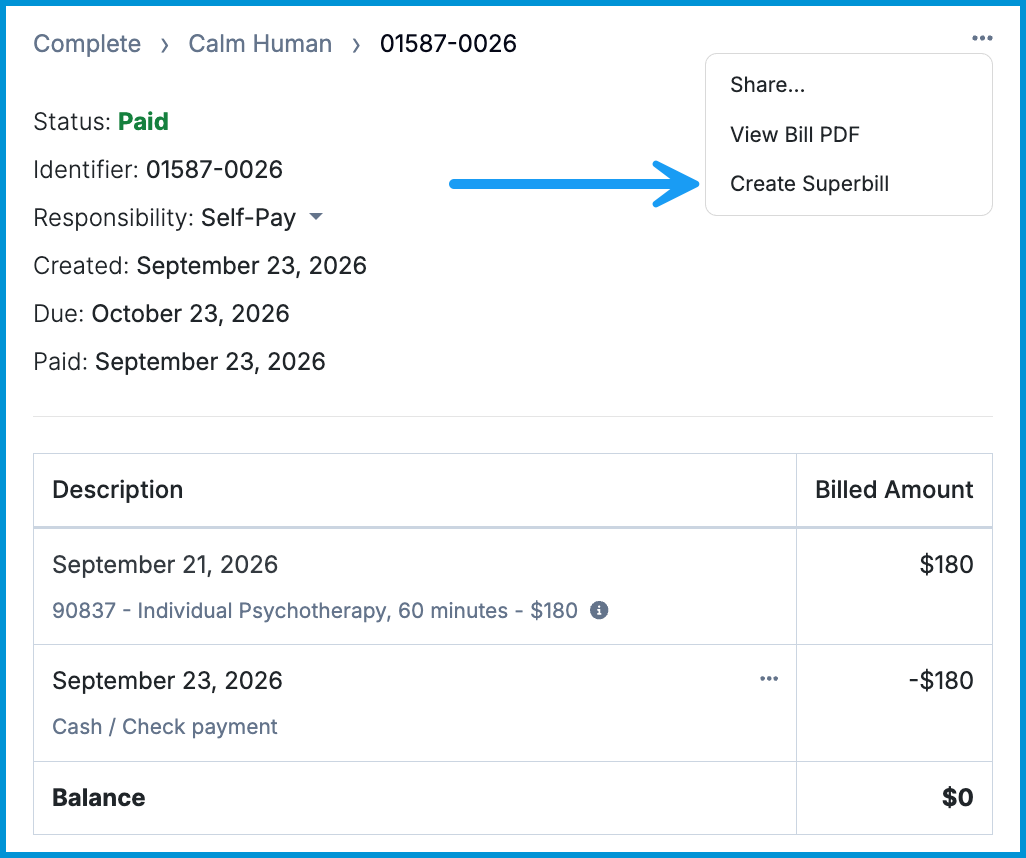
- In the upper-right corner of the bill details card, click the three-dot menu.
- Select Create Superbill.
- In the confirmation modal, click Create Superbill.
Creating Superbills for Imported Sessions
If you migrated to Sessions Health from another EHR, past imported sessions must have CPT codes attached and be billed before they can be included on a superbill. If the client already paid for those sessions in your former system, mark the bill as paid so the superbill accurately reflects payment for insurance reimbursement.
💡 Note: These extra steps are only required for historical sessions conducted in your previous EHR. Any standard sessions created directly inside Sessions Health automatically track CPT codes and payments.
Step 1: Assign CPT Codes to Imported Sessions
- Open the client chart and go to the Summary tab.
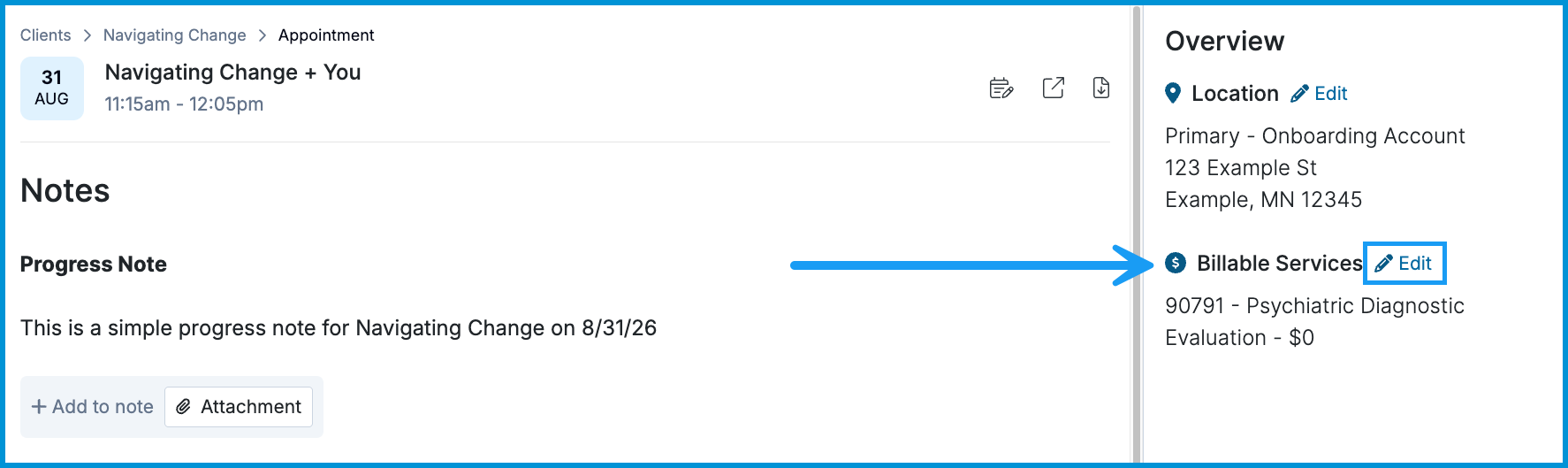
- Click the date of service for the imported appointment.
- In the Billable Services panel on the right sidebar, click Edit.
- Select the correct CPT code and fee.
- Click Save and repeat for each imported session.
Step 2: Generate the Bill and Record Past Payment
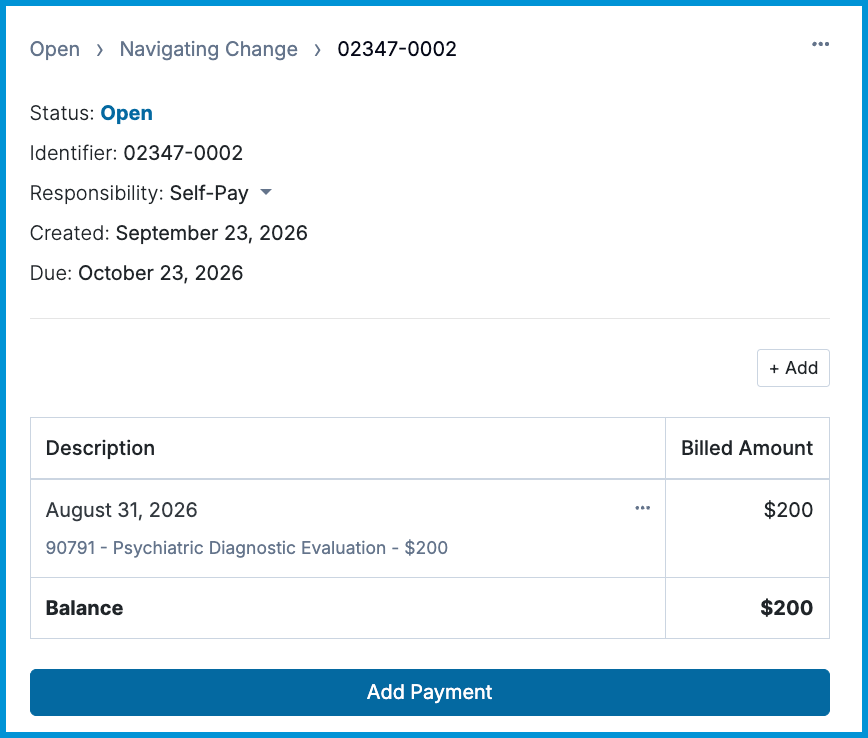
- On the same appointment details screen, click Generate Bill under Billable Services.
- Click Create Bill.
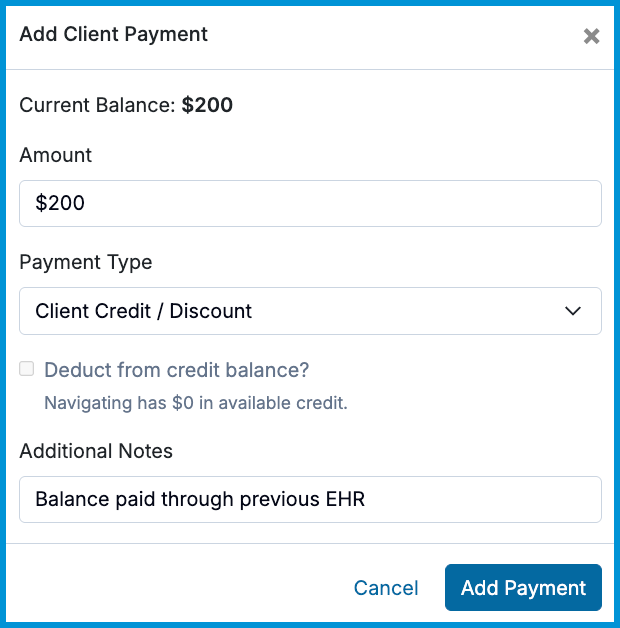
- To reflect payments previously collected in your former EHR without charging the client again, open the generated bill and click Add Payment.
- Select Client Credit/Discount as the payment type.
- Optionally add a note in Additional Notes.
- Click Add Payment.
Step 3: Generate the Superbill
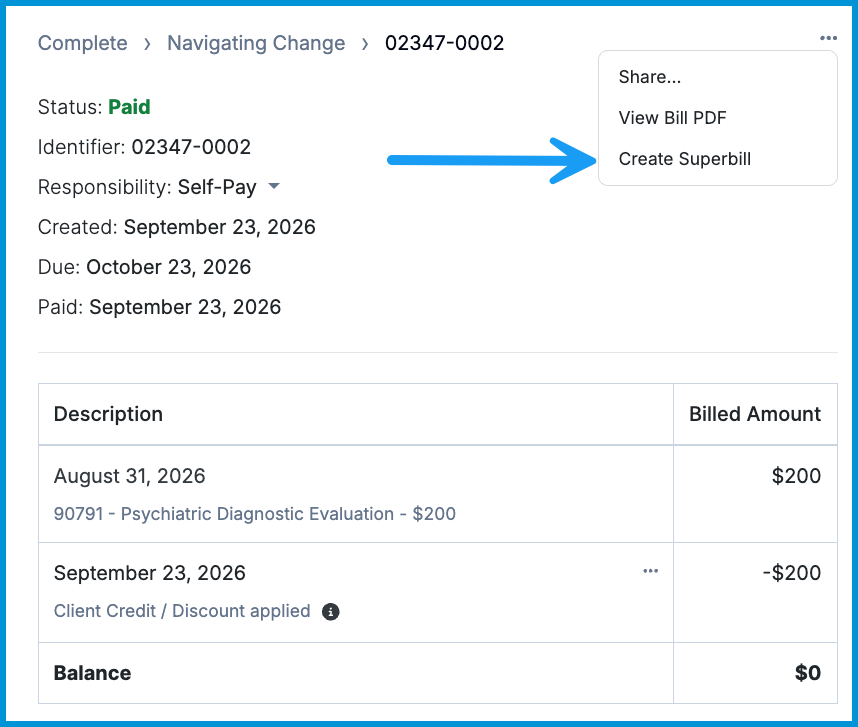
- On the bill details screen, click the three-dot menu in the upper-right corner.
- Select Create Superbill.
- In the confirmation modal, click Create Superbill.
Frequently Asked Questions
Which client name appears on the superbill?
Generated superbill PDFs use the Legal Name of the designated Billing Contact saved in the client's profile. While Sessions Health displays preferred names on screen, insurance payers require the official legal name on billing documents.
How do I change the "Billed To" name on a superbill?
The "Billed To" name comes directly from the Billing Contact assigned in the client chart, not from the credit card charged. To change this name, update the designated Billing Contact in the client chart, then delete and re-create the superbill so the new document pulls in the correct name.
What happens if I select an unbilled session when creating a superbill?
A bill must be created for a session before it can be included on a superbill. Sessions Health does not automatically generate bills for unbilled sessions during superbill creation.
Why don't I see the option to create a superbill on an individual bill?
The Create Superbill option will only appear in a bill's three-dot menu if that bill contains at least one service with an insurance-eligible CPT code attached.
Where do diagnosis codes on superbills come from?
Superbills automatically pull diagnosis codes from the completed session note for each date of service. If a diagnosis code is missing, verify that the session note has been saved.
Can I generate a superbill for a bill that hasn't been paid yet?
Yes. You can generate a superbill for unpaid bills. However, most insurance payers require the superbill to show a Total Paid balance before reimbursing the client.
How do I edit an existing superbill?
To make changes to an already created superbill, see our dedicated guide on Superbills: Edit a Superbill.
Related Resources
For more help with superbills, check out our other articles: