
Client Bills: Processing a Client Payment
Process client payments online through Stripe or record offline payments (cash, check, external) to keep client account balances updated. All unpaid bills live under Client Billing > Open and Clients > [Client Name] > Billing > Documents.
ℹ️ You can collect card payments automatically each night by enabling AutoPay. See Billing Automation: AutoPay for details.
In this article:
- Processing a Client Payment
- Handling Overpayments
- Viewing Online Payments in Stripe
- Frequently Asked Questions
- Related Resources
Processing a Client Payment
You can process a client payment using two workflows depending on whether you are paying an individual bill or applying funds across a client's total balance.
💡 Note on Insurance Bills: If a bill's responsibility is set to Insurance, selecting Add Payment prompts you to choose between a Client Payment or an Insurance Payment. See our Insurance: Remittance and Adding Insurance Payments article for details on insurance workflows.
Step 1: Choose a Payment Workflow
Option 1: Pay an Individual Bill
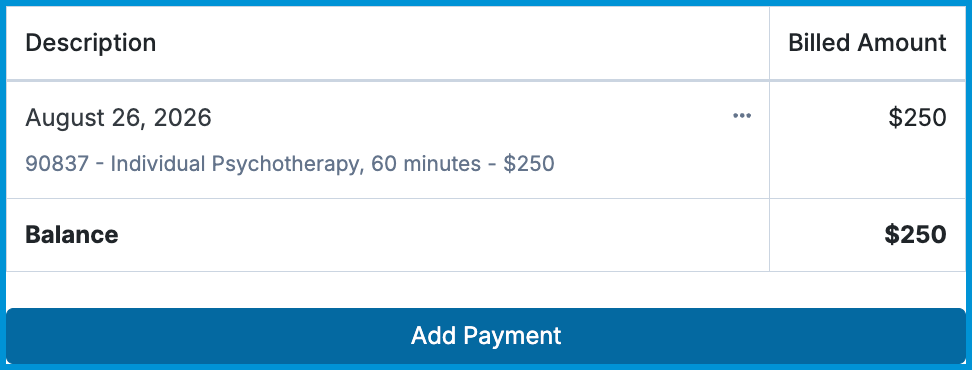
- Navigate to Client Billing > Open or Clients > [Client Name] > Billing > Documents.
- Select the bill you wish to process.
- Select Add Payment.
Option 2: Pay Across All Open Bills
- Navigate to Clients > [Client Name].
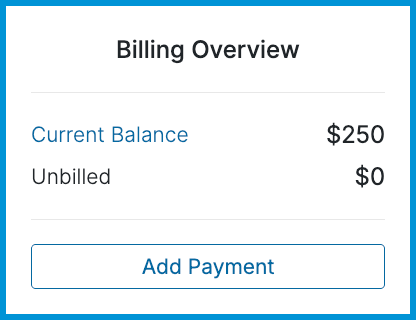
- Locate the Billing Overview panel on the right side of the screen.
- Select Add Payment.
- Enter the total payment amount. Payments entered here automatically apply to open bills, starting with the oldest.
Step 2: Enter Payment Details
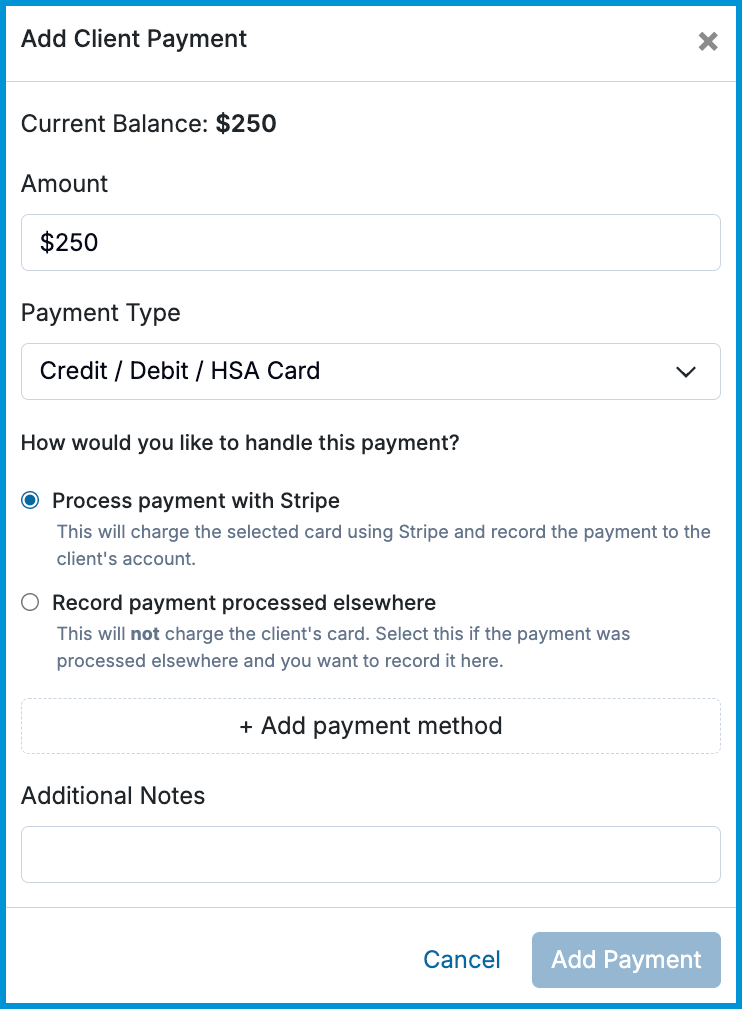
- Enter the payment Amount.
- Choose a Payment Type from the dropdown menu.
- Credit / Debit / HSA Card: Choose how to handle the payment.
- Process payment with Stripe: Select a card already on file, choose an associated contact's card (e.g., parent or guarantor), or select + Add payment method to enter a new card.
- Record payment processed elsewhere: Record an offline card payment without running a charge in Stripe. The client's card will not be charged through Stripe.
- Cash / Check: Record a cash or check payment.
- Client Credit / Discount: Check the box for Deduct from credit balance? to apply pre-existing prepaid or overpayment credits to the bill.
- Other: Enter a custom description. The description text appears directly on the payment row of the bill and client invoice.
- Credit / Debit / HSA Card: Choose how to handle the payment.
- (Optional) Adjust the Payment Date & Time if you are backdating or recording an offline payment.
- (Optional) Add any internal notes in the Additional Notes field.
- Select Add Payment.
Handling Overpayments
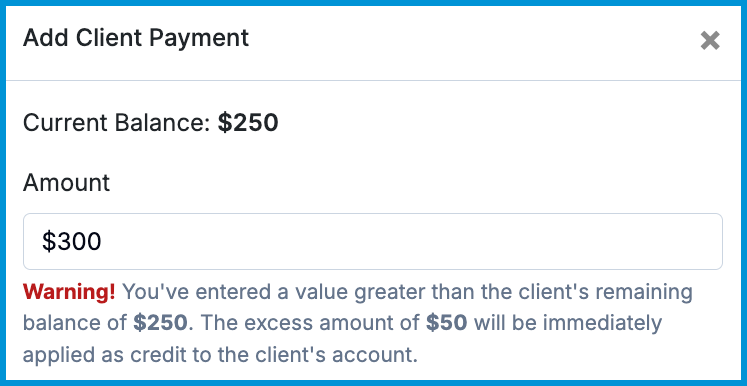
If you enter an amount greater than the bill balance, a warning message confirms that the excess will be applied as a credit.
The payment covers the bill balance, and the remaining money is automatically stored under Clients > [Client Name] > Billing for future use.
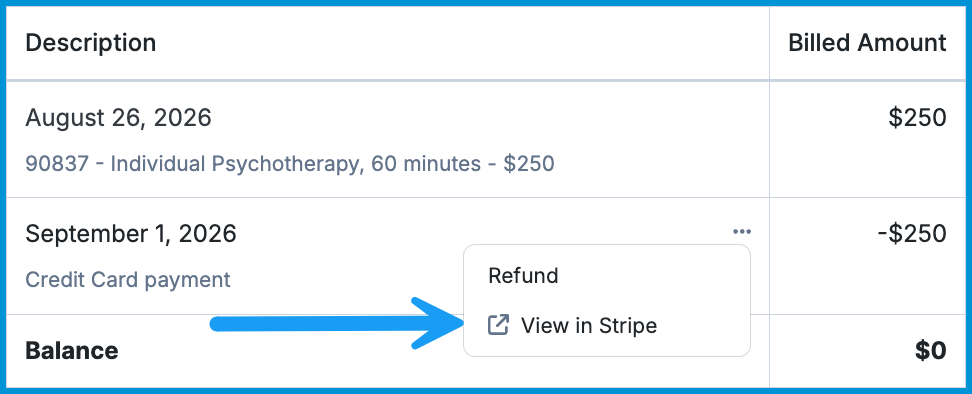
Viewing Online Payments in Stripe
To view a transaction directly inside your Stripe account:
- Open the paid bill in Client Billing or under the client's Billing tab.
- Find the credit card payment line.
- Select the three-dot menu next to the payment.
- Select View in Stripe.
Frequently Asked Questions
What happens if a client pays more than the bill balance?
The payment covers the current bill, and any extra money automatically becomes account credit for future charges.
Can contacts (such as parents or guarantors) pay for client bills using their stored card?
Yes. When you choose Process payment with Stripe, any saved cards belonging to linked contacts appear as payment options.
Where does the text entered in the "Other" payment type description field appear?
Any note you type in the Description box (e.g., Venmo, bank transfer) appears on the payment line for both the bill and the client invoice.
How do I record a payment collected outside of Sessions Health without charging the client's card through Stripe?
Select Credit / Debit / HSA Card and choose Record payment processed elsewhere, or choose Cash / Check or Other. This logs the payment in Sessions Health without running a charge through Stripe.
How do I use a client's existing credit balance to pay a bill?
In the payment window, select Client Credit / Discount as the payment type and check the box for Deduct from credit balance.
Related Resources
For more information, check out these related guides: