
Client Portal for Minors
This article explains how to manage Client Portal access for minors, including inviting a minor, granting access to parents or guardians, and controlling permissions.
💡 Many practitioners choose to give portal access to a parent or guardian rather than the minor, especially for younger children.
In this article:
- Invite a Minor to the Client Portal
- Grant Portal Access to a Parent or Guardian
- Permissions for Parent or Guardian Access
- Document and Form Visibility
- Managing Multiple Contacts
- Frequently Asked Questions
- Related Resources
Invite a Minor to the Client Portal
If a minor has their own email address on file, you can invite them to the Client Portal the same way you invite any other client.
ℹ️ A minor’s portal login is separate from any parent or guardian logins.
To invite a minor:
-
From the minor’s Client Profile, open the Portal tab.
-
Select Invite to Portal.
-
Choose the features and forms you want to include.
- Select Send Invitation.
Grant Portal Access to a Parent or Guardian
Parents and guardians can be invited at any time, whether or not the minor has their own portal access.
To invite a parent/guardian:
-
From the minor’s Client Profile, open the Portal tab.
-
Select the parent or guardian’s name from the contact tabs.
-
Enable the toggle to allow this contact to see or manage the minor’s information in the Client Portal.
-
Select Invite to Portal.
-
Choose the features, forms, and documents you want to include.
-
Select Send Invitation.
- Choose any additional permissions you want to grant for this contact.

Permissions for Parent or Guardian Access
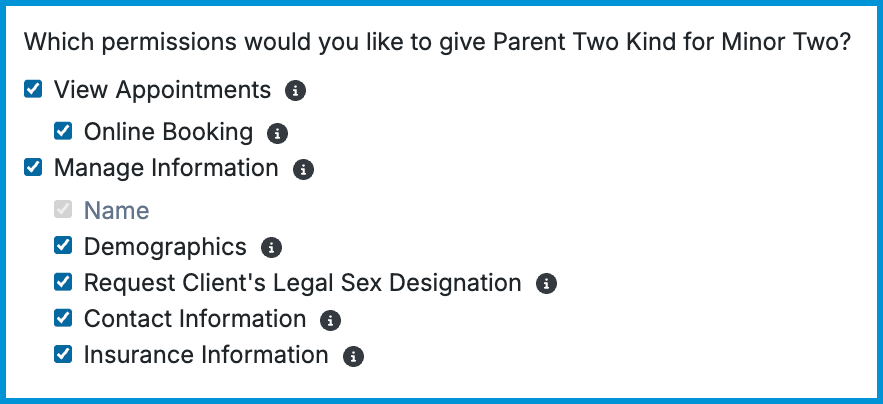
When you enable portal access for a parent or guardian, you can choose which actions they’re allowed to take on behalf of the minor.
- View Appointments: Allows them to see upcoming appointments.
- Online Booking: Allows them to request appointments.
- Manage Information: Allows them to update demographic or contact information.
- Demographics: Allows changes to birthdate and gender.
- Request Client's Legal Sex Designation: Allows them to update the minor’s legal sex designation.
- Contact Information: Allows changes to phone numbers and addresses.
- Insurance Information: Allows them to add or update insurance information.
Document and Form Visibility
Document visibility depends on who the item is assigned to and which permissions each portal user has. This is especially important when both a minor and a parent or guardian have portal access.
Key points:
- Forms assigned to the minor are visible to a parent or guardian only if they have permission to complete forms on the minor’s behalf.
- Forms and assessments assigned to a parent or guardian are not visible to the minor unless you assign them to the minor as well.
- Shared documents appear only for the specific contact(s) you select when sharing.
- Each portal user sees only what is assigned to them.
🔔 If a form contains sensitive information, send it only to the appropriate contact. This is especially important in shared‑custody situations or when a minor has their own portal access.
Managing Multiple Contacts
Some minors have more than one parent or guardian involved in their care. Each contact has their own login, permissions, and visibility settings, and these can be managed independently.
You can:
- Invite one or both contacts to the Client Portal.
- Give each contact different permissions based on your practice’s policies.
- Share forms or documents with one contact, both contacts, or the minor.
- Remove portal access for one contact without affecting the other.
ℹ️ Each parent or guardian is managed separately. Changing or removing access for one contact does not affect the other.
Frequently Asked Questions
Can a parent use the same email for multiple children?
Yes. Add the parent as an Existing Contact for each minor. They’ll see separate profiles in their portal.
What if two contacts share the same email address?
Each portal user must have their own email address. If two contacts share an email, add it only to the correct contact’s record. Leave the other contact’s email blank.
Can I remove a contact’s portal access later?
Yes. Open the contact’s profile and turn off Portal Access. This does not affect any other contacts.
Related Resources
For more information on the Client Portal and care for minors, see: