
AI‑Assisted Progress Notes
AI Assist gives you a simple way to begin your documentation, whether you use a transcript or write your own session summary. This article brings all AI‑assisted progress note workflows together in one place so you can choose the approach that best fits your session.
You can generate notes from integrated telehealth transcription, uploaded audio recordings, or a short summary written in your own words. Each option follows the same goal: helping you start your progress note quickly while keeping full control over the final draft.
In this article:
- Video Tutorial
- Using Session Transcription in Integrated Telehealth
- Uploading Audio Transcriptions
- Accessing an AI Note From a Transcript
- Generating an AI Note From a Session Summary
- Customizing AI Note Templates
- Sharing Your Feedback
- Frequently Asked Questions
- Related Resources
Video Tutorial
Learn how to generate AI‑assisted progress notes in Sessions Health using either an audio transcript or a session summary.
Using Session Transcription in Integrated Telehealth
ℹ️ Choosing Start Call will not record or transcribe your telehealth session. To generate a transcript and AI draft note, select Start Call with Transcription.
Session Transcription captures audio during a telehealth call and uses it to generate a transcript and a draft progress note after the call ends. Everything processes automatically in the background, and the audio recording is deleted immediately after processing.
ℹ️ Before using transcription:
- The client must check into the telehealth waiting room.
- Session transcription must be turned on during the call.
- The session must be close to its scheduled start time.
Starting a Call With Transcription
-
Join your telehealth session.
- Select Start Call with Transcription to begin recording and transcribing immediately.

Turning Transcription on During a Call
-
If you began the call without transcription, select Start Recording in the call toolbar.
-
You can toggle Stop Recording and Start Recording as needed throughout the session.


Accessing Your Transcript
-
After the call ends, the system begins processing the audio.
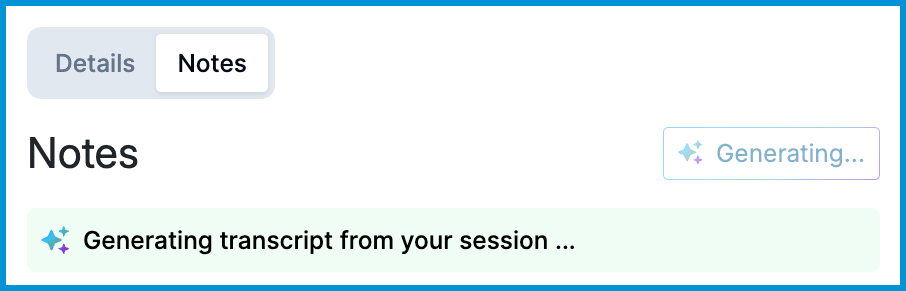
-
A transcript appears in the AI Scribe section once it is ready.
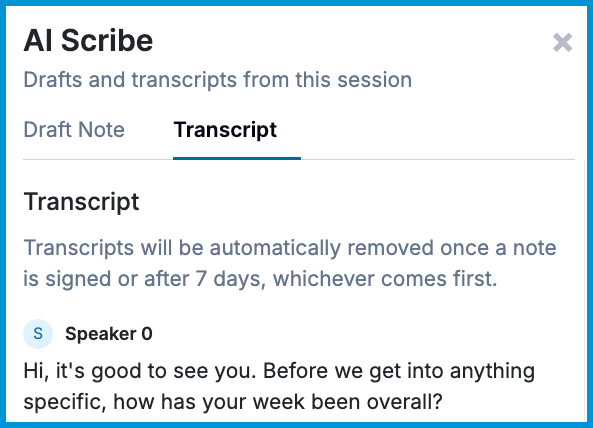
- You’ll also receive a notification when the draft note is available.
🔔 Audio is deleted immediately after transcription. Transcripts stay available for up to 7 days or until the note is signed. After that, they are permanently deleted.
Uploading Audio Transcriptions
You can upload a pre‑recorded audio file to generate a transcript and an AI‑drafted progress note. This is helpful for sessions recorded outside integrated telehealth.
Upload Steps
- Open the appointment's Notes tab and select AI Scribe.
- Drag & drop your file or choose it from your device. Supported formats include MP3, M4A, WAV, and other common audio types (500 MB max).
- Select Upload and Generate.
- When processing finishes, the AI Scribe button opens Original Draft and Transcript tabs.


🔒 Security: Audio is encrypted during upload and deleted after transcription.
🕒 Retention: Transcripts are deleted after the note is signed or after 7 days.
Accessing an AI Note From a Transcript
AI‑generated notes appear automatically for telehealth sessions where transcription was turned on.
Seeing When Your Draft Appears
Once the transcript finishes processing, Sessions Health automatically creates an AI‑generated draft note. It appears in the Notes section of the appointment.

Understanding What’s Included
Depending on your AI settings and note type, the draft may include:
- A structured summary of the session
- Key themes and clinical details inferred from the transcript
- Content shaped by your AI settings (terminology, verbosity, custom instructions, etc.)
This workflow does not require you to write a session summary. The content comes directly from the transcript.
Reviewing and Editing Your Draft
You can open the draft at any time to:
- Add or refine clinical details
- Adjust language or tone
- Update interventions, goals, or client responses
Switching Note Types
If you switch to a different note type after content has been created or written, Sessions Health will ask you to confirm before replacing your draft.
If you move to another AI‑enabled note type, you can choose:
- Generate from transcription, or
- Generate from session summary

ℹ️ AI Assist only uses information already in the client’s chart.
🔔 AI‑generated notes are drafts. They may include mistakes and should always be reviewed and edited before being finalized in the client record.
Generating an AI Note From a Session Summary
You can generate an AI‑assisted note using a short session summary you write in your own words. This workflow works for any appointment, including the following:
- Sessions without telehealth
- Sessions without audio recording
- Telehealth sessions where you prefer your own summary instead of the transcript
Creating a Note From Your Summary
-
Open the appointment details.
-
If needed, switch to an AI‑enabled note type.
-
Choose Generate from session summary
- Write your Session Summary in your own words.
- Add or remove Therapy Approaches.
-
You only need to describe the session. AI Assist already includes diagnoses, CPT codes, treatment plan details, and demographics.
-
Select Generate Note.
- Edit or update the note.
- Edit the text directly or
- Select the wand icon to update the note via AI.
- You’ll be prompted: “What would you like to update or change?”
- Select Update Note to regenerate.
-
Repeat as many times as needed.
- Complete the appointment details and sign the note.

Customizing AI Note Templates
When AI is enabled for your practice, four AI‑assisted note templates are automatically added to your progress note form types:
- SOAP Note
- DAP Note
- BIRP Note
- Narrative Note
🪄 The wand icon next to a note type indicates that the template is AI‑enabled. Any note type with this icon can generate AI‑assisted draft notes.

Each AI note template starts with a single Summary element. This is the part of the note that AI generates. Administrators can add other fields to the template, such as start and end times or additional questions, to match the practice’s documentation needs. The Summary element will appear in the template wherever you place it.
To customize an AI note template:
-
Go to Forms & Documents > Forms > My Forms.
-
Select the AI-enabled note template you want to edit.
-
Add any additional fields your practice requires.
-
Click Save.
Changes you make apply to all practitioners using that note type.
Sharing Your Feedback
Your feedback helps us improve AI Assist. After an AI‑generated note appears, you’ll see a How did we do? prompt below the draft. Select a rating from one to five stars, then add any comments you’d like to share about how well the draft reflected your session. Your input directly supports ongoing improvements to AI‑assisted documentation.

Frequently Asked Questions
What’s the difference between the transcript and the AI‑generated note?
The transcript is the full written record of what was said. The AI‑generated note is a draft created from that transcript to help you begin your documentation.
How long does it take for the transcript or AI note to appear?
Most are ready within a few minutes. Longer sessions may take extra time.
Can I edit the AI‑generated note?
Yes. The draft is fully editable until you sign it.
Can I regenerate the note?
Yes. Use the wand to update the note as many times as needed.
What if my transcript or AI note doesn’t appear?
Try refreshing the appointment page. If it still doesn’t show up, our Customer Success team can help at support@sessionshealth.com.
Related Resources
For more help with note‑writing and AI features in Sessions Health, explore these related resources: