
Creating and Activating Treatment Plans
You can create, activate, and update treatment plans from the client’s Diagnosis and Treatment tab. Treatment plans document goals, objectives, and the recommended course of care. All versions are stored in the client’s chart so you can review past plans and track progress over time.
In this article:
- Video Tutorial
- Creating a Treatment Plan
- Choosing a Treatment Plan Type
- Setting a Reminder to Review a Treatment Plan
- Recording Progress Toward Objectives
- Updating a Treatment Plan
- Ending a Treatment Plan
- Downloading or Removing a Treatment Plan
- Frequently Asked Questions
- Related Resources
Video Tutorial
A step‑by‑step guide to building treatment plans with goals, objectives, and interventions that stay connected to your notes.
Creating a Treatment Plan
Use these steps to create a new treatment plan.
- Open the client’s chart and go to the Diagnosis and Treatment tab.
- Select Add Treatment Plan.
- Choose Default, Simple, or a Custom Form.
- Complete the fields.
- Select Save as Draft or Sign & Activate.

Choosing a Treatment Plan Type
Default Treatment Plan
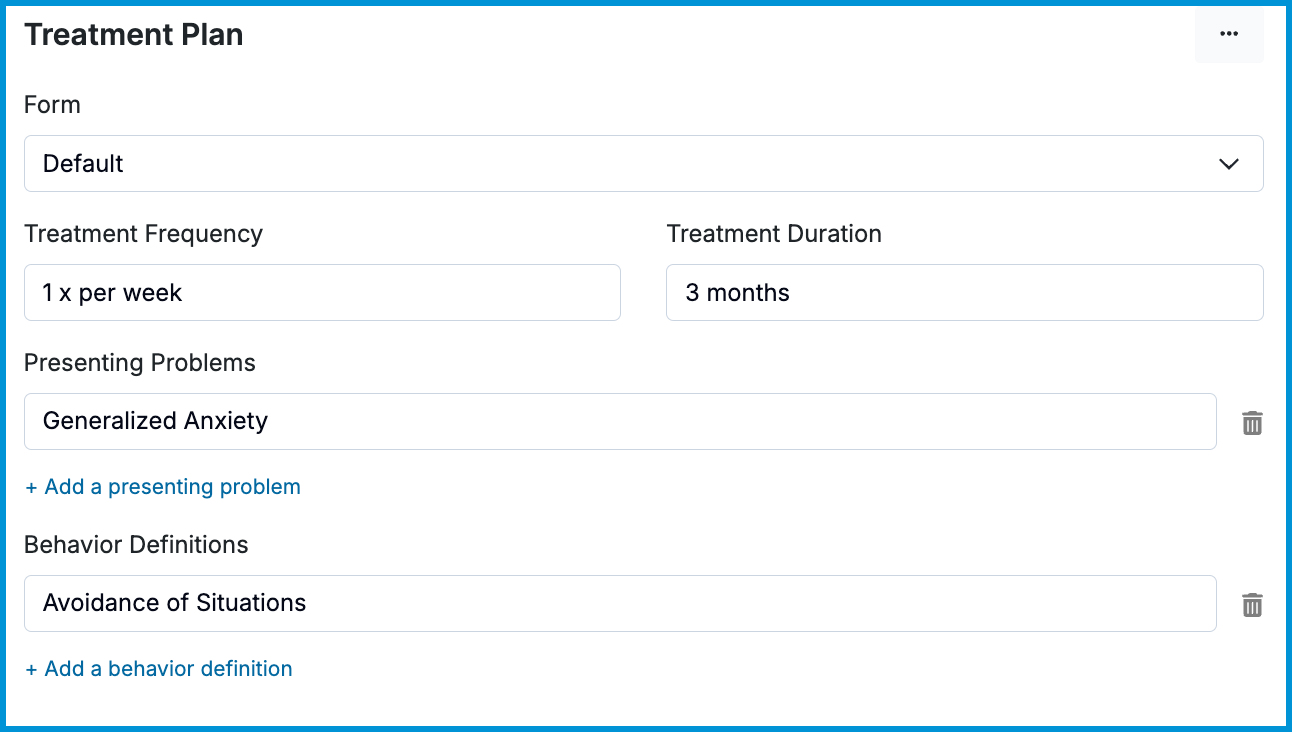
The Default template provides structured fields for documenting the client’s concerns and planned course of care.
You can complete:
- Presenting Problems: What led the client to seek treatment.
- Behavior Definitions: How the concerns affect daily functioning.
- Treatment Frequency: Recommended session frequency.
- Treatment Duration: Recommended length of care.
- Goals: Broad statements describing desired outcomes.
- Objectives: Specific, measurable steps toward each goal.
- Interventions: Techniques or approaches used to support progress.
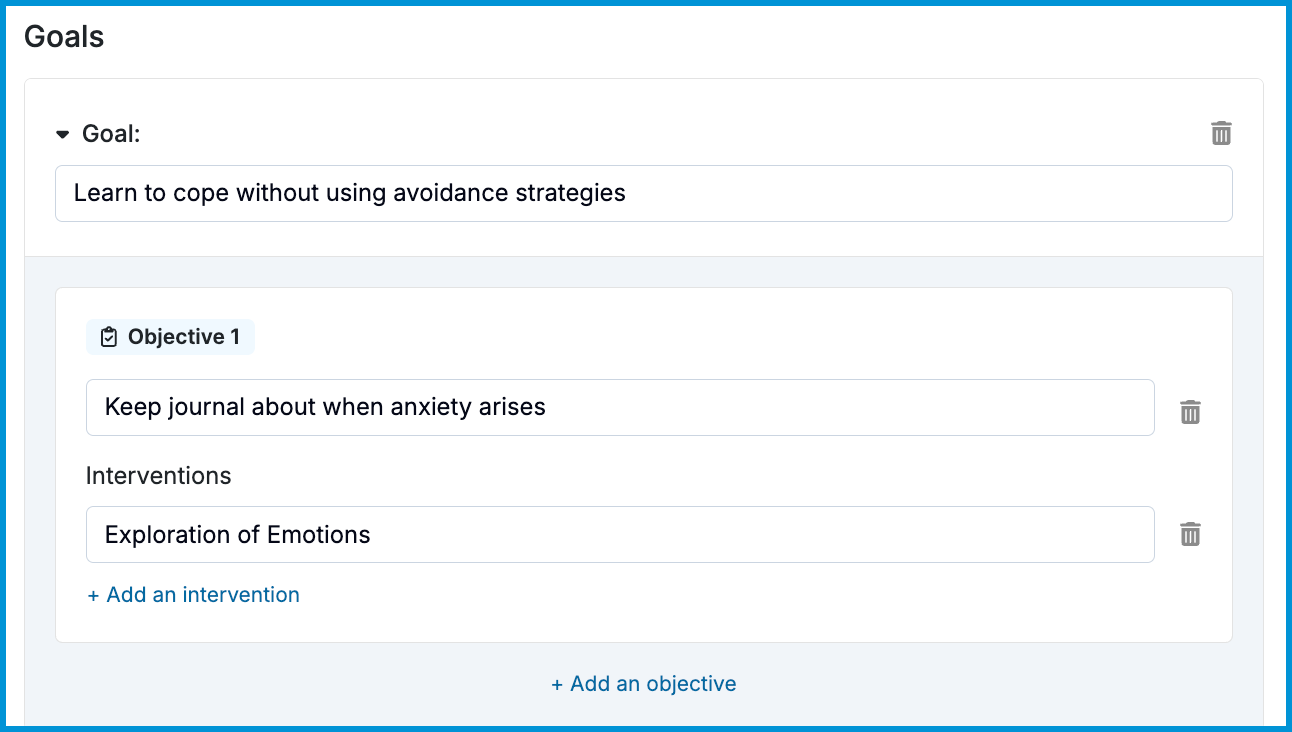
💡 Once you record a goal or objective for one client, it becomes available as a selectable option for future treatment plans.
Simple Treatment Plan
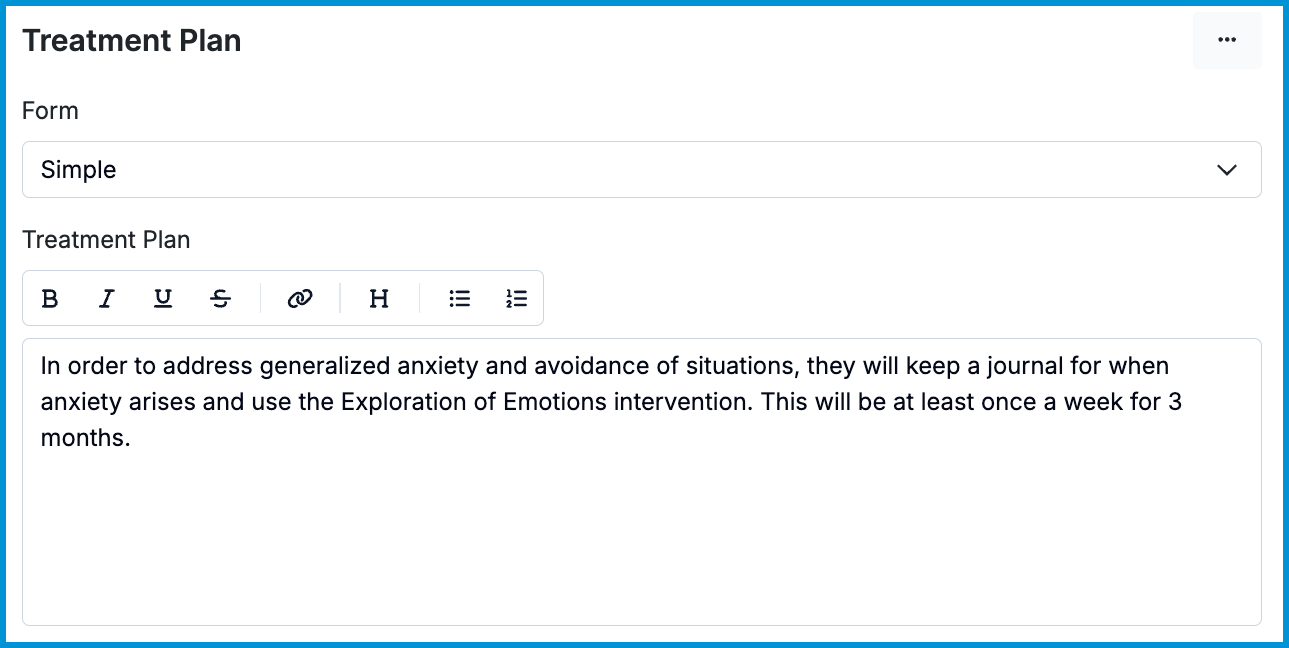
The Simple template provides a single text box for documenting the treatment plan. It’s useful if you prefer a narrative format or if you’re copying a plan from another system.
Custom Treatment Plan
You can create a custom treatment plan form in Forms and Documents > Forms > My Forms. Custom forms may include integrated goals, objectives, and interventions if you choose to add them.
💡 See our Creating a Custom Form article for details on setting up custom forms.
Setting a Reminder to Review a Treatment Plan
You can set a reminder to review or update the plan.
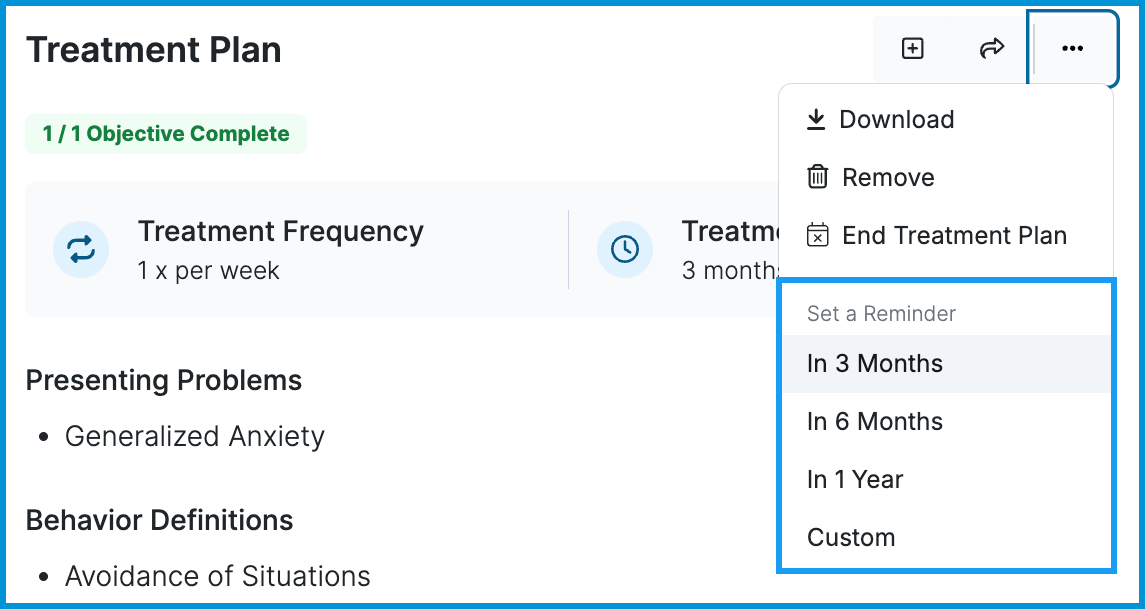
- Open the three-dot menu in the Treatment Plan section.
- Select a reminder interval: 3 months, 6 months, 1 year, or a Custom date.
The reminder appears in the Needs Attention area of your Home page seven days before the selected date.
Recording Progress Toward Objectives
Objective updates are made per progress note. When completing a note, the Treatment Plan section displays the active objectives so you can:
- Update objective status
- Add details
- Record interventions
These updates are saved to the client’s chart.
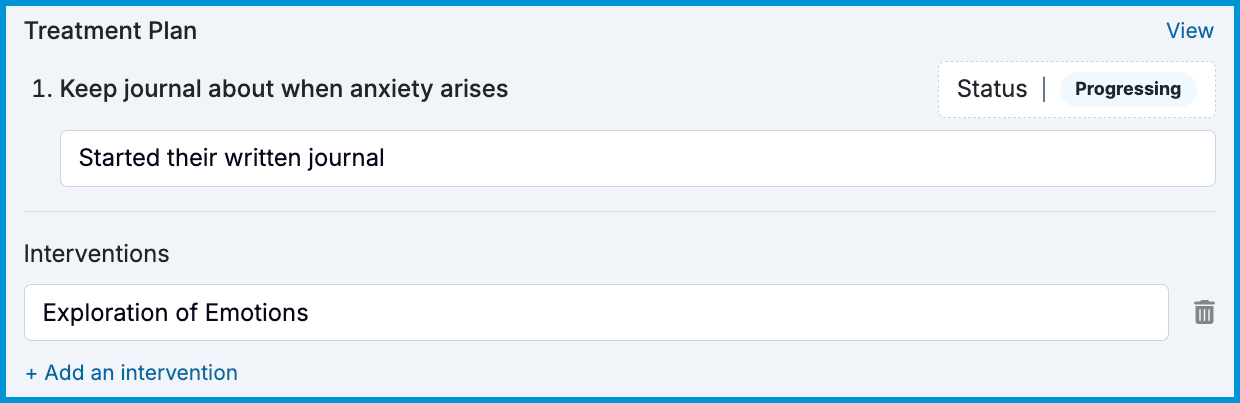
💡 This section appears only when using the Default treatment plan or a custom form with integrated goals and objectives. Simple plans do not display objectives in progress notes.
Updating a Treatment Plan
To update an existing plan:
- Select New in the Treatment Plan section.
- The current active plan loads into a new draft.
- Edit the plan as needed.
- Select Sign and Activate or Save as Draft.
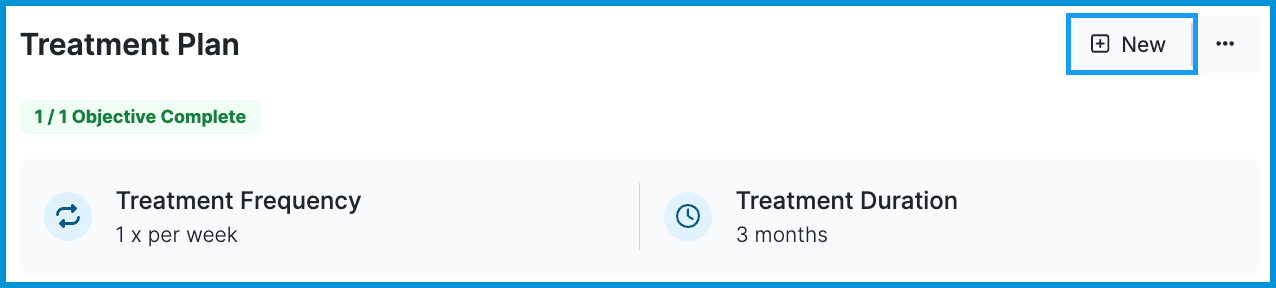
Once activated, the previous version moves to Treatment History.
To view a past plan:
- Open Treatment History.
- Select the arrow next to the date range.

Ending a Treatment Plan
When treatment is complete or you need to end a plan:
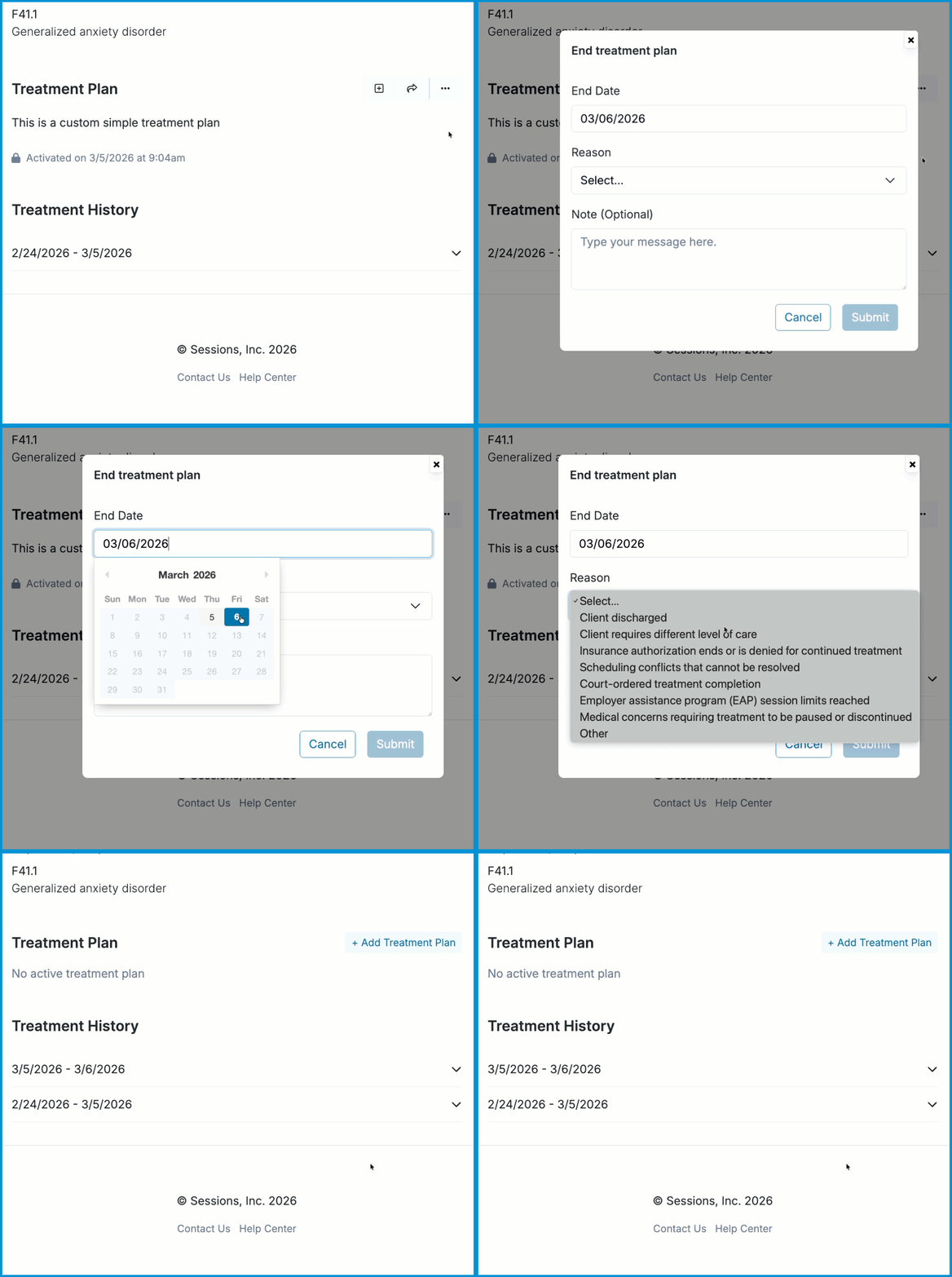
- Open the three-dot menu in the Treatment Plan section.
- Select End Treatment Plan.
- Choose a reason for ending care and optionally add a note.
- Submit to mark the plan as ended.
Ended plans remain available for review, audit, and reporting.
Downloading or Removing a Treatment Plan
You can download or remove a treatment plan from the three-dot menu.
- Download creates a PDF copy of the plan.
- Remove deletes the plan from the active list.
ℹ️ If you want to reuse elements of the current plan, select New before removing the active plan. This loads the existing content into a new draft.
Frequently Asked Questions
- Update an objective status
- Record an intervention linked to the treatment plan
Can clients sign treatment plans electronically?
Yes. You can share treatment plans with clients who have been invited to the Client Portal. See Sharing Treatment Plans With Clients for more details.
How do I add a treatment plan for a couple or family (conjoint) client?
Add the diagnosis and treatment plan in the conjoint client’s chart.
Can I edit a treatment plan after it’s activated?
No. Select New to create an updated version. The current plan loads into a draft you can edit and activate.
Can I track treatment plan statuses across all my clients?
Yes. You can go to Insights > Clients to view who has an active plan, an ended plan, or needs a plan created. See Insights: Clients for more details.
Can treatment plans be supervised?
Yes. If supervision is enabled for your practice, supervisors can review and sign treatment plans. See Supervision: Treatment Plans for complete details.
Do you offer the Wiley Treatment Planner?
Not at this time, but we may offer something similar in the future.
Related Resources
You may find these related articles helpful as you continue working in your clients’ charts: