
Insurance: Pending Submissions Dashboard
The Pending Submissions dashboard gives you one place to review claims that are ready to be sent. It includes both primary and secondary claims so you can quickly see what needs attention.
💡 Secondary Billing Guide: For step-by-step instructions on adding adjustment reason codes, updating modifiers, or handling manual remittances, refer to our Claims: Secondary Claims guide.
In This Article:
- Before You Review Your Claims
- How Claims Enter the Queue
- Dashboard Navigation and Layout
- Removing or Dismissing a Claim
- Frequently Asked Questions
- Related Resources
Before You Review Your Claims
To keep your dashboard accurate:
- Insurance policy dates must be entered for all primary and secondary policies.
- Remittances (ERAs or manual EOBs) must be applied to primary claims when payments or adjustments arrive.
🔔 Missing policy dates or remittances can cause claims to appear unexpectedly.
How Claims Enter the Queue
Primary Claims
Primary claims appear as soon as they’re created and marked ready for submission.
Secondary Claims
Secondary claims appear only after the primary claim has been processed. A secondary claim enters the dashboard when:
- A primary remittance is applied
- The client has an active secondary policy for that date of service
- A remaining balance still needs to be billed
- No secondary claim has been submitted yet
Dashboard Navigation and Layout
Filters
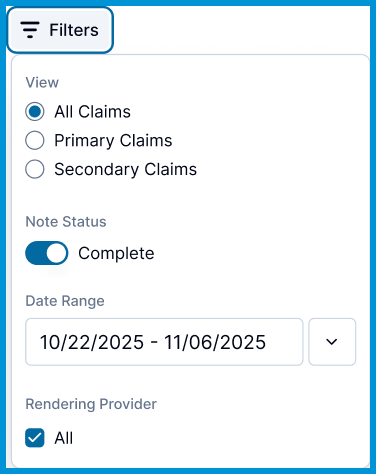
View All Claims, Primary, or Secondary. You can also filter by progress Note Status, Date Range, and Rendering Provider to narrow your results.
Secondary Tag
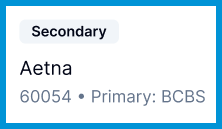
Secondary claims include a clear Secondary tag in the Payer column. They also show both payers: the secondary payer on top and the primary payer underneath.
Billable Amount and Remaining Balance
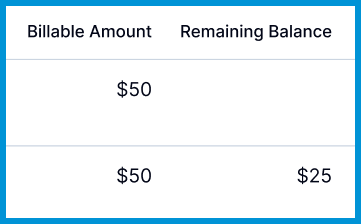
The Billable Amount column shows the total charge for the service before any payments or adjustments. The Remaining Balance column appears when a primary payment has been applied and shows what’s still owed, typically the portion to be billed to a secondary payer.
Removing or Dismissing a Claim
If a claim shouldn't be submitted:
- Click Edit.
- Select Remove.
The system records who removed the claim.
✅ Claims that are submitted successfully clear from the dashboard automatically.
Frequently Asked Questions
Why don’t I see a claim in the dashboard?
A claim may not appear for a few reasons:
- Policy dates are missing or incomplete
- Remittances haven’t been applied to the primary claim
- A balance doesn’t remain
- A secondary claim has already been submitted
- The primary payer automatically forwarded the claim to the secondary payer (Auto‑Forwarded claims skip the dashboard and appear in the Submitted tab)
Why are older claims showing up?
This usually means a policy is missing an Effective Date or End Date. Add dates for all policies to prevent historical claims from appearing.
Can I edit a claim before submitting it?
Yes. Click Edit to open the claim details. For help with adjustments or modifiers, see Claims: Secondary Claims.
Related Resources
For more detail on submitting claims and working with remittances, see these articles: