
AI Client Consent
Documenting client consent keeps your practice transparent and builds trust as you integrate AI tools into your clinical workflow.
With the Client Consent for AI Documentation intake form, clients can choose which AI features they are comfortable with when signing up through the portal, and their choices automatically show up on their chart. Practitioners can also manually adjust consent choices from any client's chart.
In this article:
- Video Tutorial
- Overview of AI Client Consent
- Adding and Setting Up the AI Consent Form
- Sharing the Form With Existing Clients
- Managing Consent on a Client's Chart
- Finding Signed Consent Forms
- Frequently Asked Questions
- Related Resources
Video Tutorial
Watch this step-by-step video walkthrough to learn how to gather, track, and manage AI client consent in Sessions Health.
Overview of AI Client Consent
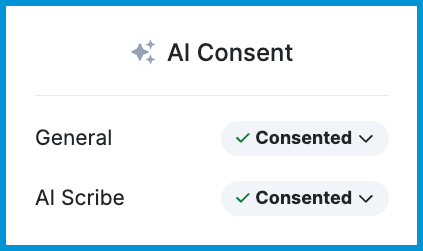
To give your clients control over how AI is used in their care, Sessions Health divides AI consent into two choices:
- General: Covers note-writing tools like AI-Assisted Progress Notes and session summaries.
- AI Scribe: Covers audio recording and live session transcription.
Clients can complete these options in their portal during intake, or you can record and update their consent choices manually from their chart at any time.
Adding and Setting Up the AI Consent Form
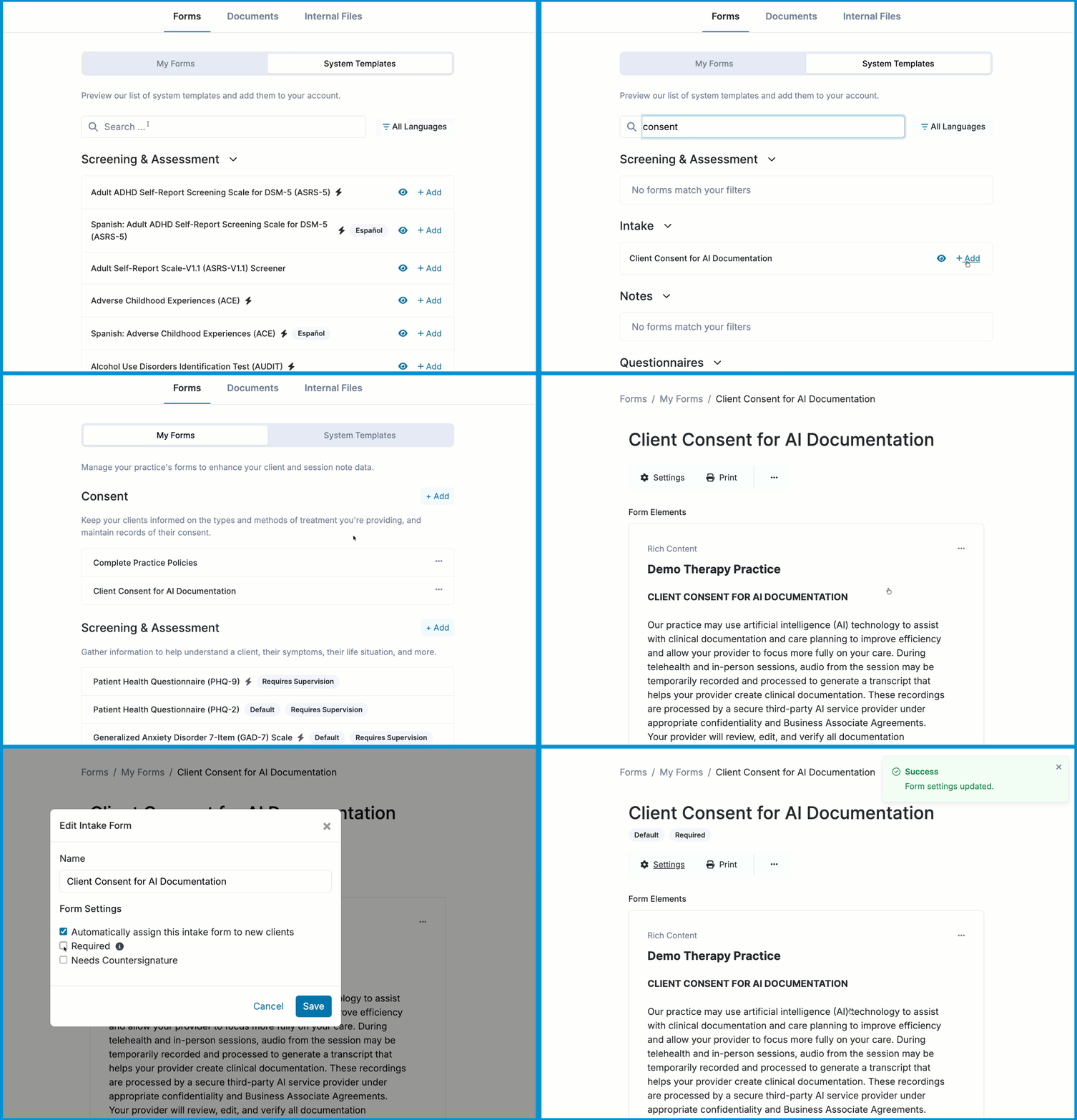
Before you can send the AI consent form to clients, you will need to copy it from System Templates into your library and choose your intake settings.
- Go to Forms & Documents.
- Select the System Templates tab.
- Search for Client Consent for AI Documentation and select + Add.
- Switch to the My Forms tab, scroll to Intake, and select the Client Consent for AI Documentation form.
- Select Settings, then check Automatically assign this intake form to new clients to automatically include the form in intake paperwork.
- Optionally check Required if clients must complete this form before finalizing their portal setup.
- Click Save.
Sharing the Form With Existing Clients
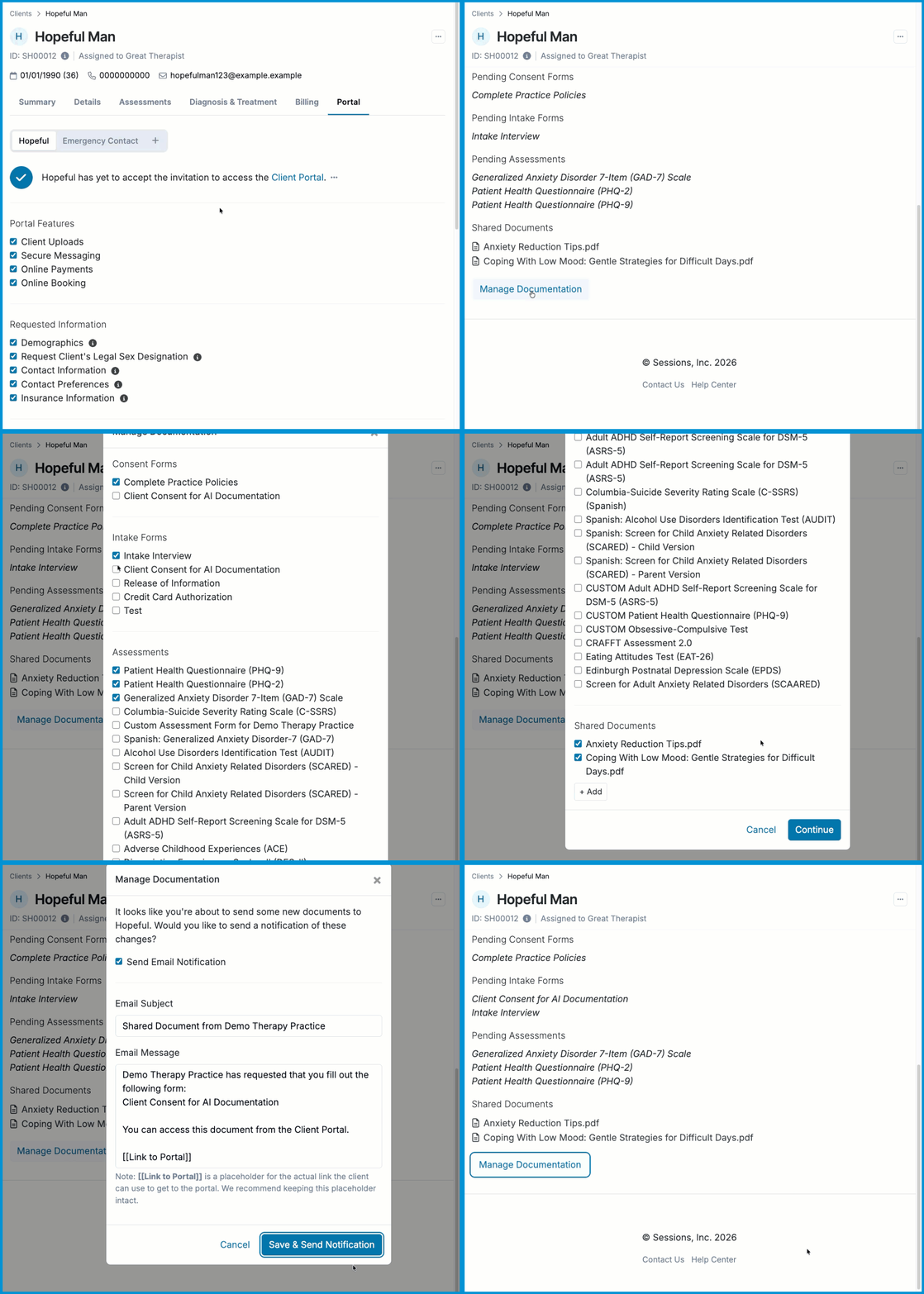
If you need to request or update AI consent for an existing client, you can send the form directly through their portal profile.
- Open the client’s profile and select the Portal tab.
- Select Manage Documentation.
- Under Intake Forms, check the box next to Client Consent for AI Documentation.
- Select Continue.
- Choose whether to send an email notification, then select Save or Save & Send Notification.
📩 Resending the Form: If a client wants to update their choices later through the portal, open Manage Documentation, uncheck the form, and save to clear the previous request. Then open Manage Documentation again, check the form, and resave. Their new submission will automatically update their chart.
Managing Consent on a Client's Chart
You can view and update a client's consent status from any tab in their chart using the panel on the right side of your screen.
- Open the client's chart and locate the AI Consent card on the right-hand panel.
- View their current status (Consented, Declined, or Not Documented) for General and AI Scribe.
- To update a choice manually, select a new status from either dropdown menu.
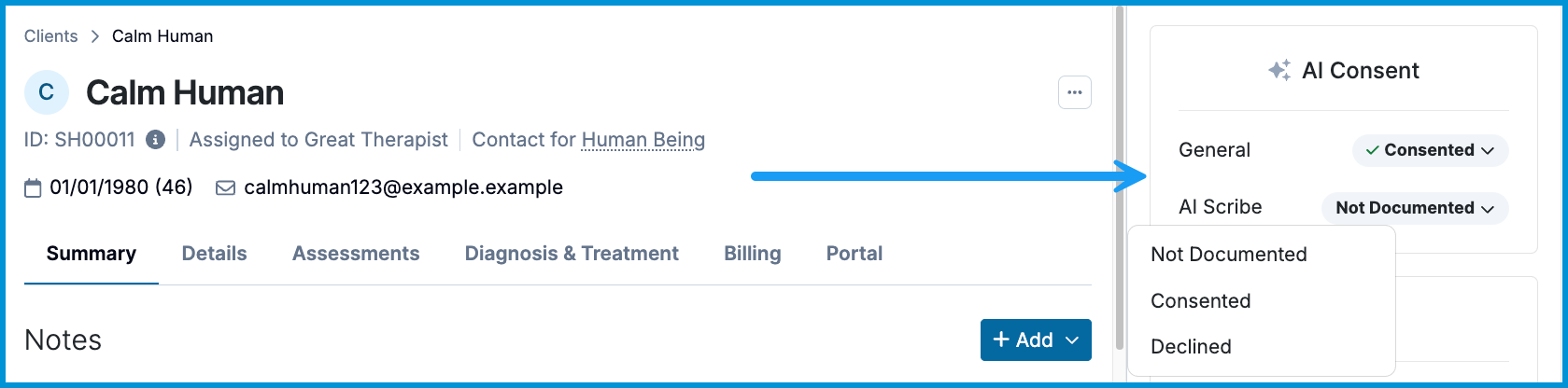
💡 You can hover over a status to see the date it was last updated.
Finding Signed Consent Forms
If you ever need to view, download, or print a client's signed consent document:
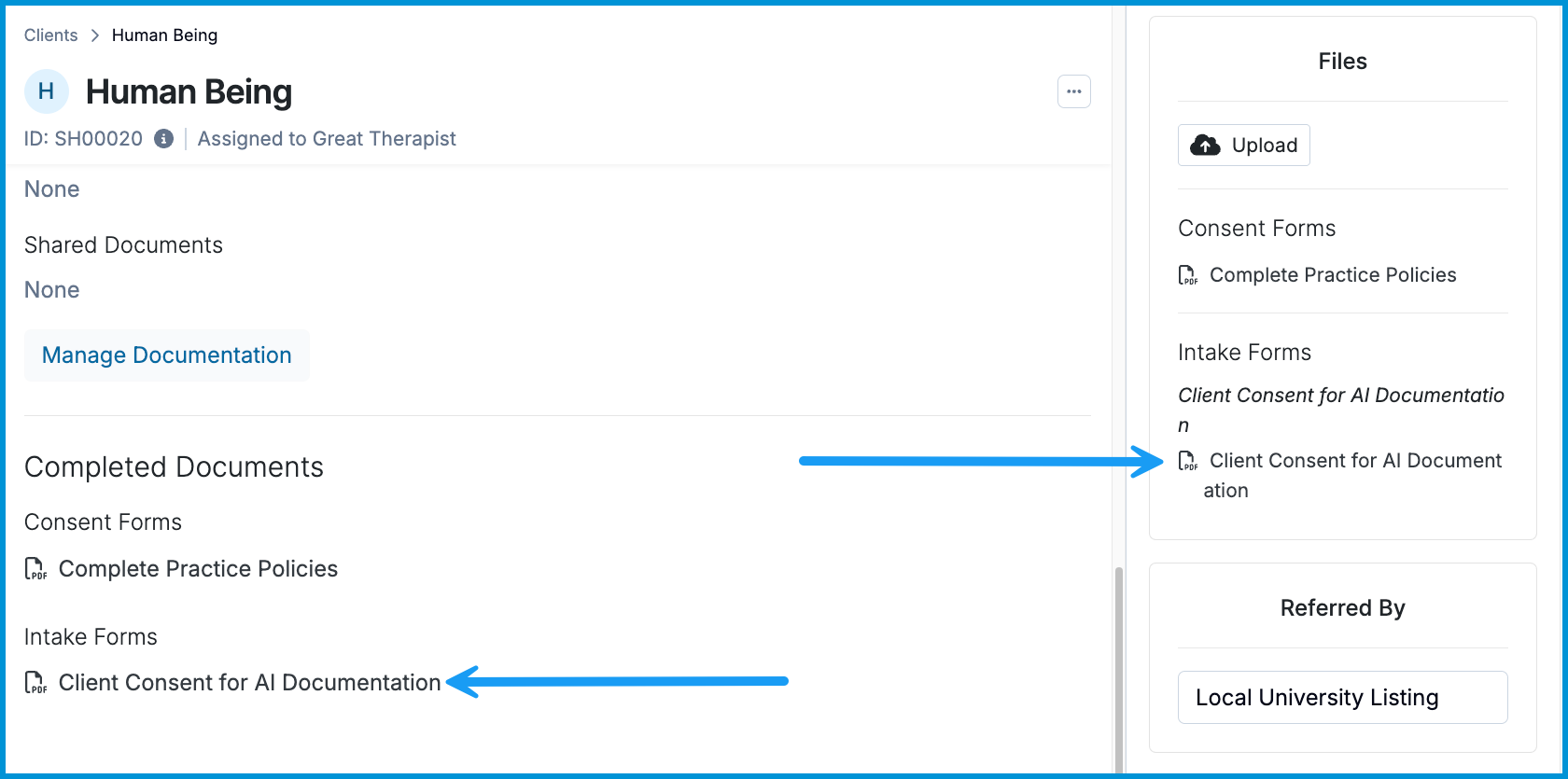
- From any tab: Look at the Intake Forms card on the right-hand panel of their chart and select Client Consent for AI Documentation.
- From the Portal tab: Scroll down to the Completed Documents section and select Client Consent for AI Documentation.
Opening the document gives you access to the signed PDF along with its date and time stamp.
Frequently Asked Questions
Why does an existing client already show a past consent date on their chart?
If your practice was already using AI features before this update, or if a client previously signed an AI Consent form, Sessions Health automatically brought over their past consent date.
Can a client agree to note-writing tools but say no to audio recording?
Yes. The form keeps General (notes/summaries) and AI Scribe (audio recording) completely separate. A client can select "I consent" for general note tools while selecting "I do not consent" for AI Scribe transcription.
What happens if a client declines consent?
Their chart status will simply update to Declined. You always have full manual control to change these dropdown choices on their chart at any time.
Can I customize the wording of the AI consent form?
Yes. In Forms & Documents > My Forms, select Client Consent for AI Documentation to edit the text to match your practice guidelines before sending it to clients.
What if a client signs a paper consent form in person?
You can optionally upload the signed paper document to the Files section of their client chart for record-keeping, then manually set their status to Consented on their AI Consent card.
Does declining AI Scribe also turn off AI progress notes?
No. Because consent is split into two categories, a client can decline audio recording (AI Scribe) while still consenting to note generation (General).
Related Resources
To learn more about setting up client portal tools and using AI features, check out these articles: