
Global Search Bar Overview
The global search bar located at the top of the left sidebar lets you quickly find any client or client contact from anywhere in Sessions Health without leaving your current page.
In this article:
- Video Tutorial
- How to Search
- Recently Viewed Clients
- Understanding Your Search Results
- Searching by Internal ID
- Frequently Asked Questions
- Related Resources
Video Tutorial
Watch this short video to learn how to locate client charts, conjoint charts, and contacts using the Global Search bar.
How to Search
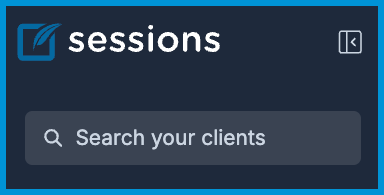
Use the search bar in the upper-left sidebar to quickly locate clients or contacts from anywhere in the application.
- Click into the Search your clients field in the upper-left sidebar.
- Type at least one character (a letter or number) to start filtering results. You can search by:
- Name: Search by legal or preferred first or last name.
- Phone Number: Search by full or partial phone number.
- Email Address: Search by full or partial email address.
- Internal ID: Search by client internal ID number (when enabled).
Recently Viewed Clients
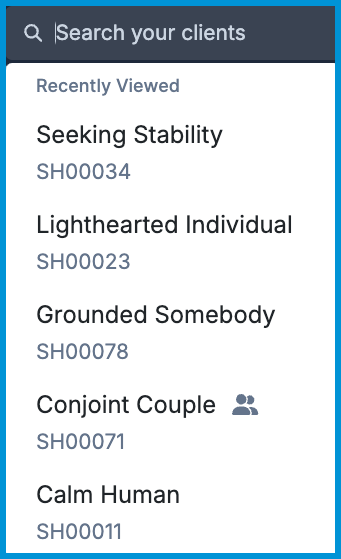
Selecting the search bar before typing displays a dropdown of your 5 most recently accessed client profiles and conjoint charts. Opening a chart anywhere in the app automatically updates your list, and typing immediately replaces it with live search results.
Understanding Your Search Results
Search results update live as you type and return results based on your entry.
Text Formatting
- Active Clients: Display in standard text.
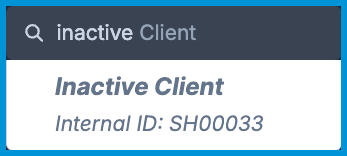
- Inactive Clients & Contacts: Display in italics. This includes inactive client charts as well as linked client contacts (such as parents, partners, or emergency contacts).
Unassigned Clients
Global Search lets you find any client you have permission to view, even if they are assigned to another provider and don't show up on your main Clients list.
Searching by Internal ID
To search by internal client IDs, your practice must have internal ID management enabled:
- When Enabled: Internal IDs appear below client names in search results and in your Recently Viewed dropdown. Typing an ID number immediately locates the client.
- When Disabled: Internal IDs will not display in search results or the Recently Viewed dropdown, and searching by ID number will not return results.
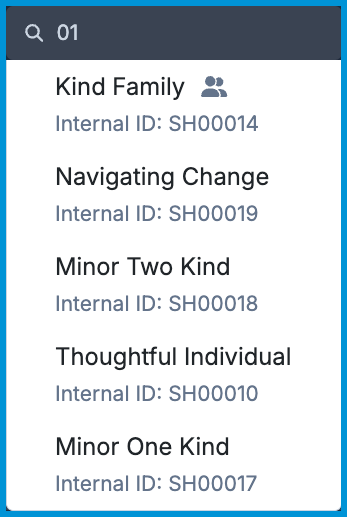
#️⃣ To manage internal Client ID settings, go to Account Settings > Clients and toggle Manage Internal IDs for Clients.
Frequently Asked Questions
Why can't I find a client when searching by their Internal ID?
Internal ID searching only works when internal ID management is turned on for your practice. Check Account Settings > Clients to ensure Manage Internal IDs for Clients is enabled.
Why does a client appear in Global Search but not on my main Clients list?
Global Search lets you find any client in your practice you have permission to view, even if they are assigned to another provider and don't appear on your main Clients list.
Can I search by birthdate or diagnosis code?
No. Global Search currently supports searching by legal name, preferred name, phone number, email address, and Internal ID.
Related Resources
For more help, check out these related articles: