
Client Internal IDs
Client Internal IDs give your practice a simple, secure way to identify clients without relying on their full names. Sessions Health automatically generates a unique ID for every client record (e.g., SH00011), but you can easily customize these IDs to fit your practice's existing chart numbering system.
In this article:
- Video Tutorial
- What Are Client Internal IDs?
- How to Turn Internal IDs On or Off
- How to Edit a Client's Internal ID
- Where Internal IDs Appear Across Sessions Health
- Frequently Asked Questions
- Related Resources
Video Tutorial
Learn how to enable and manage Client Internal IDs under the Clients tab to protect client privacy across your practice.
What Are Client Internal IDs?
Internal IDs act as discrete reference numbers for your client charts. They allow you to:
- Protect client privacy: Keep client names off shared screens, reports, and administrative communications.
- Match internal records: Align client charts in Sessions Health with your practice's custom filing or chart numbers.
- Organize waitlists: Use custom ID formats (e.g., WAITLIST-01) to track incoming clients before formal intake.
What changes when turned on or off:
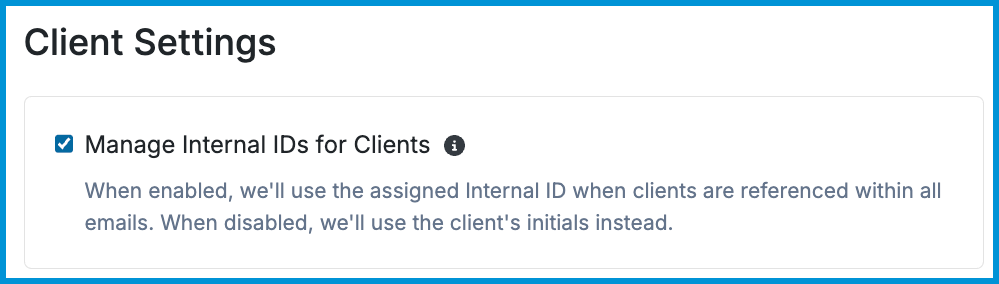
- Enabled: Sessions Health uses the client's assigned Internal ID when referencing them in automated system emails (e.g., portal onboarding completion notifications), in calendar privacy mode, and as a column on supported Insights reports.
- Disabled: System emails use the client's initials instead, and the Client ID column stays hidden across reports.
How to Turn Internal IDs On or Off
To adjust this setting for your account:
- Go to Account Settings.
- Select the Clients tab.
- Check the box for Manage Internal IDs for Clients.
👤 Administrator permissions are required to access these Account Settings.
How to Edit a Client's Internal ID
While Sessions Health generates an ID automatically for every new client, you can change it at any time:
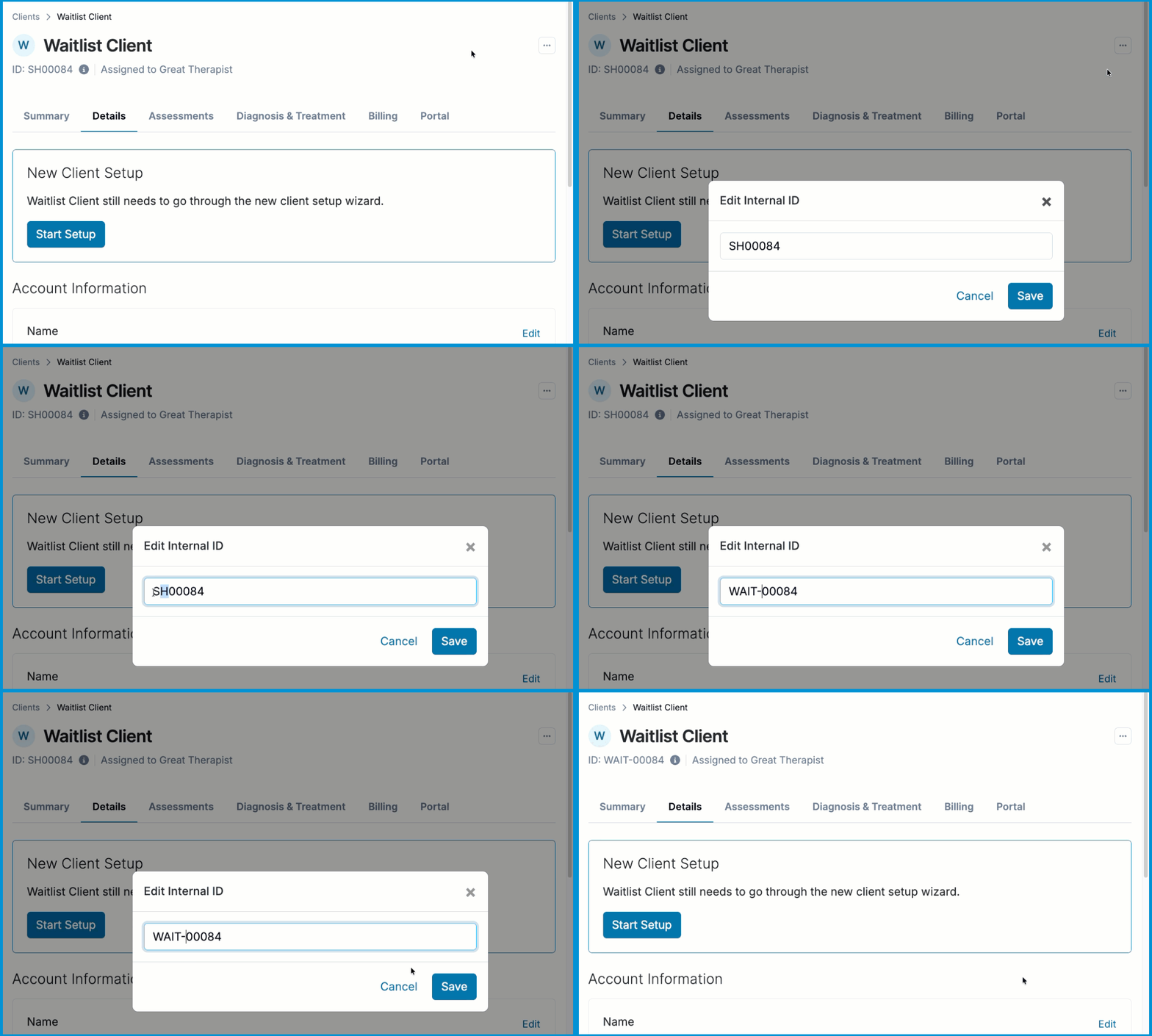
- Open a Client's chart.
- Select the three-dot menu.
- Select Edit Internal ID.
- Enter your custom ID code.
- Select Save.
Where Internal IDs Appear Across Sessions Health
Once enabled, Internal IDs make managing and reviewing client data more private in several areas:
- Client List: A dedicated Internal ID column displays next to client names in your main table view.
- System Emails & Notifications: Automated emails sent to practitioners will display the client's Internal ID instead of their initials or full name.
- Calendar Privacy Mode: You can turn on Privacy Mode on your calendar. Under Calendar Preferences > Privacy mode display, select Client ID to display client ID codes on appointment blocks instead of names or initials. For more details, see our guide on Using Privacy Mode.
- Insights Reports: A dedicated Client ID column will appear automatically across several Insights reports.
🔎 You can also use the Global Search bar at the top of the left sidebar to filter by Client ID. See Global Search Bar Overview for more details.
Frequently Asked Questions
Do my clients ever see their Internal ID?
No. Internal IDs are strictly for internal practice management and administrative privacy. Clients will never see their ID in the Client Portal or on billing documents.
What happens to my custom IDs if I uncheck the setting in Account Settings?
Your custom IDs remain saved internally. Turning this setting off simply hides Internal IDs throughout the app and switches features back to using client initials.
Can I search for a client by their Internal ID?
Yes. Typing an Internal ID into the Global Search bar or the search field on supported Insights reports will pull up the matching client profile.
Related Resources
For more information, check out our other guides: