
Exporting Client Data
The Data Exports tool allows you to download your practice's client records for backup, compliance, or off-boarding purposes.
ℹ️ Please note that this tool exports client-related information (such as demographics, notes, and billing documents) and does not include practice settings, account configurations, or internal administrative files.
👤 Only account administrators can access data exports.
In this article:
- Video Tutorial
- How to Export Data
- Downloading an Export
- Deleting an Export
- What is Exported
- Frequently Asked Questions
- Related Resources
Video Tutorial
Follow along with this video tour of the Data Exports tab to see how to select client records, customize your export options, and download your files.
How to Export Data
You can generate a new export for your entire client list, a specific practitioner's caseload, or an individual client directly from your Account Settings.
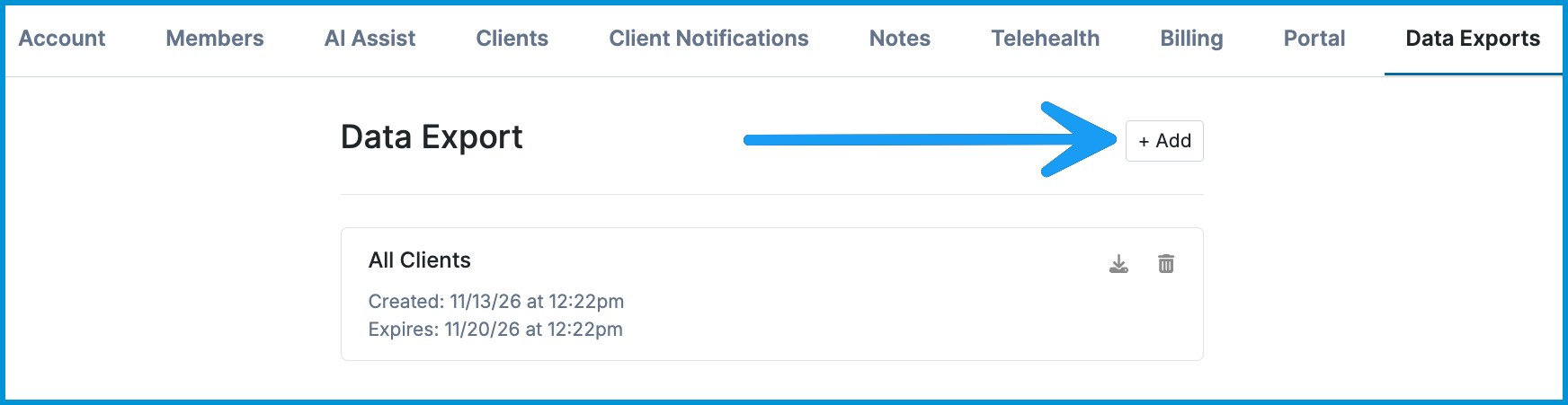
- Navigate to Account Settings and select the Data Exports tab.
-
Select + Add.
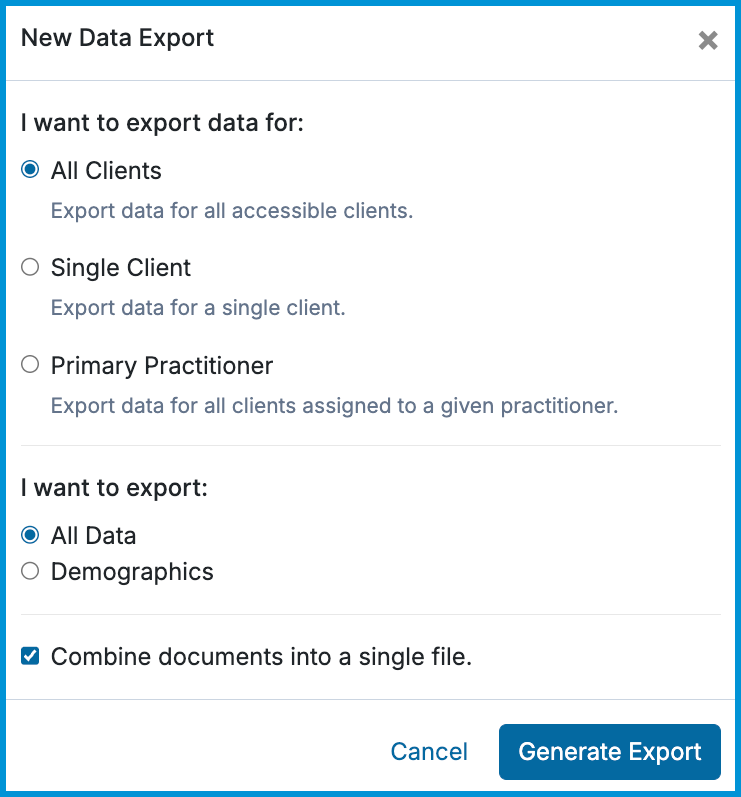
- Choose whose data you want to export under I want to export data for (inactive clients are included in each option):
- All Clients: Exports data for all clients.
- Single Client: Allows you to search for and select a specific client.
- Primary Practitioner: Allows you to select a specific practitioner from a dropdown menu to export all clients assigned to them.
- Choose what data you need under I want to export:
- All Data: Includes all available clinical and billing records.
- Demographics: Limits the export to contact and demographic details.
- Optionally, check the box to "Combine documents into a single file". If selected, documents of the same type (e.g., all progress notes or all bills) will be merged into single, continuous PDFs rather than separated into individual files.
- Select Generate Export.
Downloading an Export
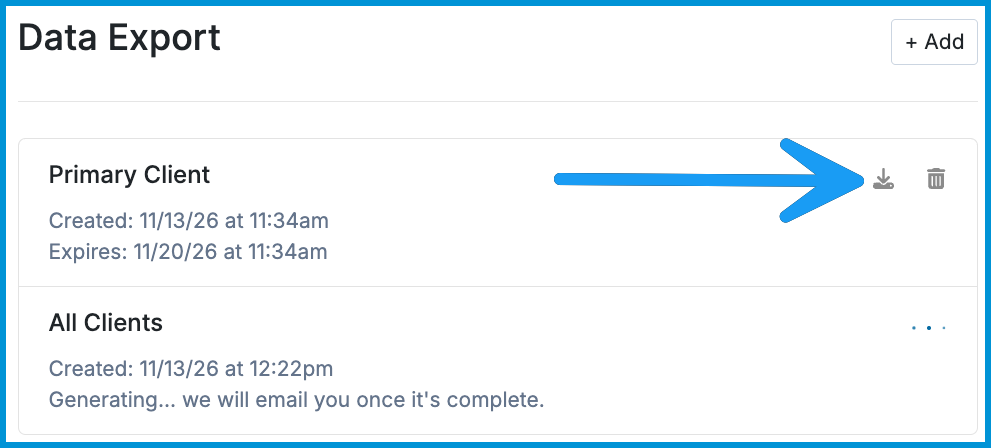
Generating large exports can take a few minutes, and you can navigate away from the page while the file is created. You will see a "Generating..." status on your screen and will receive an email as soon as the file is ready.
- Wait for the export to finish generating.
- Once complete, return to the Data Exports tab (if you navigated away) and select the download icon next to your export.
- The data will download to your computer as a ZIP file.
Deleting an Export
Generated exports automatically expire and are permanently removed from the system after 7 days. However, you can manually delete them sooner:
- Locate the generated export in your Data Exports list.
- Select the trash can icon on the far right of the export.
- Select Remove on the confirmation prompt to delete it from the system.
What is Exported
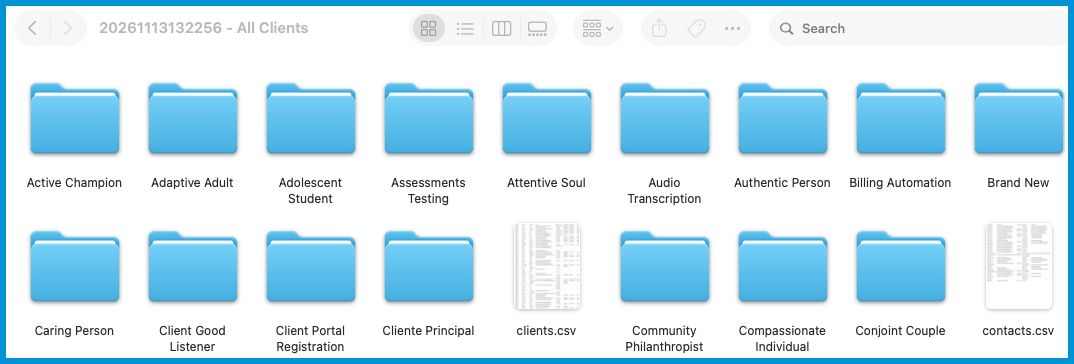
When you open your downloaded ZIP file, the contents will depend on your export selections:
- Demographics Only: You will receive a clients.csv spreadsheet and a contacts.csv spreadsheet. These include internal IDs, basic demographic information, payer and insurance details, and emergency contacts.
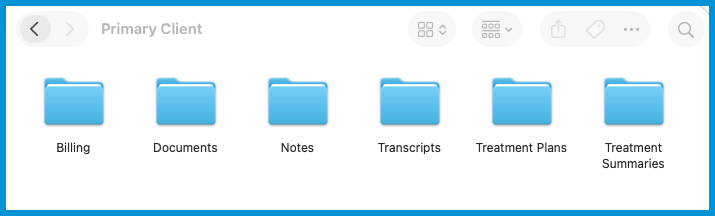
- All Data: You will receive the demographic spreadsheets in the main export folder, along with categorized subfolders for each client containing:
- Billing: All invoices and bills.
- Documents: Uploaded files, practice policies, and signed informed consents.
- Notes: All clinical progress notes and psychotherapy notes.
- Transcripts: Text files containing secure messaging conversation transcripts.
- Treatment Plans: Active and past treatment plans.
- Treatment Summaries: Any generated treatment summaries.
Frequently Asked Questions
Will I be notified when my data is ready to download?
Yes, the system will send you an email notification from support@sessionshealth.com after the export finishes generating.
What file formats will the exported data be in?
Spreadsheets (like demographics and contacts) are exported as CSV files. Secure messaging transcripts are exported as plain text files. All other clinical and billing documents are exported as PDFs.
Can I export just one specific document type, like only my progress notes?
Individual document types cannot be exported separately. Selecting All Data is required to pull progress notes, and your download will include the other clinical and billing folders as well.
Are inactive clients included in data exports?
Yes, inactive clients are included across all export options. Whether you select All Clients, Single Client, or Primary Practitioner, inactive client records will be available to export.
How long do I have to access my export?
All generated data exports are available for 7 days before they automatically expire and are removed from the system. If you miss this window, you will need to generate a new export.
Related Resources
To learn more about managing your practice and client information, check out these helpful guides: