
Insights: Revenue
The Revenue report provides a consolidated view of practice financial receipts, grouping data from the Payments report by active practitioners. It breaks down client card, cash, external payments, insurance receipts, refunds, and net revenue to give you a clear view of financial performance across your practice.

👀 If you don’t see the Revenue report, your permission settings may need to be updated. Please check with your system administrator to review and adjust your access.
In this article:
- Revenue Report Contents
- Using Report Filters
- Sorting by Column
- Downloading Revenue Data
- Frequently Asked Questions
- Related Resources
Revenue Report Contents
The following information is displayed on this report:
| Field | Definition |
|---|---|
| Practitioner | The active clinician associated with the payments |
| Credit Card Payments | Total payments processed via credit card |
| Cash Payments | Total cash payments recorded |
| Other Payments | Payments recorded via external methods (such as Venmo, PayPal, check, or ACH) |
| Refunds | Total amount refunded during the selected date range |
| Total Client Payments | Sum of all client-made payments (Credit Card + Cash + Other Payments) |
| Insurance Payments | Total payments received from insurance payers |
| Total Revenue | Net revenue calculated as (Total Client Payments + Insurance Payments - Refunds) |
Using Report Filters
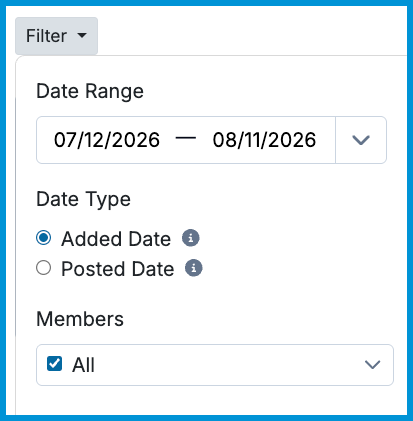
Use filters to narrow your view and focus on specific financial totals. Within the date range selector, you can toggle between two date types:
- Added Date: Filters payments based on the date they were recorded in the system.
- Posted Date: Filters payments based on the date they were applied to the client's account balance.
To set the timeframe, use the drop-down menu of common periods, or select specific start and end dates. Additional filters let you refine results by practitioner (Members) using the filter icon to isolate individual providers or compare data across multiple clinicians.
Sorting by Column
Select most column headers to sort data in ascending or descending order.
For example, sort by Practitioner to group alphabetically, or sort by Total Revenue or Insurance Payments to rank financial volume numerically.
Downloading Revenue Data
To the right of the filter options, you can download the report as a .csv file by selecting the Download button. You can exclude specific parts of the data as needed by filtering the report before selecting Download.

Frequently Asked Questions
Why aren't inactive practitioners appearing on this report?
The Revenue report only displays active practitioners on your account. If a practitioner has been deactivated, their transaction details can still be reviewed under the Payments or Income Allocation reports.
How is Total Revenue calculated?
Total Revenue is calculated by taking all client payments (credit card, cash, and other methods) plus insurance payments, then subtracting any refunds issued during the selected date range.
What is included under Other Payments?
Other Payments includes any transactions recorded using external payment classifications, such as check, Venmo, PayPal, ACH, or custom payment types.
Related Resources
For more information about financial tracking and Insights reports, check out these resources: