
Managing Appointment Requests
When online booking is enabled for your practice, clients can request appointments directly through the Client Portal. This article walks you through everything you can do as a practitioner once those requests start coming in.
In this article:
- Video Tutorial
- Viewing Incoming Appointment Requests
- Accepting or Declining a Request
- What Clients See After You Respond
- Appointment Request History
- Frequently Asked Questions
- Related Resources
Video Tutorial
Learn how to review, accept, and decline online appointment requests from existing and new clients in Sessions Health.
Viewing Incoming Appointment Requests
When a client submits a request:
- You’ll receive an email notification.
- A badge shows in your Calendar indicating you have a pending request.
- A temporary block shows on your calendar at the requested time.
To open the request, navigate to your Calendar and choose Requests, or click the calendar block directly.

ℹ️ A temporary block appears on your calendar when a request is submitted. You can still schedule during that time, and other clients won’t be able to request it until you accept or decline.
Accepting or Declining a Request
When you open a request, you’ll see the client’s selected service, location, date, and time. From here, you can accept or decline the request.
-
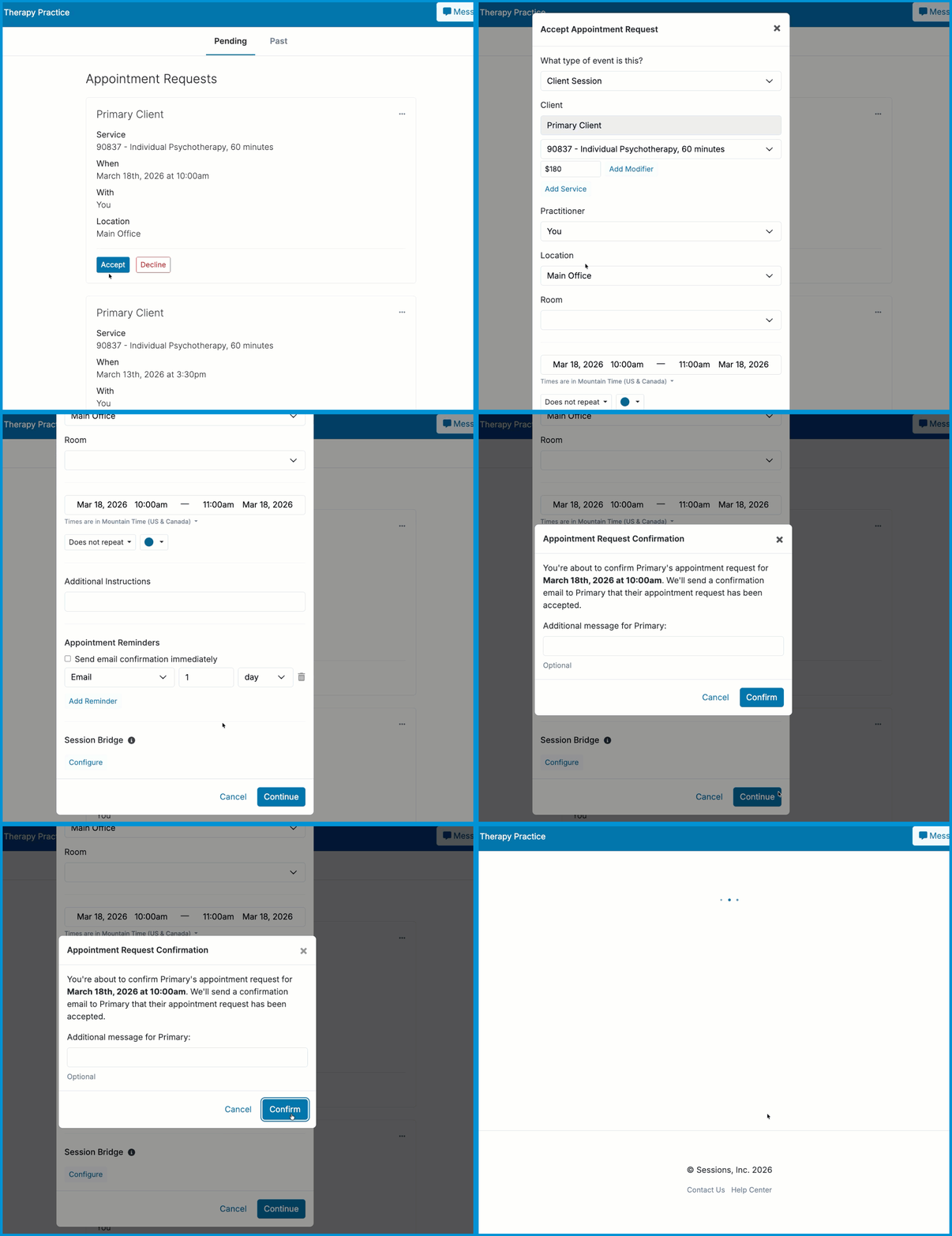
If you select Accept, an appointment window opens so you can review or adjust the appointment before it’s added to your calendar.
-
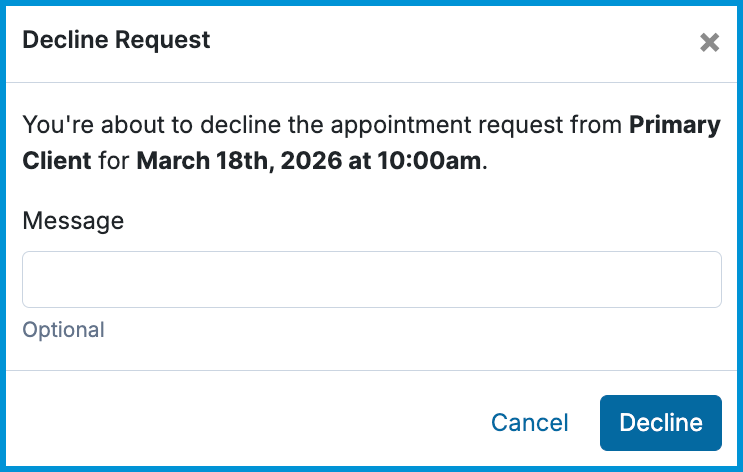
If you select Decline, a confirmation window opens where you can add an optional message before declining the request.
What Clients See After You Respond
After you take action on a request:
- If accepted: The client receives an email confirmation.
- If declined: The client receives an email letting them know the request wasn’t approved.
ℹ️ Clients are automatically notified by email when you accept or decline a request.
Appointment Request History
If you need to review past or pending requests, you can access your full appointment request history from your calendar.
To view your request history:
- Open your Calendar.
- Select Requests in the upper‑right corner.
- Select the Past tab.

Frequently Asked Questions
How do I adjust my availability?
You can adjust your availability from your calendar to control which days, times, services, and locations clients can request. For step‑by‑step guidance, see Setting Practitioner Availability and Booking Policies.
Do clients get notified when I accept or decline a request?
Yes. Clients automatically receive an email from support@sessionshealth.com when you accept or decline their request.
Can clients cancel their appointment requests?
Yes. Clients can cancel their request while it’s still pending. Once you accept the appointment, your usual cancellation rules apply.
Can I change a request after accepting it?
Yes. Once you accept a request, it becomes a regular appointment on your calendar, and you can edit it like any other session.
What if I accidentally decline a request?
Declined requests can’t be reopened, but the client can submit a new request at any time.
Related Resources
For more information on online booking, check out our Help Center: