
Managing Your Profile
Your Profile is where you can review your information, manage your practice memberships, update your clinical details, and adjust your security and notification settings. Each tab helps you keep your account organized and easy to update in a way that supports your work.
In this article:
- Accessing Your Profile
- My Accounts & Switching Between Practices
- Profile Information
- Clinical Info
- Security
- Notifications
- Frequently Asked Questions
- Related Resources
Accessing Your Profile
You can open your Profile at any time to review or update your information.
To open your Profile Settings:
- Select your user menu in the top‑right corner.
- Choose Profile.
- Use the tabs to move between Profile, My Accounts, Clinical Info, Security, and Notifications.

My Accounts & Switching Between Practices
You can switch between practices from the user menu or from the My Accounts tab in your Profile. Your current practice is marked with a checkmark in the Accounts drop-down.
Switching from the user menu:
- Select your user menu in the top‑right corner.
- Choose the practice you wish to switch to. If you belong to more than five practices, select View More to see the full list.

Switching from the My Accounts Tab:
The My Accounts tab shows every practice you belong to, along with your role in each one. This is another place to switch practices.
- Open the My Accounts tab.
- Select View next to the practice you want to enter.
Profile Information
This section includes your name, legal name, and email address. You can quickly change any of these fields by following the instructions below.
To change your sign-in email address:
- Select your user menu in the top‑right corner.
-
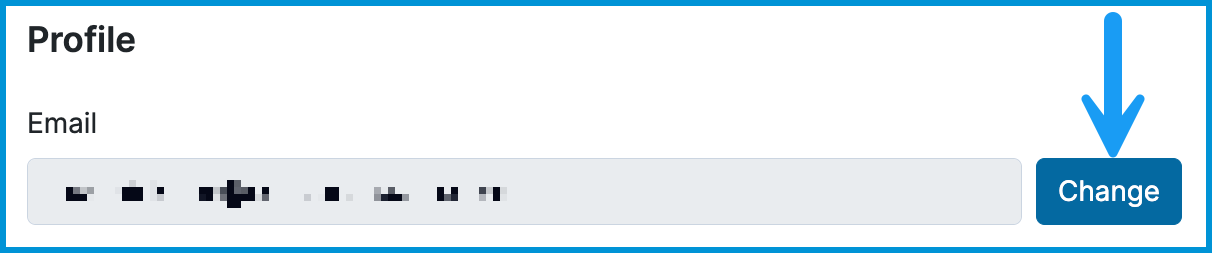
On the Profile tab next to your Email, select Change and enter your new address.
- Select Save.
- After submitting the request, check both your current and new inboxes for confirmation messages from support@sessionshealth.com.
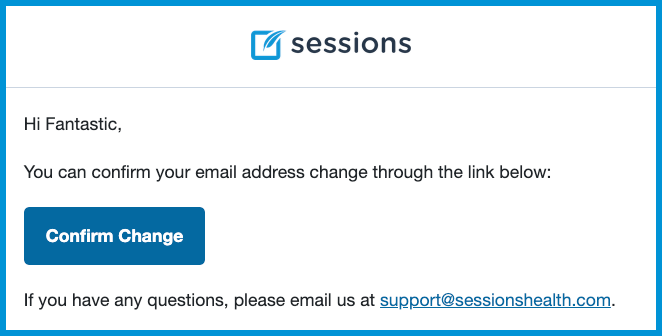
- Select Confirm Change in the email sent to your new address. You will be redirected to Sessions Health.
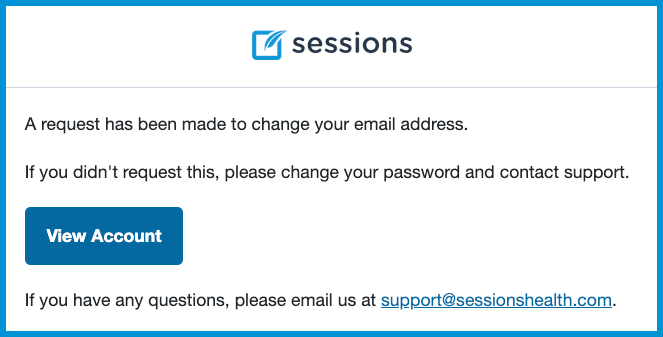
You will also receive an email to your old email address confirming the change.
To update your Name:
- Select your user menu in the top‑right corner.
- On the Profile tab, change your Name. Your changes save immediately.
To add your Legal Name:
- Select your user menu in the top‑right corner.
- On the Profile tab, select Add Legal Name.
- Enter your Legal First Name, MI (middle initial), and Legal Last Name.
If you need to remove it, select Remove Legal Name.
ℹ️ Add a legal name for use on claims and superbills. Your preferred name will continue to appear across the platform, including on documentation and invoices.
Clinical Info
This tab includes your NPI, taxonomy code, and license information. These details appear on your clinical documentation and insurance claims.
To update your clinical details:
- Open the Clinical Info tab.
- Enter or edit your NPI, Taxonomy Code, License Type, and License Number.
💡 If you need to update another practitioner’s credentials, you can do that from Account Settings > Members.
Security
The Security tab is where you manage how you sign in to your account. You can set up 2‑step authentication for added protection and update your password at any time.
For a full walkthrough of enabling 2‑step authentication and changing your password, see our article on Account Security.
ℹ️ Security settings help keep your account protected and support secure access to client information.
Notifications
Your notification settings help you stay updated in a way that works for you.
To choose how you receive updates from Sessions Health:
- Open the Notifications tab.
- Turn email notification categories on or off:
- Daily Digest & Payments: daily updates about activity on your account, including client payments (if enabled).
- Product Updates & Tips: emails about new features, tips, and helpful resources.
- Use the Sidebar Display toggle to show or hide sidebar alerts:
- Appointment Notifications: shows your current and upcoming appointments in the sidebar.
For more information about notification types, you can review Questions About the Daily Digest and System Notifications.
Frequently Asked Questions
Why do I see multiple practices in my user menu, and how are they connected?
If you’ve been invited to more than one practice using the same email address, those practices connect under one login. Once you accept the invitations, they’ll appear together in your user menu and in the My Accounts tab.
Why don’t I see all my practices in the user menu?
The user menu shows your five most recently accessed practices. Select View More to see the full list.
Where can I update another practitioner’s clinical information?
You can update your own details in the Clinical Info tab. To update another practitioner’s information, go to Account Settings > Members.
Related Resources
For more information about managing your information and account settings, see our Help Center: