
Managing Client Diagnoses
You can add, update, and customize diagnoses in the client chart. Diagnoses help document the client’s clinical presentation and support billing when needed. All diagnosis activity is stored in the client’s chart so you can track changes over time.
In this article:
- Video Tutorial
- Adding a Client's Diagnosis
- Updating a Diagnosis for a Specific Session
- Deleting a Diagnosis from the Client Summary Tab
- Frequently Asked Questions
- Related Resources
Video Tutorial
Watch our video on adding, updating, and managing ICD-10 diagnoses directly within a client's chart and clinical records.
Adding a Client's Diagnosis
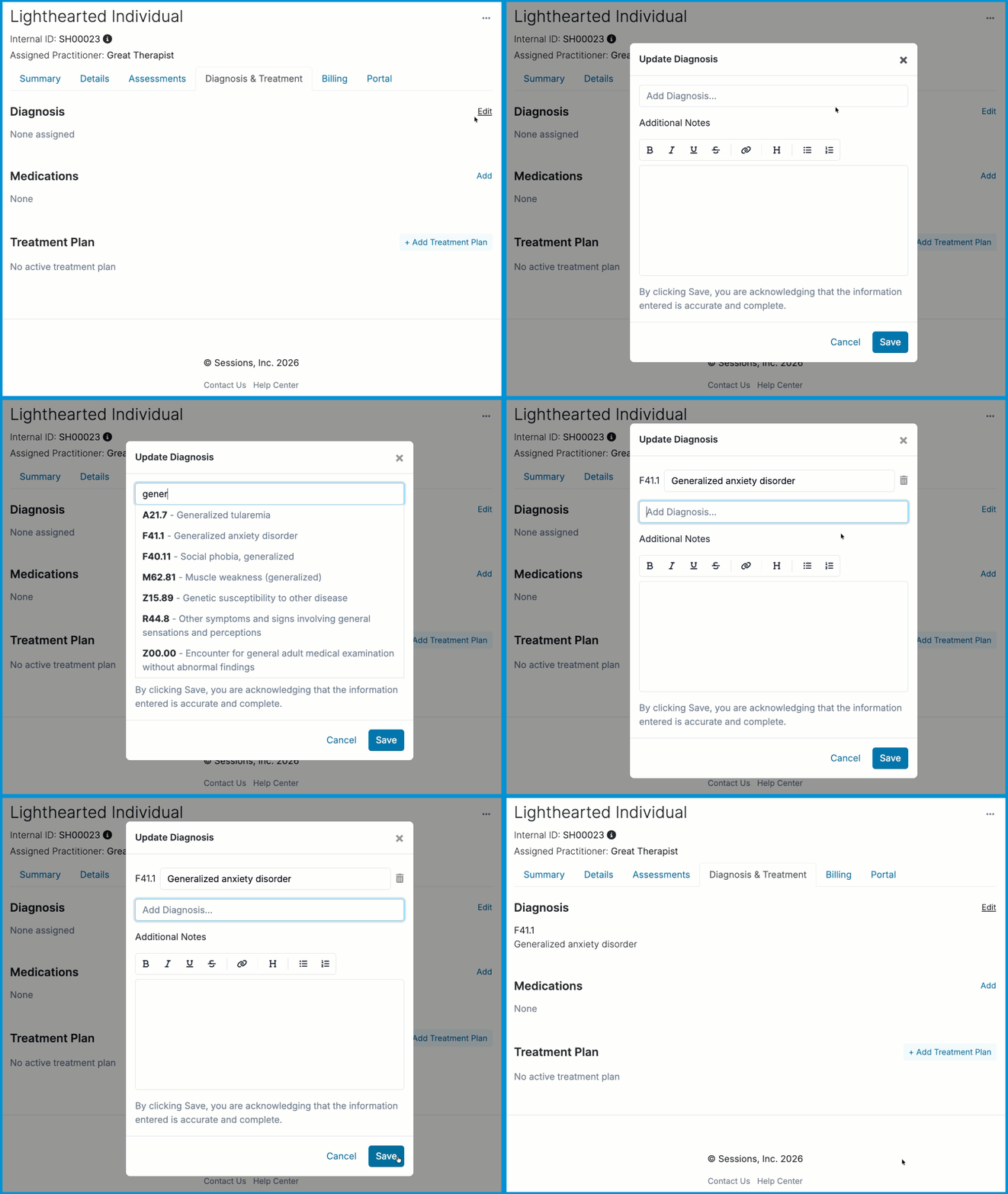
Use these steps to add one or more diagnoses to a client’s chart.
- Open the client’s chart and go to the Diagnosis & Treatment tab.
- In the Diagnosis section, select Edit.
- Start typing an ICD‑10 code or description.
- Choose the correct diagnosis.
- Add additional diagnoses if needed.
- Select Save to add the diagnosis to the client’s chart.
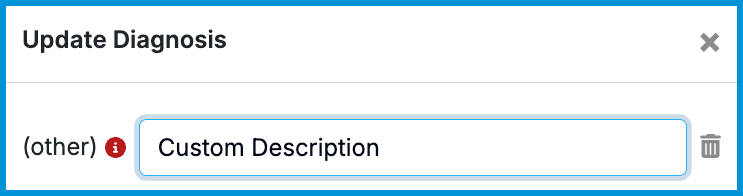
💡 You can add a custom description by selecting Other when adding a diagnosis. Custom diagnoses are not billable to insurance. If you need an ICD‑10 code that is not available in the list, contact support@sessionshealth.com and we can add it.
Updating a Diagnosis for a Specific Session
Diagnoses are time‑stamped so each session reflects the diagnosis that was active at that time.
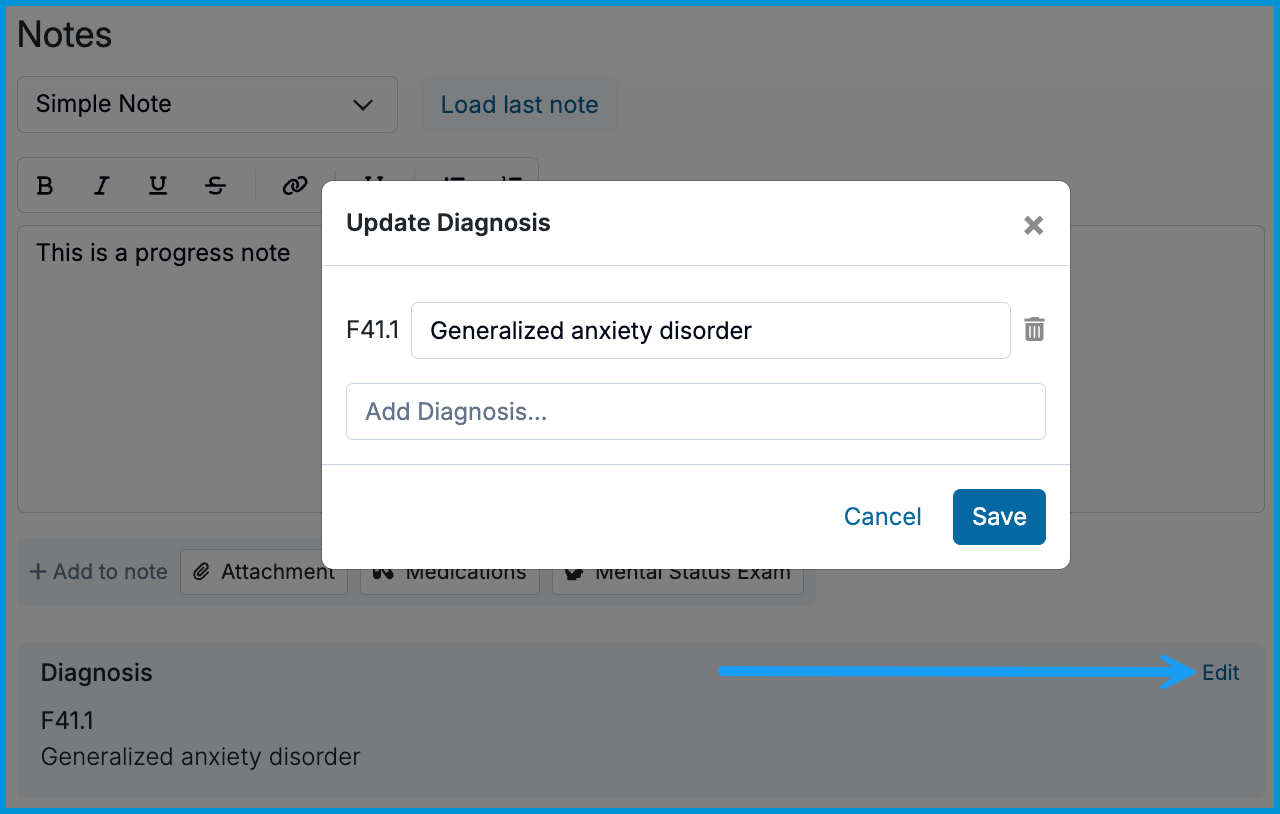
- Open the session note.
- Select Edit in the Diagnosis field.
- Choose the updated diagnosis.
- Complete and sign the note.
🖊️ Existing documents, such as superbills, claims, and completed notes, keep the diagnosis that was active when the note was originally signed.
Deleting a Diagnosis from the Client Summary Tab
If you accidentally add a duplicate diagnosis or need to remove an entry from the client’s Summary tab, you can delete it.
💡 Removing a diagnosis from the Summary tab does not remove it from the client's chart.
To remove an entry:
- Open the client’s Summary tab.
- Find the diagnosis entry.
- Select the three-dot menu next to the entry and choose Delete.
- Confirm the deletion.
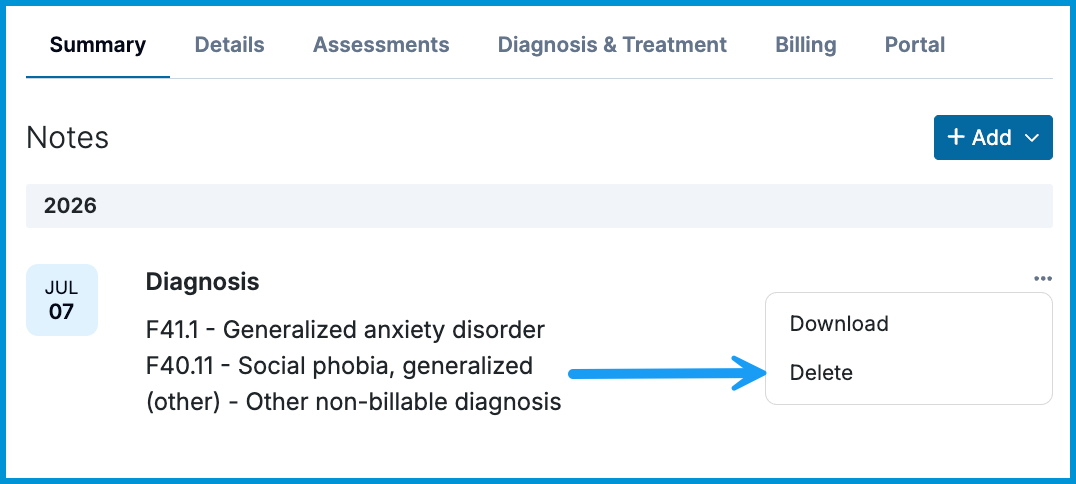
🗑️ Deleting a diagnosis from the Summary cannot be undone. Be sure you are removing the correct entry before confirming.
Frequently Asked Questions
Can I add more than one diagnosis?
Yes. You can add multiple diagnoses to a client’s chart.
Why does Sessions Health use ICD‑10 codes?
Sessions Health uses ICD‑10 codes because ICD‑10 is the current standard for medical billing in the United States. You can override descriptions if you prefer your own wording.
Why is a diagnosis marked as non‑billable?
Some ICD‑10 codes aren’t eligible for insurance billing. Sessions Health flags these with a warning so you know they can’t be billed toward insurance. Non‑billable codes still appear on superbills and claims.
Can I change a diagnosis on a progress note after signing it?
Yes, but you must unlock the note first. Your ability to unlock notes depends on your organization’s note‑unlocking settings. Once the note is unlocked, you can update the diagnosis and re‑sign the note.
Related Resources
You may find these related articles helpful as you continue working in your clients' charts: