
Creating Non‑Session Notes
This article walks through the three types of non-session notes you can create in Sessions Health. You will learn how to add Administrative Notes, Clinical Notes that are not tied to an appointment, and Client Contact Notes created directly from the calendar. This helps you document clearly and keep your client records organized.
In this article:
- Video Tutorials
- Creating Administrative Notes
- Creating Clinical Notes
- Creating Client Contact Notes
- Frequently Asked Questions
- Related Resources
Video Tutorials
Administrative Notes
A quick walkthrough on adding, formatting, and managing Administrative Notes in Sessions Health.
Clinical Notes
A brief video walkthrough showing how to write, edit, and securely manage Clinical Notes.
Creating Administrative Notes
Administrative Notes are non-clinical notes added to a client’s chart. They are often used by admins or clinicians to track important details that do not belong in clinical documentation.
ℹ️ Administrative Notes are visible to anyone who has access to the client’s chart. If you need to document sensitive or clinical information, create a Clinical Note instead.
Steps to Create an Administrative Note
- Open the client’s chart and select the Summary tab.
- Select the +Add button and choose Administrative Note.
- Complete the fields in the modal:
- Title: Enter a custom title for the note
- Sticky Note: Optionally pins the note so it appears in more places
- Date & Time: Set when the note should be recorded
- Upload: Optionally add attachments such as Images, PDFs, ZIP files, Word or Office documents, Spreadsheets, Audio, Video, or Plain Text files
- Select Save.

Sticky Notes
Sticky notes appear in yellow at the top of the client's Summary tab, in the top-right corner of the client’s chart, and at the bottom of appointment pop-ups. The full text displays in these three locations when Sticky Note is selected.
ℹ️ There is no limit to the number of sticky notes a client can have. The most recent one will always display first.


Creating Clinical Notes
Clinical Notes can be created even when there is no session to attach them to. This is helpful for documentation such as termination notes, discharge summaries, or other clinical updates.
Steps to Create a Clinical Note
- Open the client’s chart and select the Summary tab.
- Select the +Add button and choose Clinical Note.
- Complete the fields:
- Title: Name the clinical note.
- Date & Time: Set when the note should be recorded.
- Optionally select your preferred note template.
- Enter your clinical documentation in the notes field.
- Select Sign and Complete.
- Confirm your signature and select Sign and Complete.
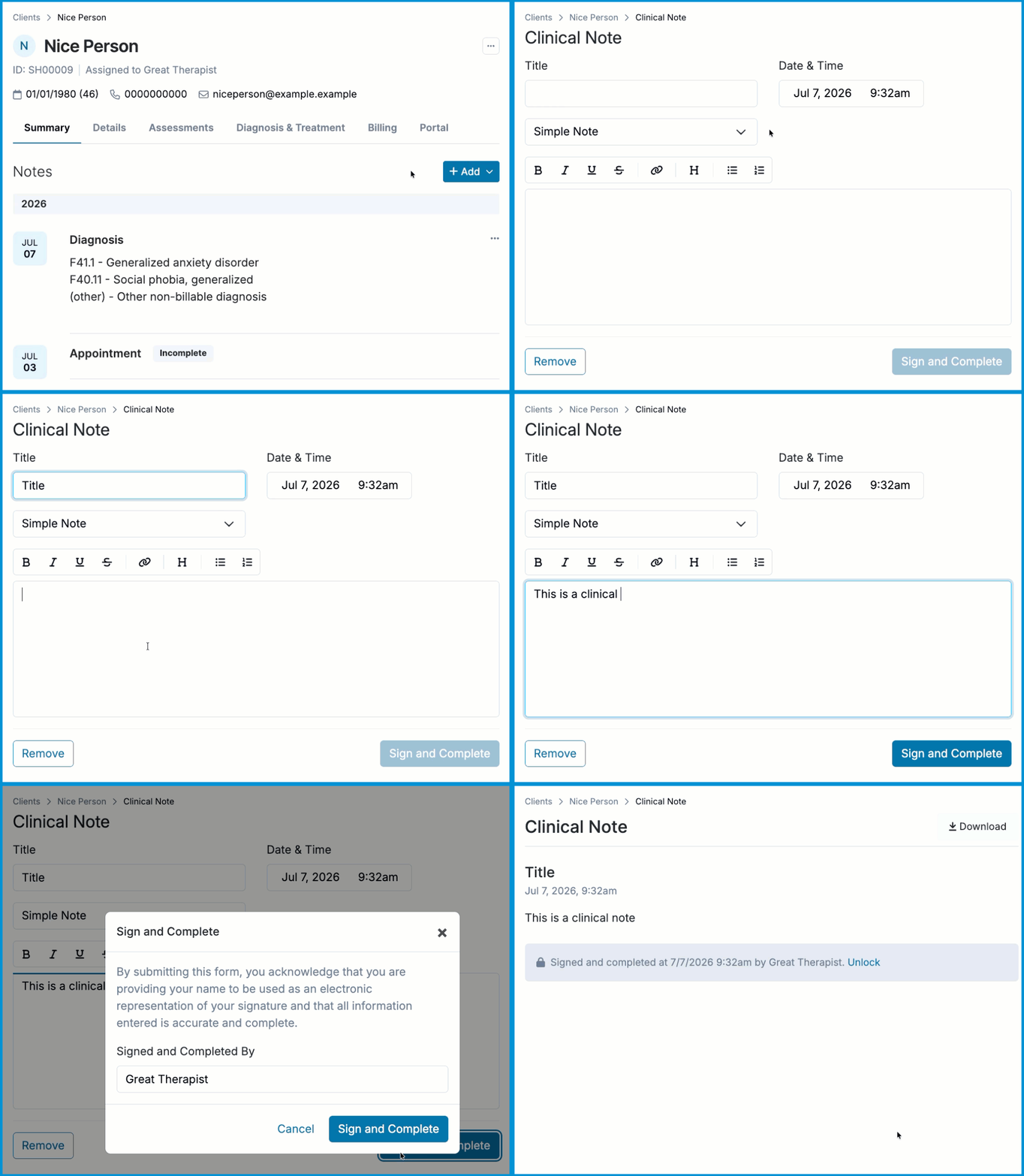
ℹ️ Clinical Notes automatically save as you type. Incomplete notes will display an Incomplete badge on the client's Summary tab until finalized.
👥 If your practice uses Supervision, Clinical Notes can follow the same oversight rules as Progress Notes. See Supervision: Notes for more information.
Creating Client Contact Notes
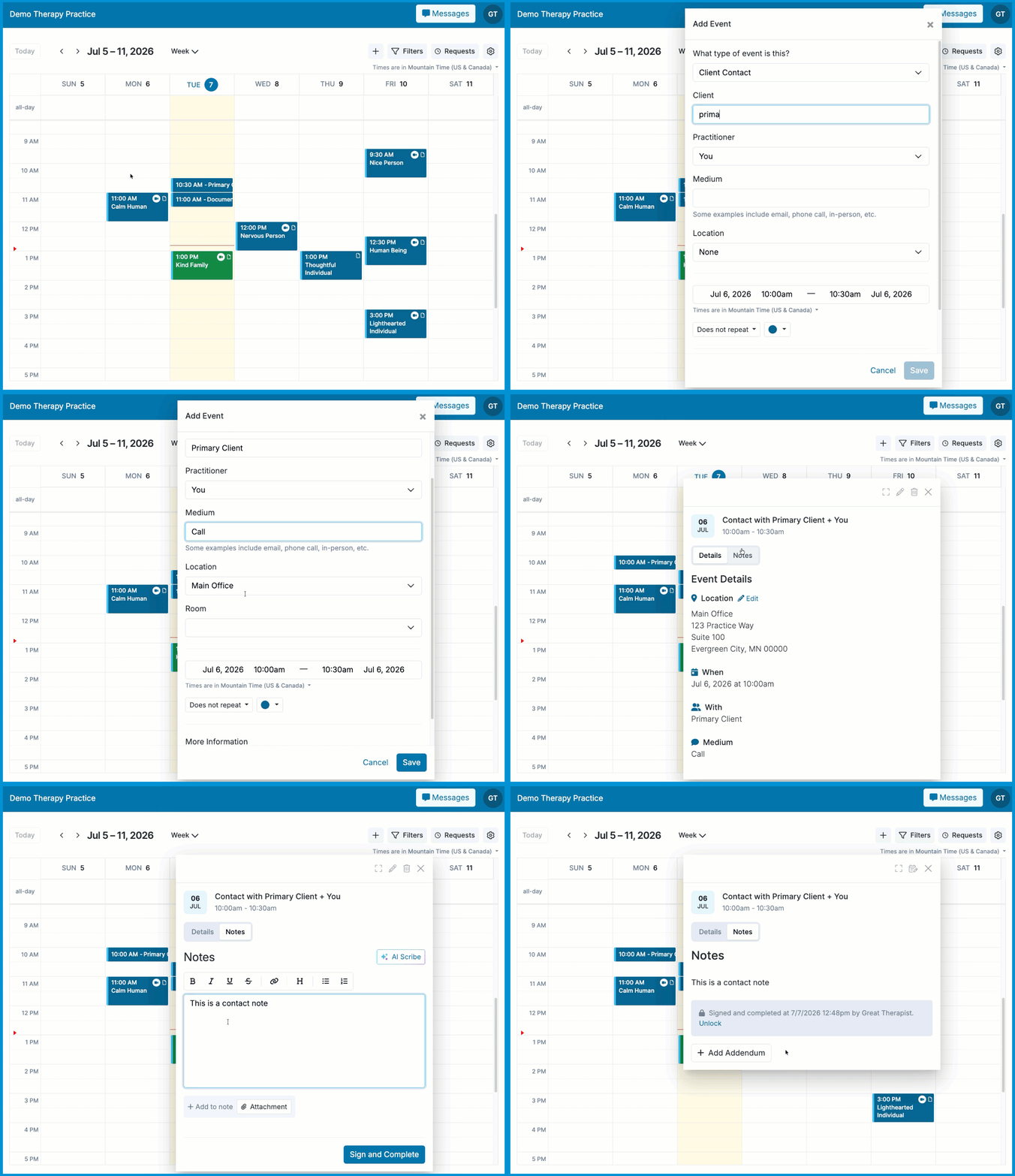
Client Contact Notes are created from calendar events and are used to document non-session interactions such as phone calls, emails, or brief check-ins.
Steps to Create a Client Contact Note
- Open the calendar and select the date and time of the contact.
- Choose Client Contact from the What type of event is this? dropdown.
- Complete the event details:
- Client: Enter the client's name
- Practitioner: Select the applicable practitioner
- Medium: Where or how the contact took place
- Location: Optionally select a location
- Date & Time: Adjust the date and time if needed
- More Information: Optionally add additional details
- Select Save.
- Open the event and select the Notes tab.
- Complete the Notes field.
- Select Sign and Complete.
Accessing Client Contact Notes
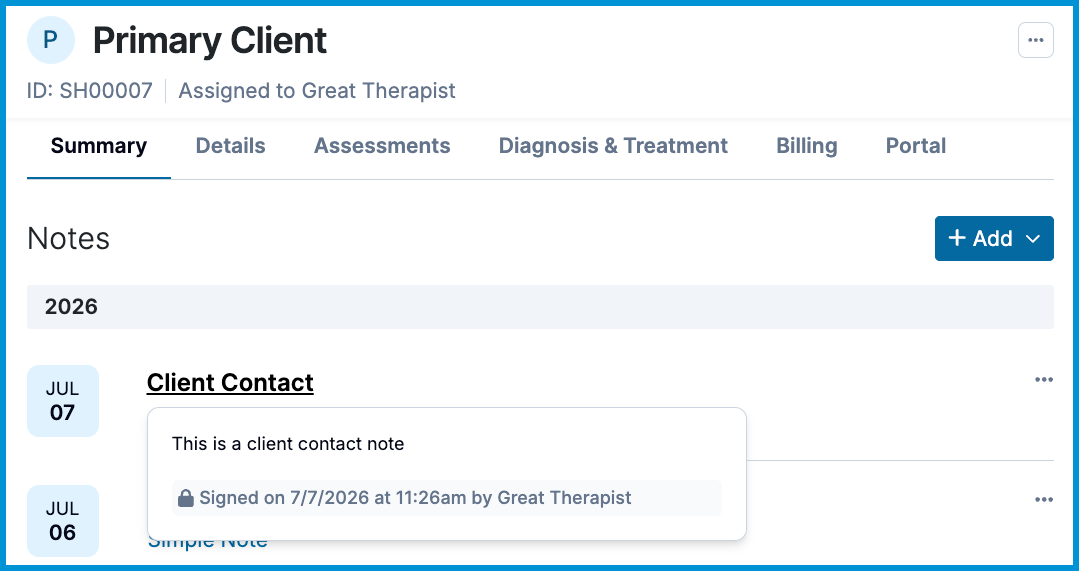
You'll see the Client Contact event on the client's Summary tab. Hover over the note to see a preview, or select Client Contact to open the complete note.
Frequently Asked Questions
Can I edit, delete, or archive a non‑session note?
Administrative Notes can be edited or archived at any time, and archiving removes the note from the client’s chart.
Clinical Notes and Client Contact Notes work differently. Unsigned drafts can be edited or removed. Once you select Sign and Complete, the note becomes part of the client’s permanent clinical record. If you need to update or remove a locked note, it must be unlocked by the practitioner or a supervisor based on your practice’s permissions.
Who can see Administrative Notes?
Administrative Notes are visible to practice members who have access to the client’s chart.
Can I attach files to non-session notes?
Yes. You can upload attachments to Administrative Notes, Clinical Notes, and Client Contact Notes. Attachments may include Images, PDFs, ZIP files, Word or Office documents, Spreadsheets, Audio, Video, or Plain Text files.
Can I use my existing note templates for Clinical Notes?
Yes. Any note template available in your account can be used when creating a Clinical Note. Clinical Note templates can be added or customized from Forms & Documents > My Forms > Notes.
Does your platform offer dictation?
No, the platform doesn't contain a dictation feature; however, the device you use likely does. If you have a PC, you may click the Windows button + H to launch speech services. If you have a Mac, follow the instructions in the Dictate messages and documents on Mac article. If you have an iPhone, see the Dictation text on iPhone article.
Related Resources
Here are a few resources that can help you continue working with notes and documentation in Sessions Health: