
Insights: Outstanding Client Balances
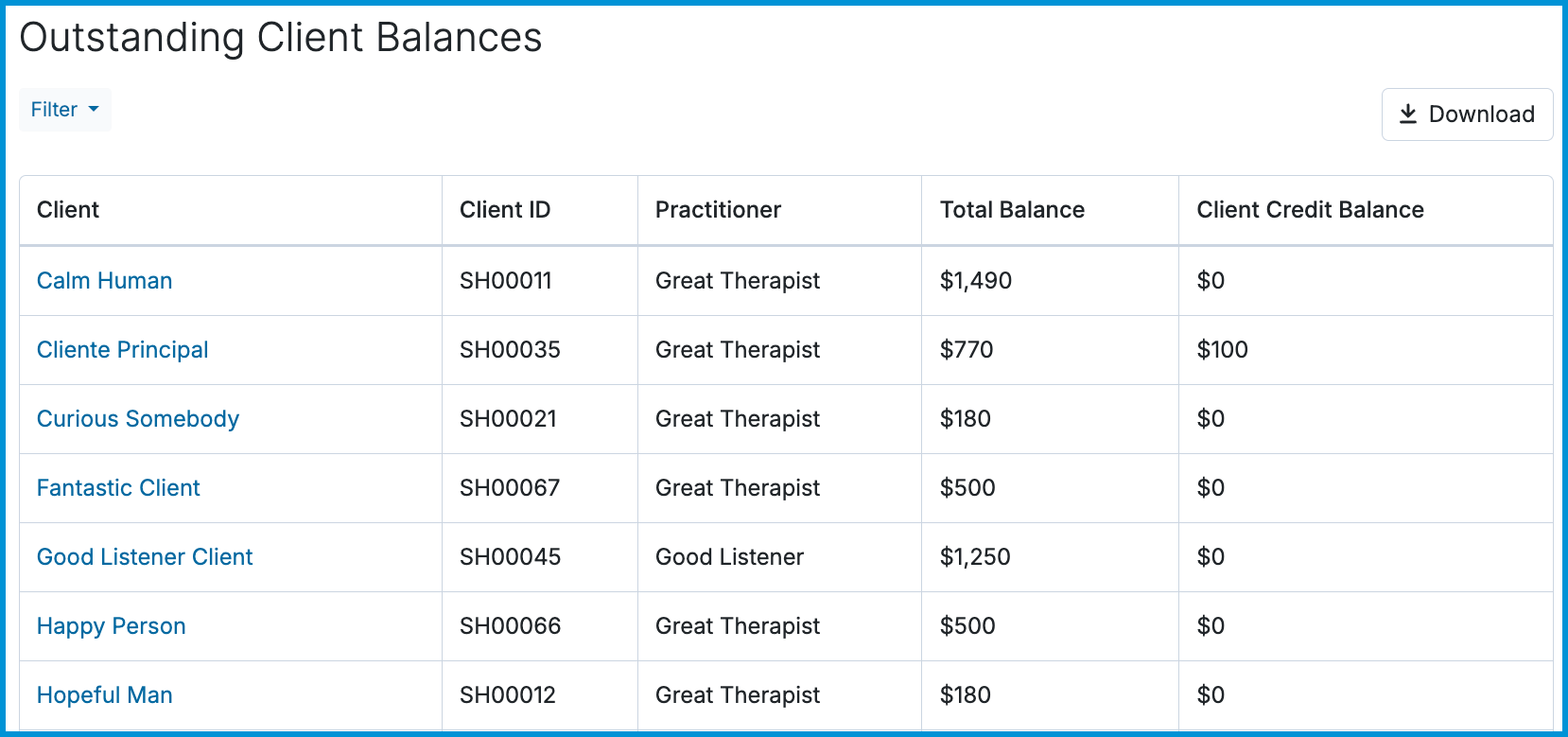
The Outstanding Client Balances report gives an overview of clients with outstanding balances or credits on their accounts, including details such as Client ID, client name, assigned practitioner, total balance, and client credit balance. It helps you track unpaid client balances and manage client credit funds across your practice.
👀 If you don’t see the Outstanding Client Balances report, your permission settings may need to be updated. Please check with your system administrator to review and adjust your access.
In this article:
- Outstanding Client Balances Report Contents
- Using Report Filters
- Sorting by Column
- Downloading Outstanding Client Balances Data
- Frequently Asked Questions
- Related Resources
Outstanding Client Balances Report Contents
The following information is displayed on this report:
| Field | Definition |
|---|---|
| Client | The client associated with the balance or credit |
| Client ID | The client's assigned internal identification number. (Note: This column only displays when Manage Internal IDs for Clients is enabled under Account Settings > Clients.) |
| Practitioner | The practitioner assigned to the client |
| Total Balance | The total outstanding unpaid balance owed by the client |
| Client Credit Balance | The total amount of unapplied credit funds on the client's account |
Using Report Filters
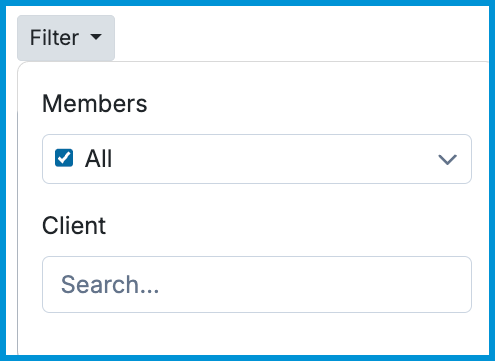
Use filters to narrow your view and focus on specific balance data. Filters let you refine results by practitioner (Members) and client name or Client ID.
Sorting by Column
Select most column headers to sort data in ascending or descending order.
For example, sort by Client to organize alphabetically, by Total Balance to identify clients with the highest outstanding amounts, or by Client Credit Balance to locate accounts with available credit funds.
Downloading Outstanding Client Balances Data
To the right of the filter options, you can download the report as a .csv file by selecting the Download button. The exported CSV includes all displayed fields, including Client ID. You can exclude specific parts of the data as needed by filtering the report before selecting Download.

Frequently Asked Questions
Why don't I see the Client ID column or filter in my report?
Client ID columns and search capabilities are hidden if Manage Internal IDs for Clients is turned off. An account administrator can enable this feature under Account Settings > Clients.
Why isn't a specific client listed on this report?
Clients only appear on this report if they currently have an outstanding balance or an account credit. If a client has a $0 balance and no account credit, they are excluded from the report. If a client has only a balance or only a credit, they will display $0 in the opposite column.
Can I filter this report by practitioner?
Yes. Use the Members filter dropdown menu to select specific practitioners or view all members across the practice.
Related Resources
For more information about client billing and Insights reports, check out these resources: