
Insights: Referral Income
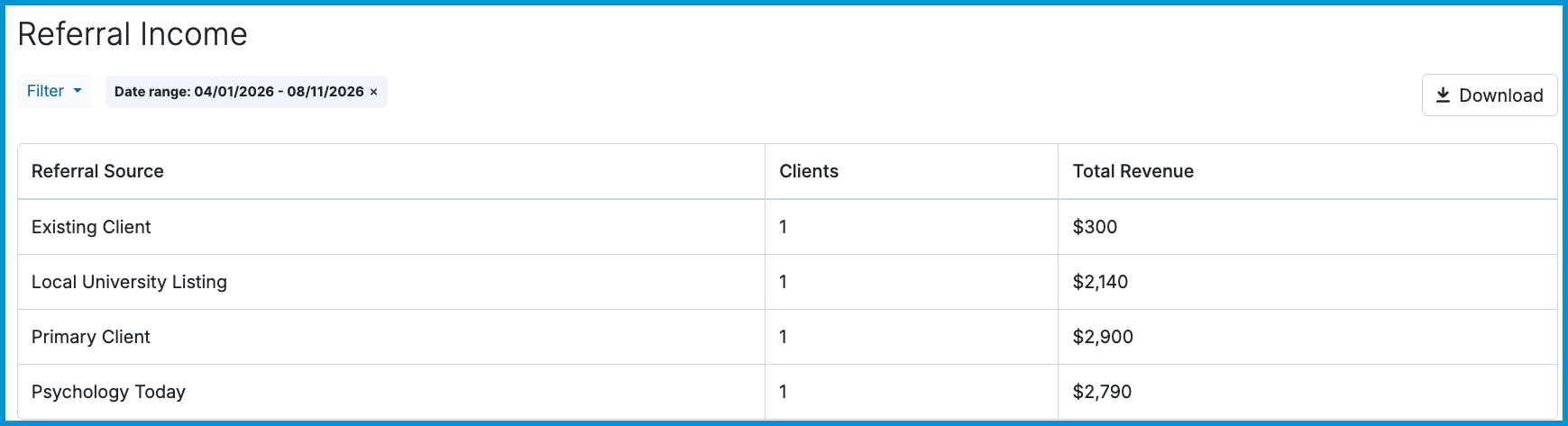
The Referral Income report tracks practice revenue organized by referral source. It provides an aggregate overview showing each recorded referral source, the total number of income-generating clients linked to that source, and the total revenue collected.
👀 If you don’t see the Referral Income report, your permission settings may need to be updated. Please check with your system administrator to review and adjust your access.
In this article:
- Referral Income Report Contents
- Using Report Filters
- Sorting by Column
- Downloading Referral Income Data
- Frequently Asked Questions
- Related Resources
Referral Income Report Contents
The following information is displayed on this report:
| Field | Definition |
|---|---|
| Referral | The referral source name recorded on client charts |
| Clients | The total number of clients linked to that referral source who have recorded income |
| Total Revenue | The total revenue received (client payments and insurance payments combined) from clients associated with the referral source |
Using Report Filters
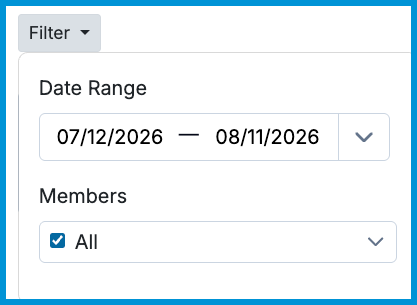
Use filters to narrow your view and focus on specific referral performance data:
- Date Range: Use the date fields at the top of the report to select a specific date range, or select the drop-down arrow next to the date field to choose common preset periods.
- Practitioner: Select the filter icon (three horizontal lines) to isolate data for a single provider or compare performance across multiple practitioners in group practices.
Sorting by Column
Select most column headers to sort data in ascending or descending order.
For example, sort by Referral to organize sources alphabetically, or sort by Clients or Total Revenue to rank your top-performing referral channels numerically.
Downloading Referral Income Data
To the right of the filter options, you can download the report as a .csv file by selecting the Download button in the upper-right corner. You can exclude specific parts of the data as needed by filtering the report before selecting Download.

Frequently Asked Questions
Where can I view or enter a client's referral source?
To view or update a client's referral source, navigate to Clients > [Client Name] > Details. Scroll to the bottom of the details section to find the Referred By field.
Why aren't all of my clients appearing in the referral count?
A client only counts toward a referral source's total once income (from client payments or insurance payments) has been recorded on their account. Clients who have a referral source listed but no payments recorded are excluded from the client count until revenue is received.
Related Resources
For more information about marketing tracking and Insights reports, check out these resources:
The Referral Income report tracks the amount of income your practice has made based upon the referral source.
It includes the referral, the number of clients with that referral, and the total revenue. The report is customizable by date and/or practitioner, if there are multiple providers in the practice. Each column heading is sortable. You can click on any of the column headings to sort the column by that category.

As with all Sessions Health insights reports, you can download the report as a .CSV file by clicking Download in the top right hand corner.
Frequently Asked Questions
Where can I find a client's referral source?
To find or enter a client's referral source, navigate to [Client Name] > Details. At the bottom of that section will be a Referred By box that will contain the referral source.
Why is it not showing all of my clients?
If a client has a referral source listed in their chart, but there has been no income from that client (either from client payments or insurance payments), the client will not show up in the client count. Once there is income on the client's chart, that client will be included in the client count.