
Supervision: Assessments
This guide walks supervisors and supervisees through the review process for clinical assessments. Once a supervisee signs a form, it goes straight to the supervisor's dashboard for final sign-off or edit requests.
💡 For a high-level overview or to configure your practice roles, see Supervision: Comprehensive Guide and Supervision: Setting Up Supervision.
ℹ️ Why this is different: Assessments only go to a supervisor if that specific form type is set to require review. Notes and treatment plans always route for supervision, but assessments depend on the form’s settings. See Require Supervision on Assessment Types for setup steps.
In this article:
Supervision Workflow for Assessments
Assessments follow a structured review process when both the practitioner’s permissions and the form settings require a supervisor’s signature. Here’s the workflow at a glance:
- Supervisee completes and signs the assessment.
- Supervisor reviews and either approves or requests edits.
- If edits are requested, the supervisee revises and re‑signs.
- Supervisor signs and approves the final version.
Step 1. Supervisee completes the assessment
Supervisees can complete an assessment directly within a client’s chart or open a submission filled out by a client through the Client Portal.
To start the review process, the supervisee signs the form.
- Open the client chart and select the Assessments tab.
- Start a new form or open a completed portal submission.
- Fill out or review the fields.
- Select Sign and Complete.
An Awaiting supervisor review banner will appear on the form, and the document locks while awaiting supervisor action.
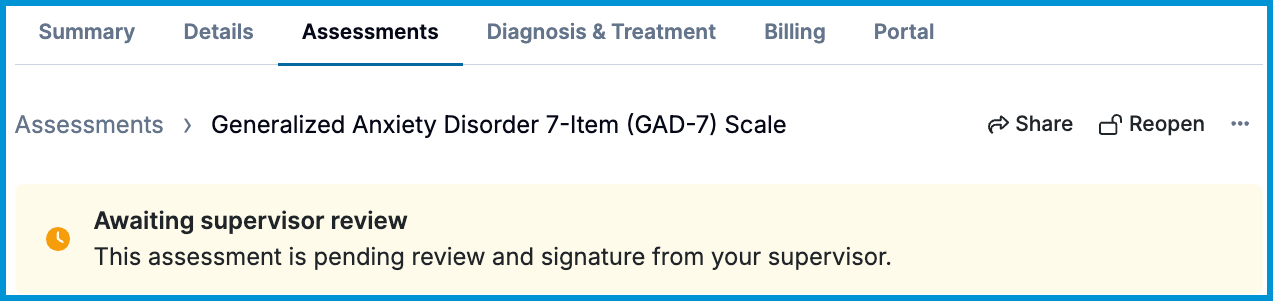
Step 2. Supervisor reviews and signs
Once signed by a supervisee, the assessment routes automatically to the assigned supervisor's dashboard.
Supervisors find pending forms under Home > Needs Attention > Needs Signature.
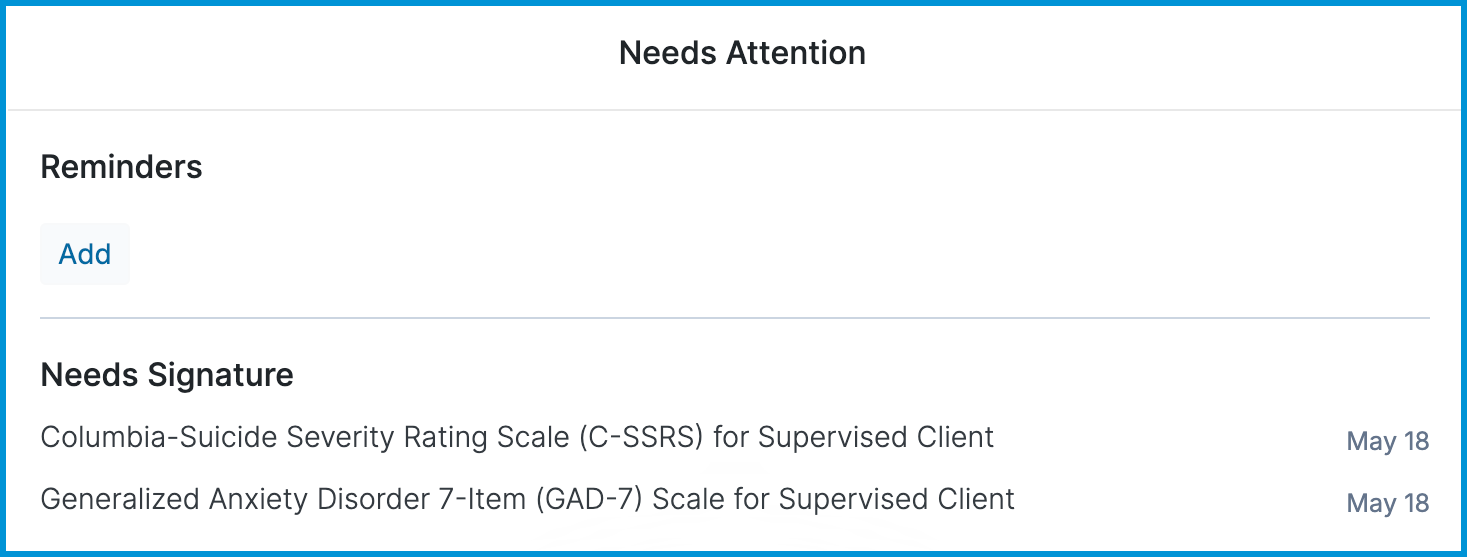
Step 3. Supervisor requests edits (optional)
If the supervisor notices an item that needs adjustment, they can return it to the supervisee for changes before signing off. If the documentation looks good on the first pass, the supervisor can skip directly to Step 5.
Request Edits
- Select Request Edits at the bottom of the assessment form.
- Optionally add a comment.
- Select Submit Request.
This action unlocks the assessment and routes it back to the supervisee.
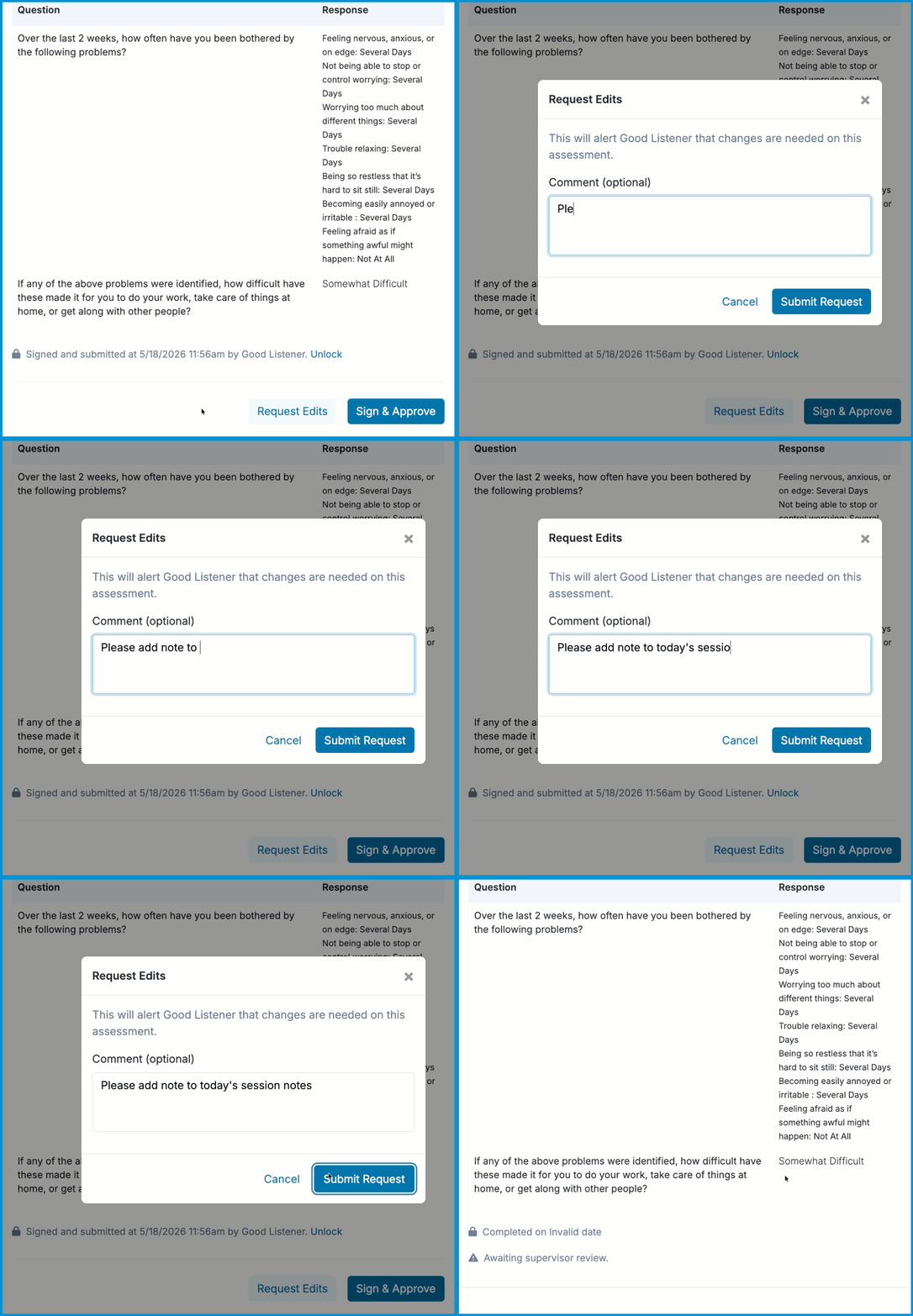
Step 4. Supervisee revises and re‑signs (optional)
When a supervisor requests updates, the supervisee sees the form reappear on their dashboard to resolve the feedback.
- Go to Home > Needs Attention and open the form from Needs Revision.
- Read the supervisor's comments at the top of the page.
- Make the necessary changes to the fields.
- Select Sign and Complete to resubmit.
After re‑signing, the form returns to the supervisor’s Needs Signature section.
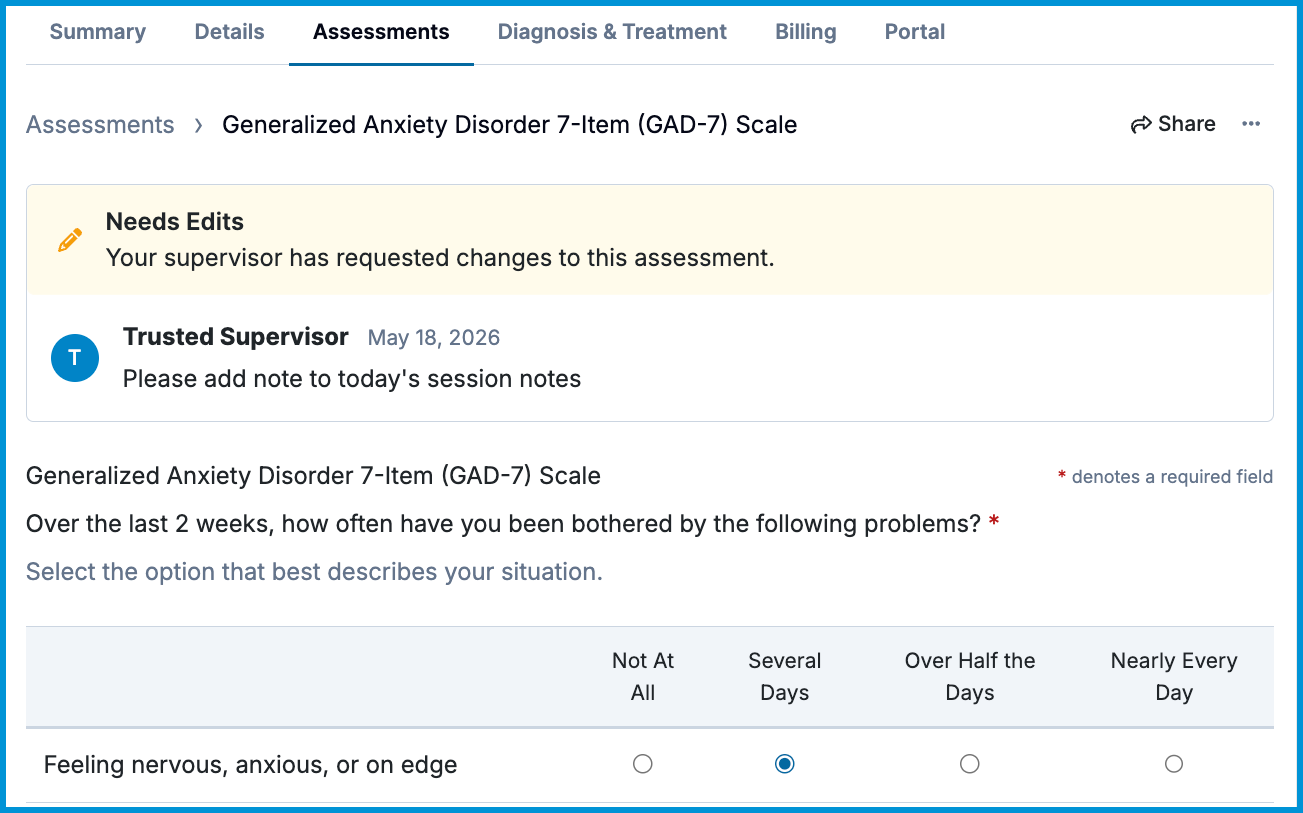
Step 5. Supervisor signs and approves
When the assessment is ready for final approval, the supervisor completes the clinical document.
- Open the assessment and scroll to the bottom.
- Select Sign & Approve.
- Confirm your signature, then select Sign and Complete.
The pending banner disappears, and the assessment permanently saves to the client’s clinical health record.

Frequently Asked Questions
Do supervisors need the Practitioner role to review assessments?
No. Supervisors only need the Supervisor role. They are not billed unless they also have the Practitioner role.
Does changing a supervisor affect existing assessments?
No. Historical signatures remain unchanged. Supervisees must unlock and re‑sign older assessments if they need to route to a new supervisor.
Does client‑level supervision affect assessments?
Yes. If a client has a client‑specific supervisor, their assessments route to that supervisor instead of the practitioner’s default supervisor. For details, see Assign a Client‑level Supervisor.
Related Resources
For more information, see our other Help Center articles: