
Supervision: Setting Up Supervision
Supervision settings define who can review, provide feedback on, and co‑sign a practitioner’s clinical documentation. This article explains how to assign the Supervisor role, set up signature requirements for notes, plans, and assessments, and manage supervisor assignments across your practice.
💡 If you’re looking for an overview of how supervision works in Sessions Health, see Supervision: Comprehensive Guide.
- Assign the Supervisor Role
- Assign a Supervisor to a New Practitioner
- Assign a Supervisor to an Existing Practitioner
- Require Supervision on Assessment Types
- Updating or Removing a Supervisor Assignment
- Frequently Asked Questions
- Related Resources
Assign the Supervisor Role
A team member must have the Supervisor role before they can review or co‑sign documentation.
To Assign the Supervisor Role
- Go to Account Settings > Members.
- Open the three‑dot menu next to the team member's name.
- Select Edit Permissions.
- Turn on Supervisor.
- Select Save.
Once assigned, the team member can be selected as a supervisor for practitioners or individual clients.

Assign a Supervisor to a New Practitioner
You can assign a supervisor while inviting a new practitioner.
To Assign a Supervisor During the Invitation Process
- Select + Add Member.
- Enter the practitioner’s email address.
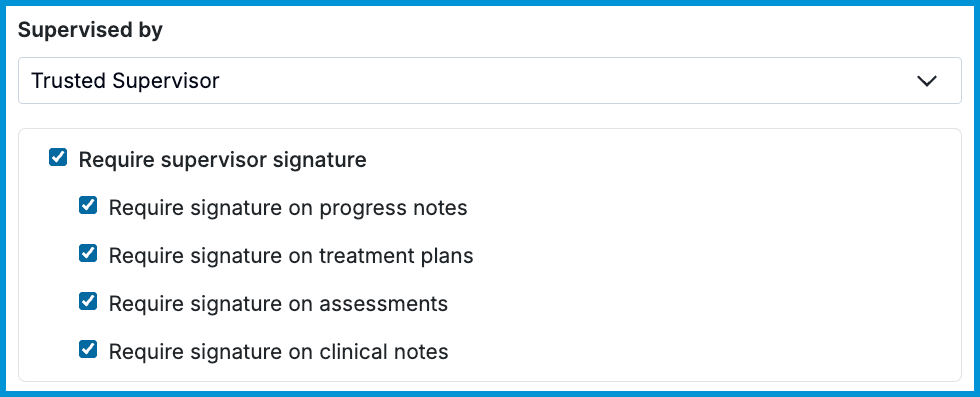
- Scroll to Supervised By.
- Choose the supervisor from the drop‑down list.
- Select whether the supervisor’s signature is required for progress notes, treatment plans, assessments, clinical notes, or a combination.
- Select Send Invite.
💡 A supervisor must accept their invitation before they can be assigned supervisees.
Assign a Supervisor to an Existing Practitioner
If a practitioner joins without a supervisor or needs an update, you can assign or change their supervisor at any time.
To Assign or Update a Supervisor
- Go to Account Settings > Members.
- Open the three‑dot menu next to the practitioner's name.
- Select Edit Permissions.
- Choose a supervisor in Supervised By.
- Select whether the supervisor’s signature is required for progress notes, treatment plans, assessments, clinical notes, or a combination.
- Select Save.
💡 Hover over the Supervisee label in the Roles column to see who supervises that practitioner.

Require Supervision on Assessment Types
Assessments have one extra setup step. A completed assessment will only route to a supervisor if that specific form type is also set to require a review.
To Turn On Supervision for an Assessment
- Go to Forms & Documents > My Forms.
- Select the assessment you want to update.
- Select Settings.
- Check the box labeled Require Supervision.
- Select Save.

💡 Changes apply to all future assessments of this form type. Existing assessments already completed or in progress remain unchanged.
Updating or Removing a Supervisor Assignment
You can update or remove a practitioner’s supervisor at any time.
To Update or Remove a Supervisor
- Select the three‑dot menu next to the supervisee’s name.
- Select Edit Permissions.
- Update the Supervised By field to choose a new supervisor, or clear the field to remove the supervisor entirely.
- Select Save.
How This Affects Existing Documentation
- Notes signed before a supervisor was assigned will not route to the new supervisor.
- The supervisee must unlock and re‑sign older notes for them to appear in the new supervisor’s review list.
- Whether older notes can be unlocked depends on your practice's Notes settings.
Frequently Asked Questions
Can a practitioner have more than one supervisor?
Yes. A practitioner can have one default supervisor and different supervisors assigned for specific clients. See Assign a Client‑level Supervisor for steps.
Where do supervisors find items that need review?
Supervisors see all items awaiting their review under Home > Needs Attention.
What happens if a supervisor is removed from the practice?
Existing documentation stays intact. Any items awaiting review must be reassigned to another supervisor before they can be completed.
Related Resources
Use these resources to learn more about supervision and managing team roles in Sessions Health: