
Supervision: Treatment Plans
This guide walks supervisors and supervisees through the review and approval process for clinical treatment plans. Once a supervisee signs a plan, it goes straight to the supervisor's dashboard for final activation.
💡 For a high-level overview or to configure your practice roles, see Supervision: Comprehensive Guide and Supervision: Setting Up Supervision.
ℹ️ Before you begin: Supervision applies to all treatment plans that require a co‑signature. Supervisees create and sign plans, supervisors review or request edits, and administrators configure supervision settings and permissions.
In this article:
Supervision Workflow for Treatment Plans
Treatment plans follow a structured approval process to ensure goals and interventions are fully reviewed before activation. Here’s the workflow at a glance:
- Supervisee completes and signs the plan.
- Supervisor reviews and chooses an action.
- If edits are requested, the supervisee revises and re‑signs.
- Supervisor activates the plan.
Step 1. Supervisee completes the treatment plan
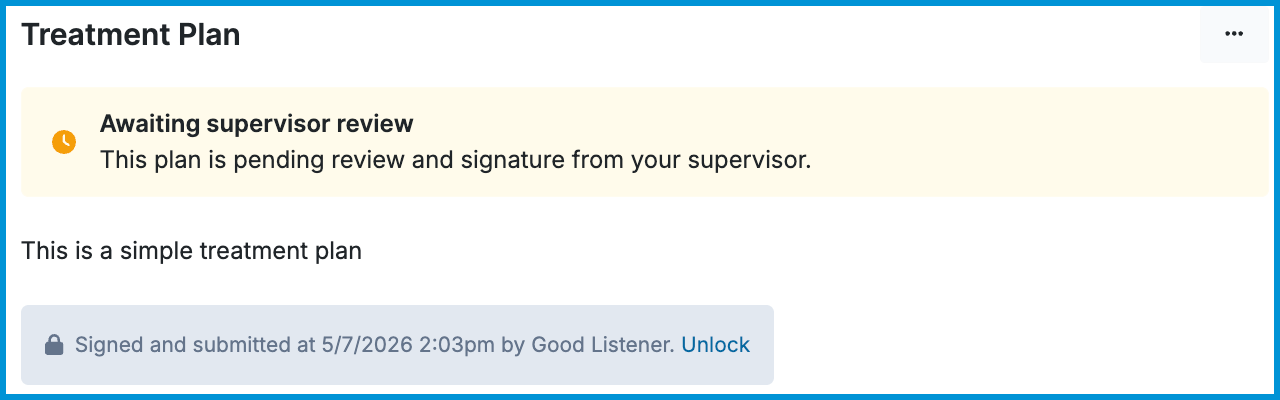
When a supervisee creates a treatment plan under Diagnosis & Treatment:
- The plan is automatically assigned to their supervisor.
- An Awaiting supervisor review banner appears.
Step 2. Supervisor accesses the plan
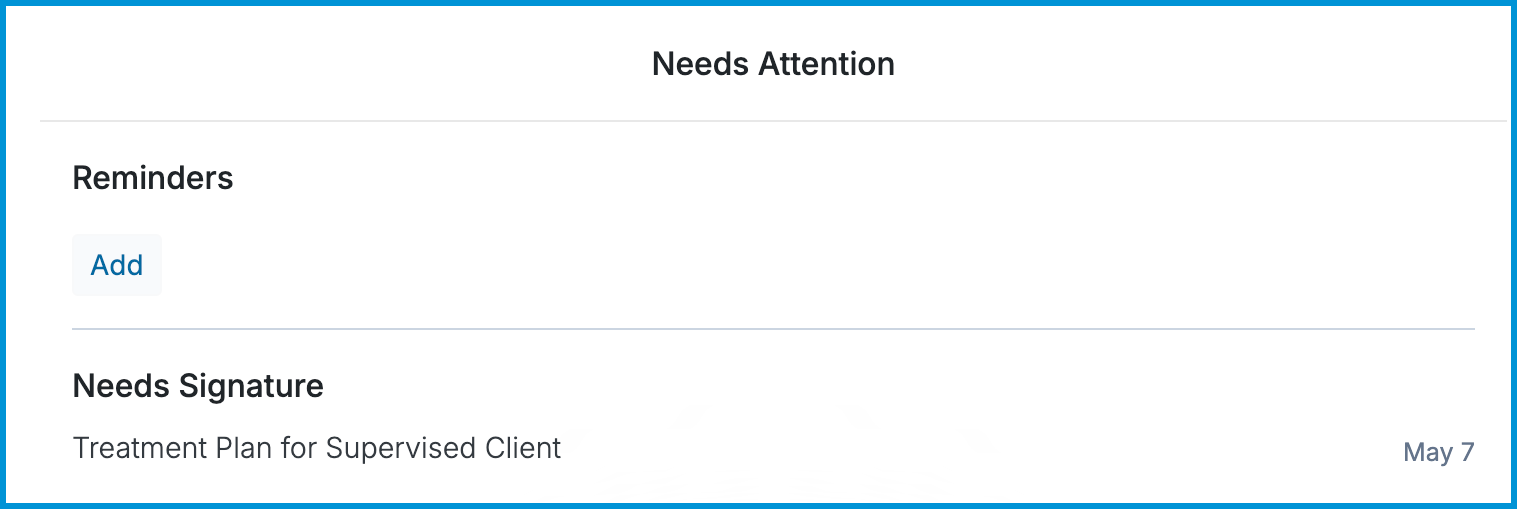
Supervisors find treatment plans awaiting review in: Home > Needs Attention > Needs Signature.
Step 3. Supervisor chooses a review action
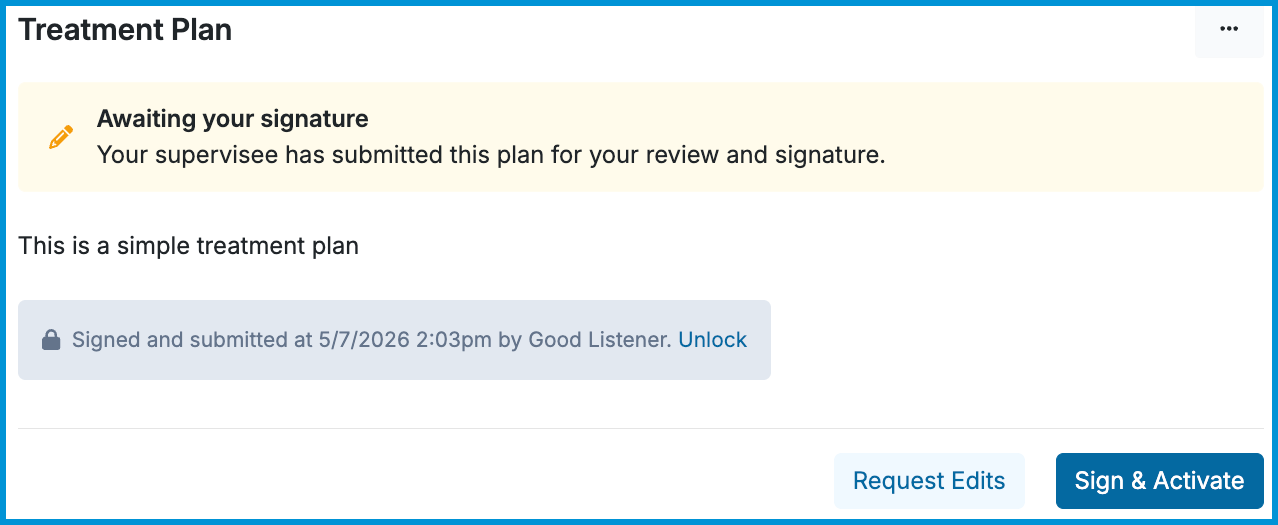
Unlock
- Removes the supervisee’s signature.
- Requires the supervisee to re‑sign.
- Sends the plan to Home > Needs Attention > Needs Revision for the supervisee.
Request Edits
- Allows supervisors to provide feedback.
- Unlocks the plan.
- Sends it to Needs Revision.
Sign & Activate
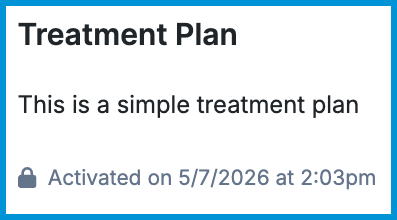
- Completes and activates the treatment plan.
Step 4. Supervisee revises and re‑signs (optional)
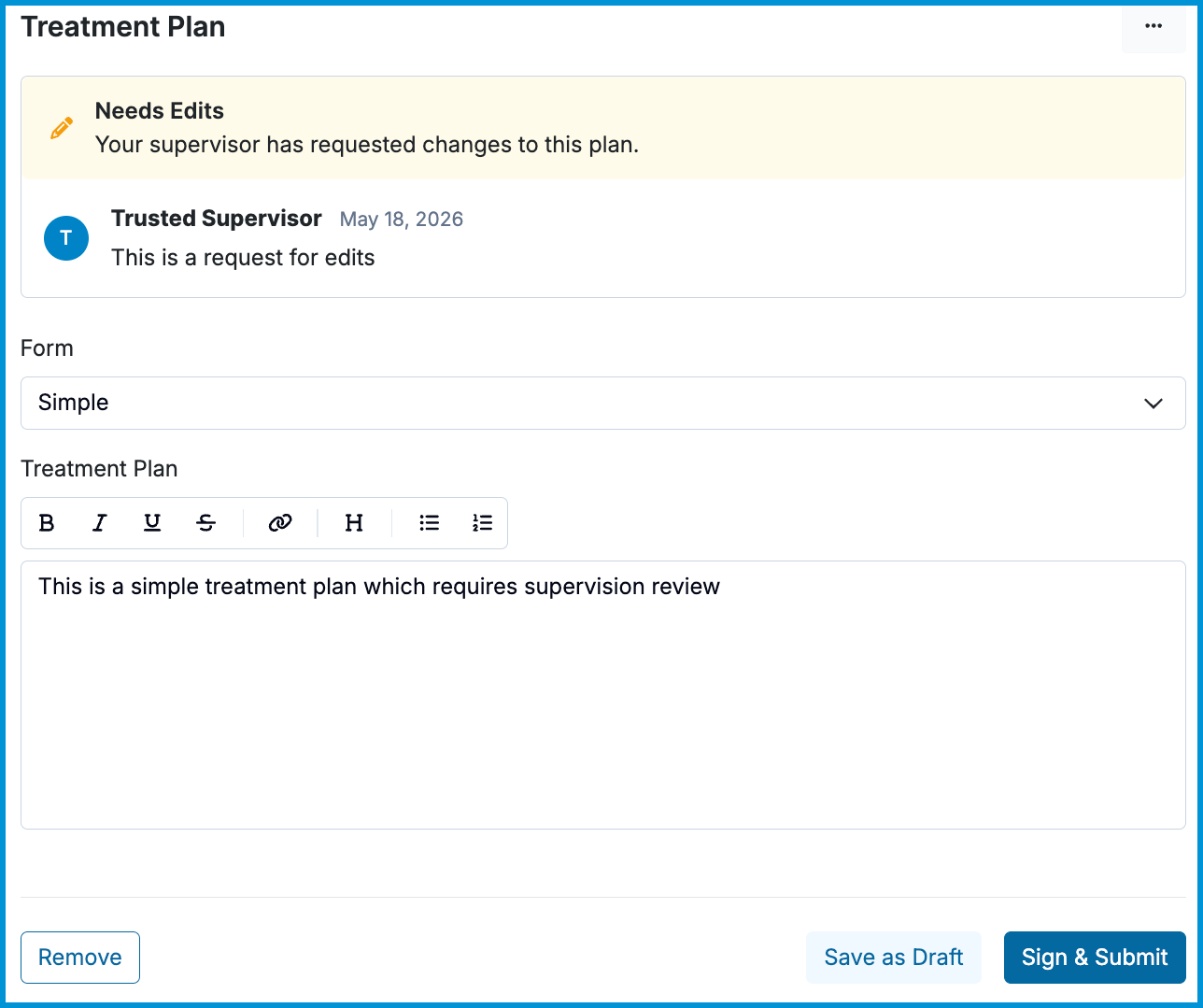
If the plan is unlocked or edits are requested:
- The supervisee sees the plan in Needs Revision.
- Supervisor comments appear at the top of the plan.
- The supervisee updates and re‑signs the plan.
After re‑signing, the plan returns to the supervisor’s Needs Signature section.
Step 5. Supervisor completes the review
The supervisor selects Sign & Activate to finalize the plan. If additional edits are needed, the supervisor can return to Request Edits (Step 3).
Frequently Asked Questions
Do supervisors need the Practitioner role to review treatment plans?
No. Supervisors only need the Supervisor role. They are not billed unless they also have the Practitioner role.
Does changing a supervisor affect existing treatment plans?
No. Historical signatures remain unchanged. Supervisees must unlock and re‑sign older treatment plans if they need to route to a new supervisor.
Does client‑level supervision affect progress notes and treatment plans?
Yes. If a client has a client‑specific supervisor, their treatment plans route to that supervisor instead of the practitioner’s default supervisor. For details, see Assign a Client‑level Supervisor.
Related Resources
For more information, see our other Help Center articles: