
Notes Settings and Unlocking Signed Notes
This guide explains how account administrators configure practice-wide rules for unlocking signed notes, and how practitioners can reopen and edit signed records.
ℹ️ Need to add details to a progress note without altering the original record? Check out our guide on Addendums to Progress Notes.
📋 To create or edit note templates, head to Account Settings > Forms & Documents and see our guide on Using System Forms.
In this article
- Video Tutorial
- Enabling Note Unlocking Features
- Unlocking and Editing a Signed Note
- Frequently Asked Questions
- Related Resources
Video Tutorial
Learn how to configure note unlocking policies, set custom editing timeframes, and manage addendums under the Notes tab.
Enabling Note Unlocking Features
Practice administrators can set rules for when signed notes can be reopened for editing. These settings apply across your entire practice account.
- Go to Account Settings.
- Select the Notes tab.
- Toggle on Allow signed notes to be unlocked.
- Choose one of the following options under Notes can be unlocked...:
- At Any Time: Select At any time to allow notes to be unlocked at any point after signing.
- Only within a set timeframe: choose Only within [X] hours after the signature has been provided. Enter the maximum number of hours allowed (e.g., 24 or 48).
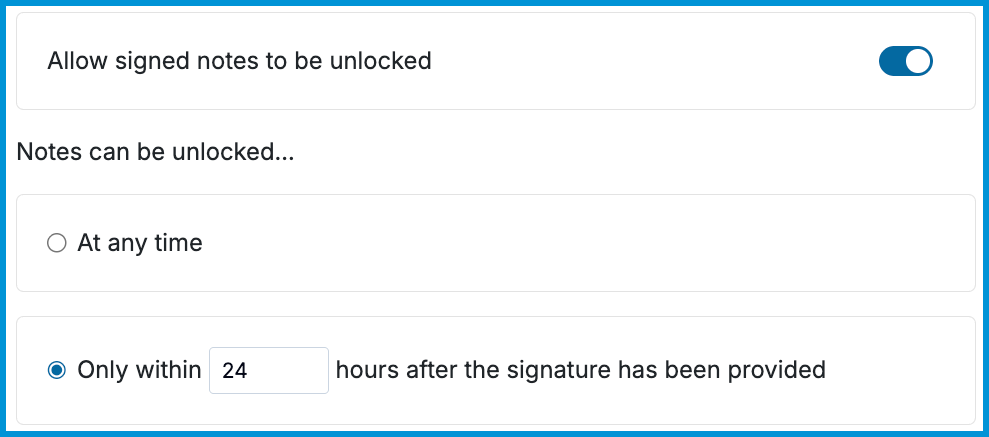
🔒 Prefer to restrict unlocking entirely? Simply disable the toggle Allow signed notes to be unlocked.
Unlocking and Editing a Signed Note
When note unlocking is enabled, practitioners can reopen signed notes directly from a client's chart.
- Open the signed note.
- Scroll to the bottom of the note text.
- Select the blue Unlock link in the signature timestamp banner.
- Edit the note text, attachments, medications, mental status exam, diagnoses, and/or treatment plan.
- Select Sign & Complete to lock the note again.

Frequently Asked Questions
Why don't I see the Unlock link on a signed note?
There are three main reasons you may not see the unlock option:
- Your administrator turned off note unlocking in Account Settings > Notes.
- The allowed timeframe to unlock the note has passed.
- The note has an active addendum attached to it, which temporarily blocks unlocking.
How do addendums affect unlocking a session progress note?
If a session progress note has an active addendum, the main note cannot be unlocked. To unlock the primary progress note, you must first delete the attached addendum. Once removed, the Unlock link will reappear on the main note.
Who can change practice note settings?
Only account administrators have access to change note unlocking rules under Account Settings > Notes.
What happens when a practitioner unlocks and edits a note?
The note reopens for editing. Once changes are made, the practitioner must select Sign & Complete to re-apply their signature and lock the record.
Related Resources
Learn more about managing notes and documentation in your account: